Mit der Registrierung bestätigst du, dass du mindestens 16 Jahre alt bist, und akzeptierst die AGB. Wie wir deine Daten verarbeiten, steht in der Datenschutzerklärung.
Screenshot erscheint nach ZustimmungScreenshot erscheint nach ZustimmungScreenshot erscheint nach ZustimmungScreenshot erscheint nach ZustimmungScreenshot erscheint nach ZustimmungScreenshot erscheint nach ZustimmungScreenshot erscheint nach ZustimmungScreenshot erscheint nach ZustimmungScreenshot erscheint nach ZustimmungScreenshot erscheint nach Zustimmung
Zusammenfassung
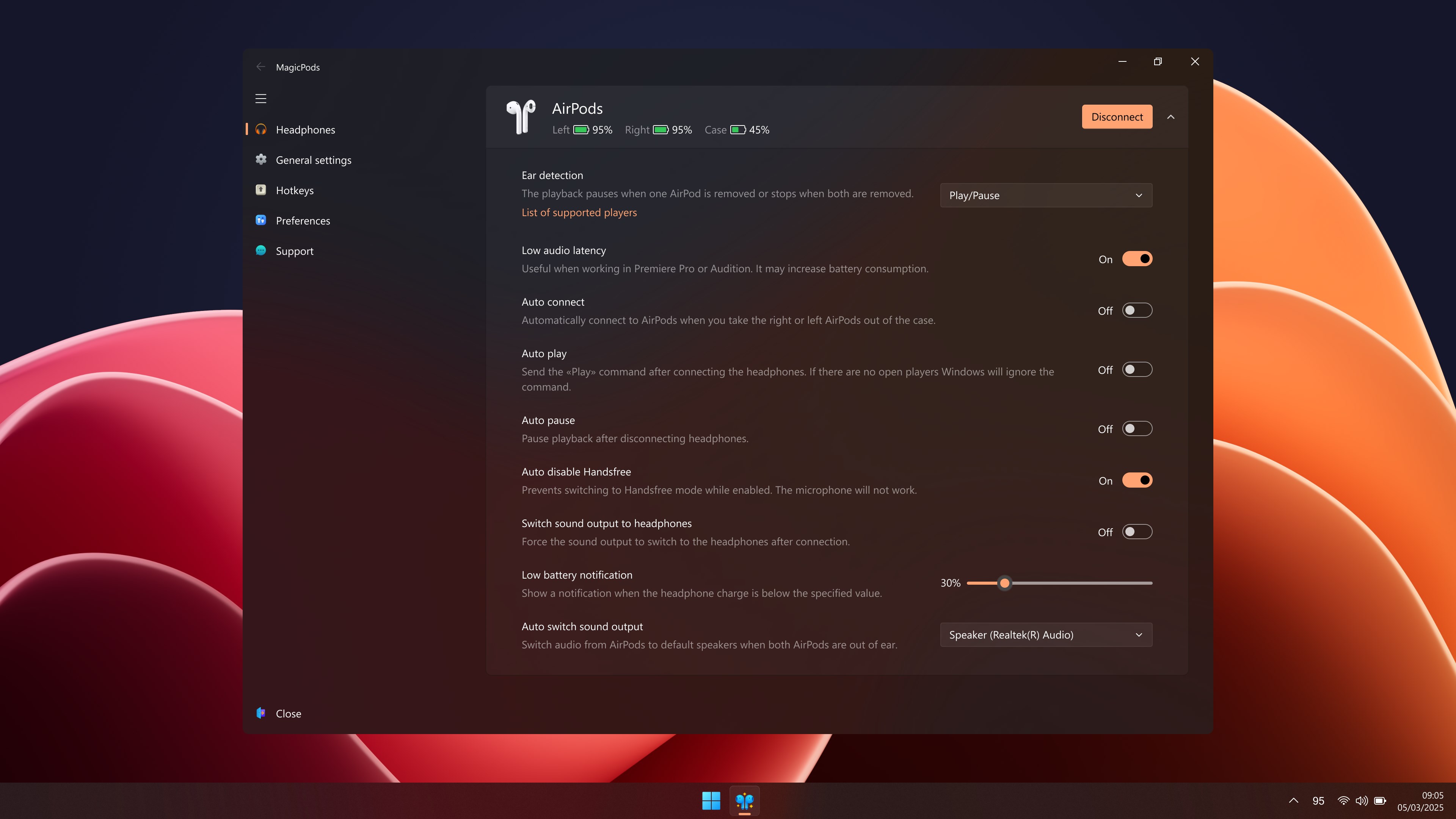
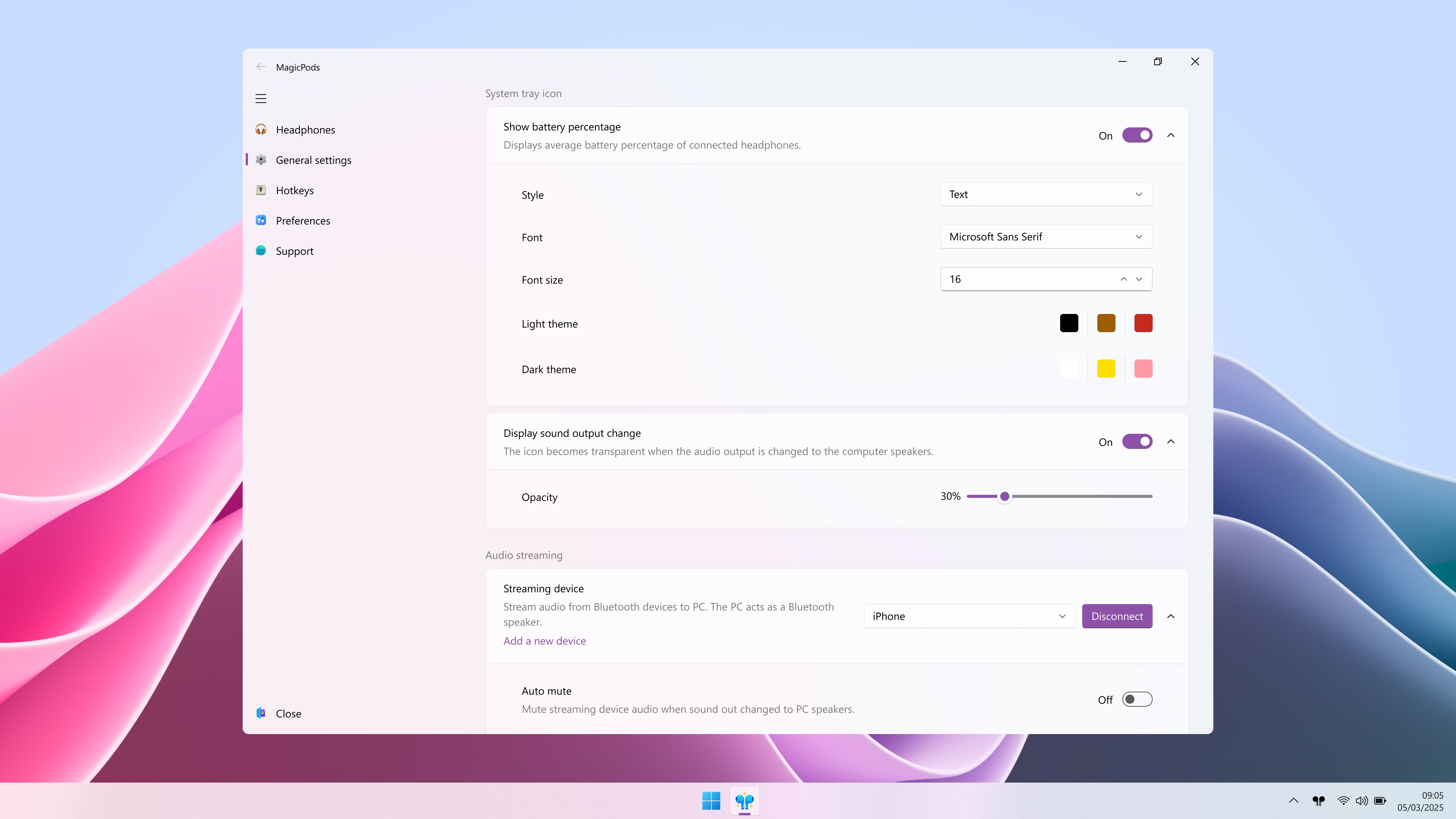
MagicPods ist ein Windows-Tool, das von AirPods auf iOS bekannte Funktionen auf den PC bringt und den Ladestand von AirPods sowie vielen Bluetooth-Kopfhörern anzeigt. Bei unterstützten Modellen pausiert die Wiedergabe automatisch beim Entfernen eines Ohrstöpsels, während der Ton auf die Computerlautsprecher wechselt. Eine Sprachausgabe liest Benachrichtigungen aus dem Windows-Info-Center vor, zudem lässt sich Audio von Android-Geräten, iPhones und weiteren Bluetooth-Geräten auf den PC streamen, der so als Bluetooth-Lautsprecher dient. Laut Anbieter läuft die App offline, werbefrei und ohne Sammlung von Nutzerdaten.
Originalbeschreibung des Entwicklers anzeigenOriginalbeschreibung ausblenden
✨ Bring your AirPods experience on iOS to Windows.
✔️ Bluetooth headphones charge level
Charge level is displayed in the app, tray icon, or live tile (Windows 10). Works with all AirPods and most Beats and other Bluetooth headphones.
✔️ Ear Detection
AirPods 1, AirPods 2, AirPods 3, AirPods Pro, AirPods Max, AirPods Max (2024), AirPods Max 2 (2026), PowerBeats Pro, Beats Fit Pro pause playback when earbud is removed.
✔️ Easily connect headphones
Connect and disconnect headphones from the app interface, tray icon, or hotkey.
✔️ VoiceOver (read out notifications)
The offline speaker reads aloud notifications from Windows Notification Center. You can choose which notifications to read and the voice of the speaker (Not available for all languages).
✔️ Streaming audio from Bluetooth devices
Stream audio from Android, iPhone, Nintendo Switch, and other Bluetooth devices to your computer. The computer acts as a Bluetooth speaker.
✔️ Low audio delay
Playback starts without delay after a pause.
✔️ Switching sound outputs
AirPods 1, AirPods 2, AirPods 3, AirPods Pro, AirPods Max, AirPods Max (2024), AirPods Max 2 (2026), PowerBeats Pro, Beats Fit Pro switch the sound output to the computer speakers when you remove the headphones. You can configure a hotkey to switch sound outputs.
✔️ Audio output change notification
When you change the audio output, the app displays a window with the audio output and the volume that you can adjust.
✔️ Low battery notification
The app lets you know when you need to charge your headphones.
✔️ Pop-up window like on iPhone
Most AirPods and Beats headphones show a pop-up window with the charge level when the headphone case is open.
✔️ Full Support for Fake AirPods Pro Airoha 1562AE, Fake AirPods Pro 2 Airoha 1562AE and AirPods 3 1562E
Available functions: Noise cancelling, Head Tracker, Customizable buttons, Gaming Mode, Wind Noise Canceling, Multi-Connect, and Ear Detection.
✔️ Support for Sony WF-1000XM3, Sony WH-1000XM4
Available functions: Switch between noise cancelling modes.
✔️ Support for Galaxy Buds, Galaxy Buds Plus, Galaxy Buds Live, Galaxy Buds Pro, Galaxy Buds 2, Galaxy Buds 2 Pro, Galaxy Buds 3, Galaxy Buds 3 Pro
Available features: Switch between noise cancellation modes, automatically switch to speakers when the earbuds are removed.
✔️ Customization
Choose the design theme, size, and position of the pop-ups. You can set your own pictures of the headphones.
✔️ Privacy
No user data is collected. Works offline. No ads, no subscriptions.
Requires Bluetooth version 4.0 or higher.
Falls es eine App-Version für iOS/Mac oder Windows gibt, die wir nicht kennen, füge den Store-Link hier ein — wir erkennen automatisch, welcher Store.
So findest du die URL:1. Die App im jeweiligen Store öffnen. 2.In der App-Store-App: auf das Teilen-Symbol tippen → „Link kopieren“. Im Browser: die URL aus der Adresszeile kopieren — sie enthält apps.apple.com/…/id… oder apps.microsoft.com/detail/…. 3. Hier einfügen.
Füge den Original-Link aus dem Apple App Store oder Microsoft Store ein. Wir holen alle Details automatisch.
So findest du die URL:
1. Die App im jeweiligen Store öffnen. 2.In der App-Store-App: auf das Teilen-Symbol tippen → „Link kopieren“. Im Browser: die URL aus der Adresszeile kopieren — sie enthält apps.apple.com/…/id… oder apps.microsoft.com/detail/…. 3. Hier einfügen.
Android-Apps können nur von ihren Entwicklern eingereicht werden.