Mit der Registrierung bestätigst du, dass du mindestens 16 Jahre alt bist, und akzeptierst die AGB. Wie wir deine Daten verarbeiten, steht in der Datenschutzerklärung.
Screenshot erscheint nach ZustimmungScreenshot erscheint nach ZustimmungScreenshot erscheint nach ZustimmungScreenshot erscheint nach ZustimmungScreenshot erscheint nach ZustimmungScreenshot erscheint nach Zustimmung
Zusammenfassung
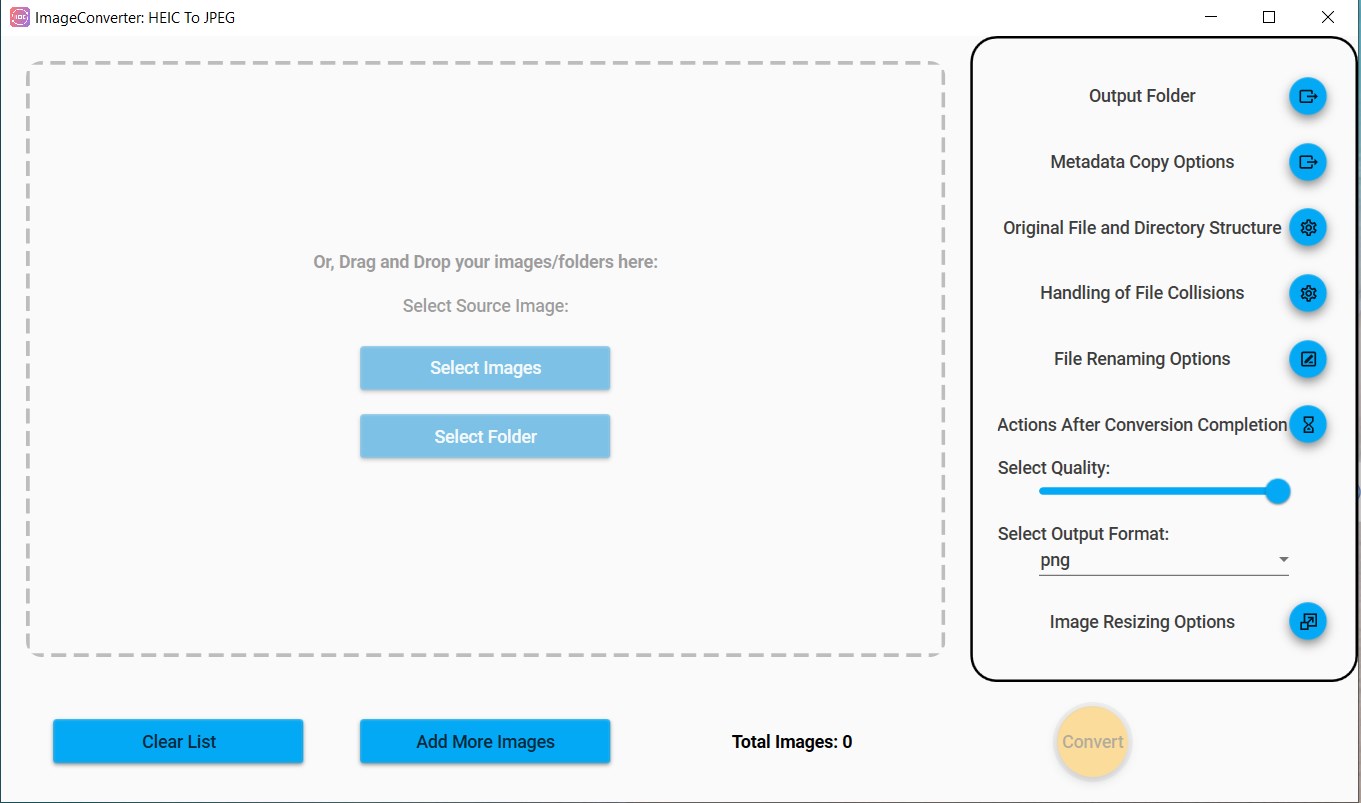
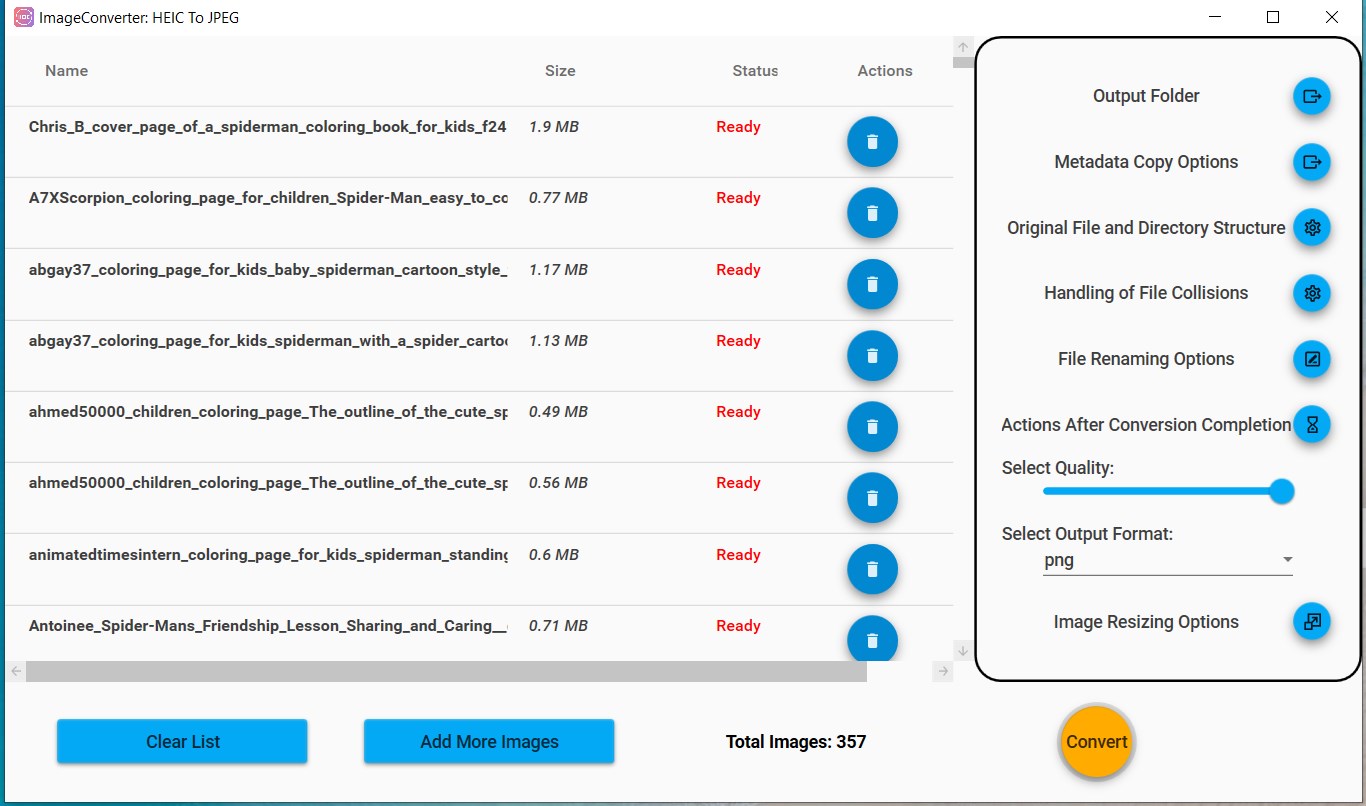
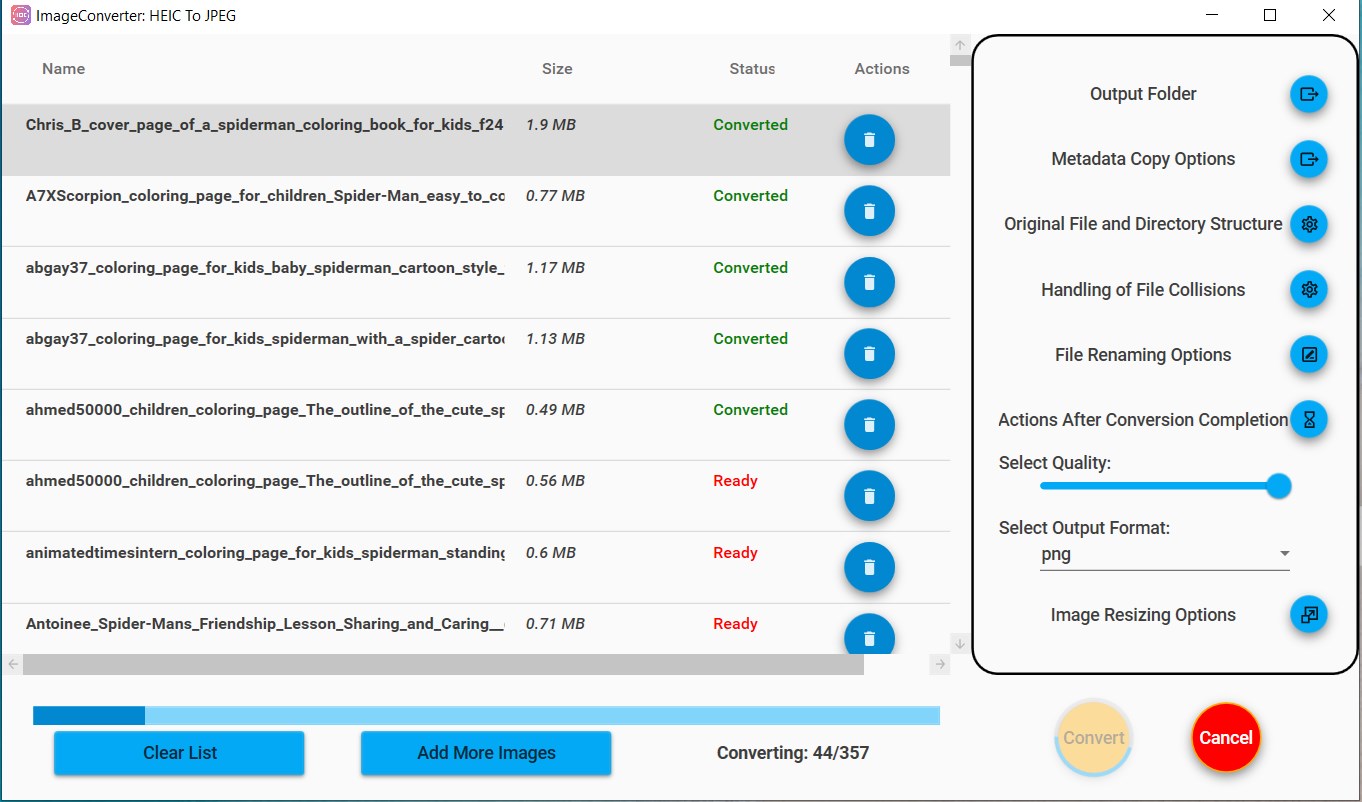
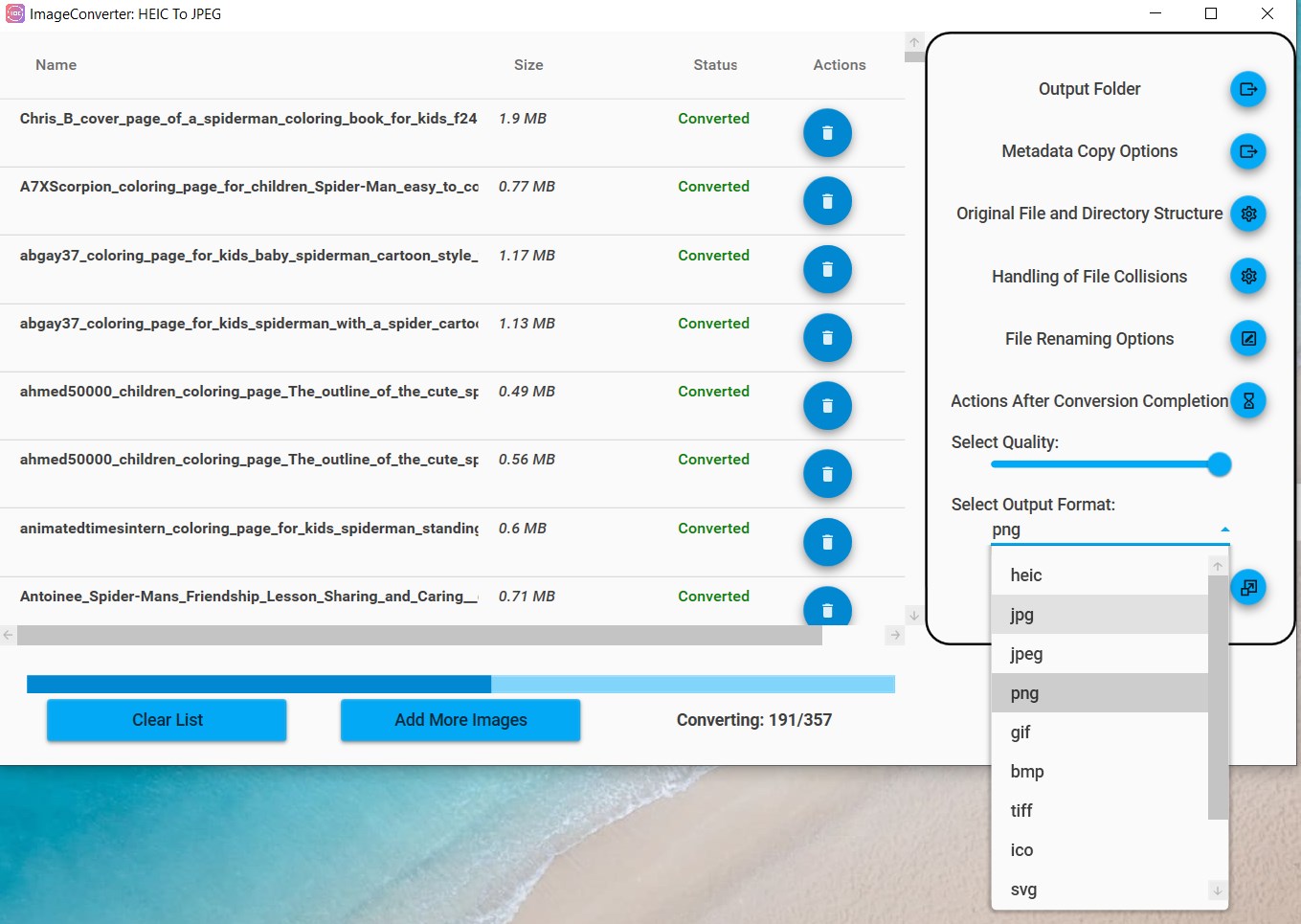
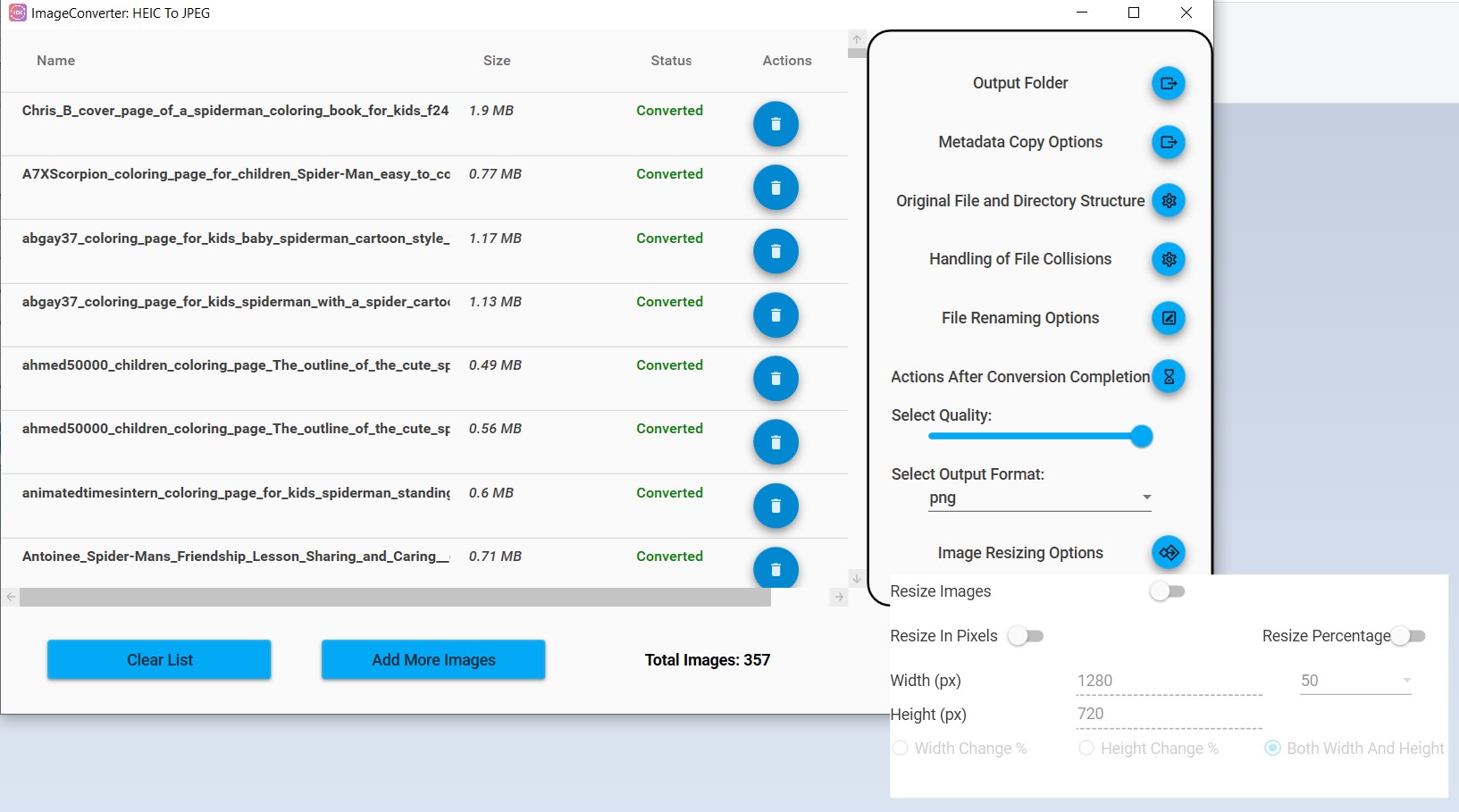
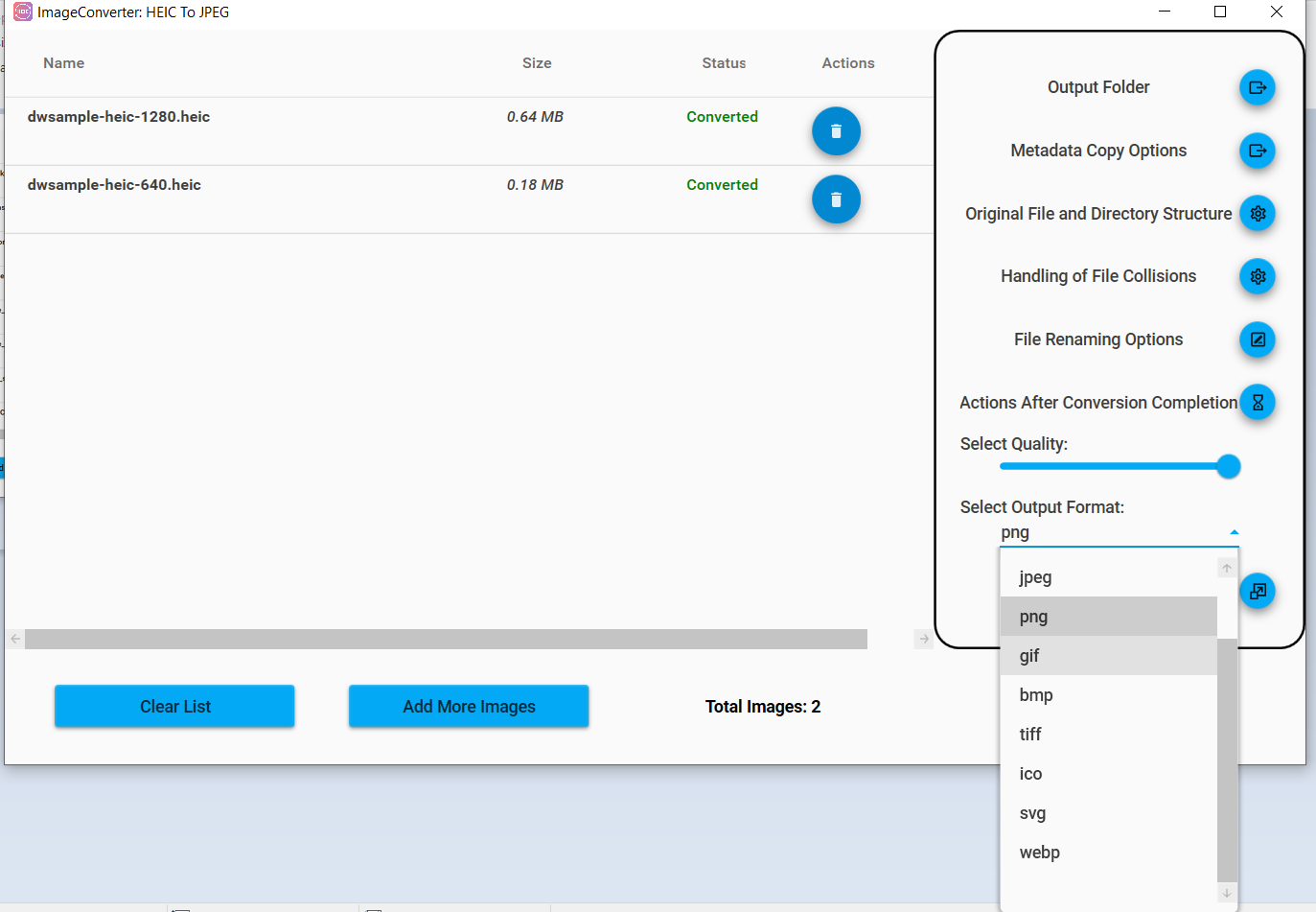
Pro Image Converter: HEIC to JPEG ist eine Konverter-App, die HEIC-, HEIF-, JPG-, JPEG-, PNG-, GIF-, BMP-, TIFF-, ICO-, SVG- und WEBP-Dateien ineinander umwandelt. Der Schwerpunkt liegt auf HEIC- und HEIF-Dateien, wie sie typischerweise auf Apple-Geräten entstehen, und deren Umwandlung in gängigere Formate wie JPEG oder PNG. Bilder lassen sich einzeln oder als ganzer Ordner im Batch-Verfahren hochladen, wobei sich Qualität, Größe und Auflösung anpassen lassen. Nach der Umwandlung können die Bilder gespeichert oder über verschiedene Kanäle geteilt werden, wobei laut Anbieter hochgeladene Bilder weder gespeichert noch weitergegeben werden.
Originalbeschreibung des Entwicklers anzeigenOriginalbeschreibung ausblenden
Unleash the full potential of image conversion with the Pro Image Converter: HEIC to JPEG app. This innovative tool supports a variety of image formats including HEIC, HEIF, JPG, JPEG, PNG, GIF, BMP, TIFF, ICO, SVG, and WEBP. With a particular emphasis on HEIC and HEIF formats, it provides a streamlined and efficient solution for all your image conversion needs.
To use this app, simply follow these easy steps:
Open the App: Start by launching the Pro Image Converter app. Its intuitive and user-friendly interface makes navigation a breeze.
Upload Images: Click on the "Upload" or "Add" button to import the images you want to convert. You can choose files individually or select an entire folder for batch processing.
Choose the Output Format: After uploading, select the desired output format from the drop-down list. While the app supports a wide array of formats, its core strength lies in flawless conversion of HEIC and HEIF files.
Set Conversion Parameters: If needed, adjust the settings according to your preference. This may include image quality, size, resolution, and other parameters.
Start Conversion: Once you're happy with the settings, click on "Convert". The app swiftly processes your images without compromising on quality.
Save and Share: After conversion, you can easily save the images to your preferred location. Share your images directly from the app via email, social media, or other sharing options available on your device.
Pro Image Converter: HEIC to JPEG app sets itself apart by focusing on the HEIC and HEIF formats, which are commonly used by Apple devices but can be difficult to open on other platforms. With this app, you can effortlessly convert your iPhone's HEIC photos into more accessible formats like JPEG or PNG.
In addition to its robust conversion abilities, this app also offers features such as image resizing making it a comprehensive tool for all your image-related tasks. It maintains the original quality of your images while offering you the flexibility to customize settings to your liking.
Beyond its extensive format support and impressive conversion speed, the Pro Image Converter app upholds user privacy. No image uploaded is stored or shared, ensuring that your files remain secure throughout the conversion process.
The Pro Image Converter: HEIC to JPEG app is a versatile, high-quality, and secure solution for converting images in a variety of formats. Whether you're a photographer needing to batch convert images, or a casual user looking to make your HEIC photos accessible across devices, this app makes the process quick and painless.
With the Pro Image Converter: HEIC to JPEG app, you can say goodbye to the hassle of dealing with incompatible image formats. Experience efficient, secure, and high-quality image conversion today!
Falls es eine App-Version für iOS/Mac oder Windows gibt, die wir nicht kennen, füge den Store-Link hier ein — wir erkennen automatisch, welcher Store.
So findest du die URL:1. Die App im jeweiligen Store öffnen. 2.In der App-Store-App: auf das Teilen-Symbol tippen → „Link kopieren“. Im Browser: die URL aus der Adresszeile kopieren — sie enthält apps.apple.com/…/id… oder apps.microsoft.com/detail/…. 3. Hier einfügen.
Füge den Original-Link aus dem Apple App Store oder Microsoft Store ein. Wir holen alle Details automatisch.
So findest du die URL:
1. Die App im jeweiligen Store öffnen. 2.In der App-Store-App: auf das Teilen-Symbol tippen → „Link kopieren“. Im Browser: die URL aus der Adresszeile kopieren — sie enthält apps.apple.com/…/id… oder apps.microsoft.com/detail/…. 3. Hier einfügen.
Android-Apps können nur von ihren Entwicklern eingereicht werden.



 HEIC to JPEG - The HEIC to JPG Converter
HEIC-Fotos in JPEG, PNG und weitere Formate umwandeln
 HEIC Convert Pro - Image Converter
HEIC- und HEIF-Bilder schnell in JPG oder PNG umwandeln
 HEIC Converter - Any Image Convert
HEIC/HEIF-Bilder in PNG, JPG oder TIFF umwandeln
 HEIC Converter | Heic to JPG
HEIC-Bilder lokal in JPG umwandeln
 HEIC to JPEG
HEIC/HEIF lokal in JPEG, PNG und weitere Formate umwandeln
 HEIC Converter- HEIC to JPG & Photo Viewer, Printer
HEIC-Bilder in JPG, PNG oder BMP umwandeln, ansehen