Mit der Registrierung bestätigst du, dass du mindestens 16 Jahre alt bist, und akzeptierst die AGB. Wie wir deine Daten verarbeiten, steht in der Datenschutzerklärung.
Screenshot erscheint nach ZustimmungScreenshot erscheint nach ZustimmungScreenshot erscheint nach ZustimmungScreenshot erscheint nach ZustimmungScreenshot erscheint nach ZustimmungScreenshot erscheint nach ZustimmungScreenshot erscheint nach ZustimmungScreenshot erscheint nach ZustimmungScreenshot erscheint nach ZustimmungScreenshot erscheint nach Zustimmung
Zusammenfassung
ShareX ist ein Werkzeug zur kostenlosen und quelloffenen Bildschirmaufnahme, mit dem sich beliebige Bereiche des Bildschirms per Tastendruck erfassen und weitergeben lassen. Es bietet zahlreiche Aufnahmemethoden, darunter Vollbild, aktives Fenster, frei wählbare Bereiche sowie Videoaufzeichnung als GIF. Nach der Aufnahme lassen sich automatisierte Schritte wie Bearbeiten, Beschriften, Speichern oder Hochladen zu einem gewählten Ziel ausführen. Neben Bildern können auch Ordner, Dateien und Texte hochgeladen werden, wobei die entstandene Adresse automatisch gekürzt, kopiert oder geteilt wird und über ein Hotkey-System eigene Arbeitsabläufe festgelegt werden können.
Originalbeschreibung des Entwicklers anzeigenOriginalbeschreibung ausblenden
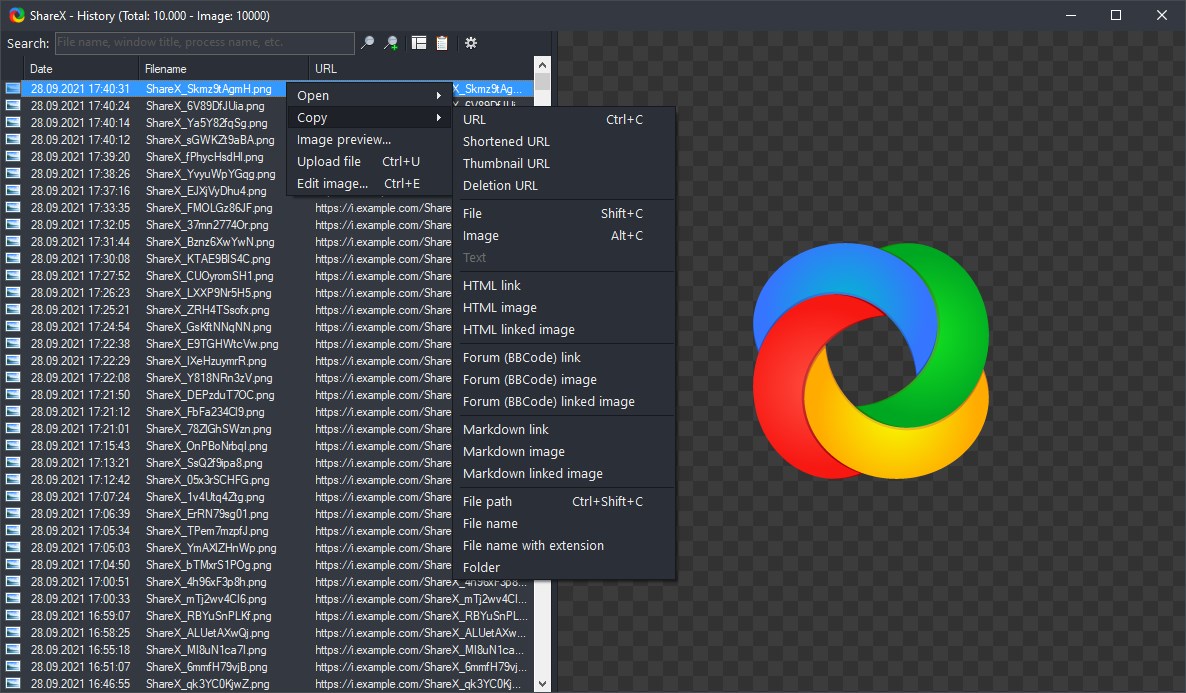
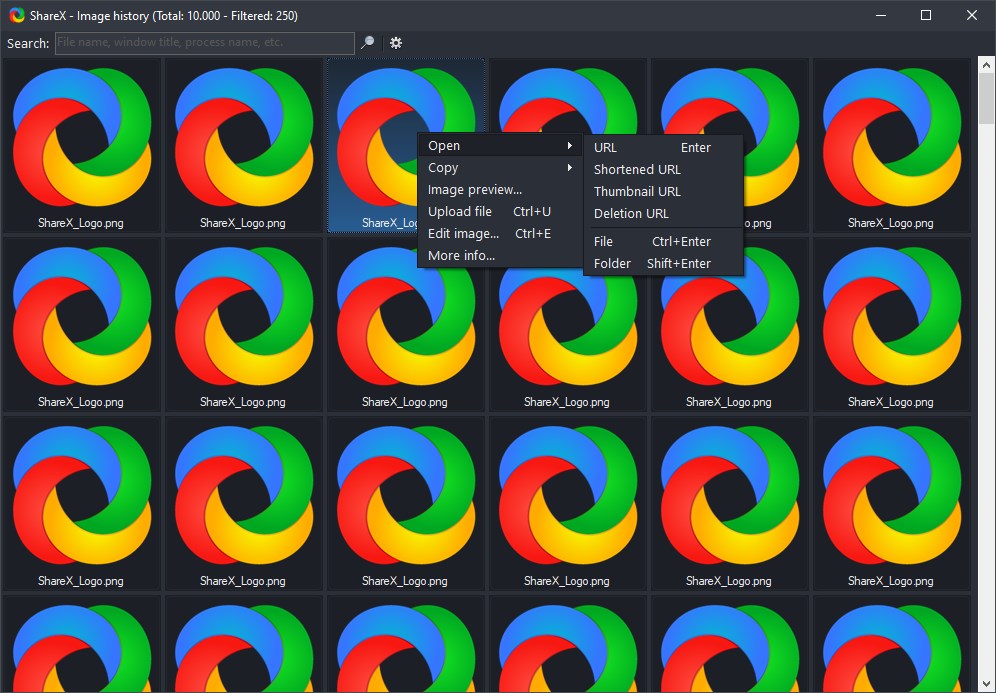
ShareX is a free and open source program that lets you capture or record any area of your screen and share it with a single press of a key. It also allows uploading images, text or other types of files to many supported destinations you can choose from.
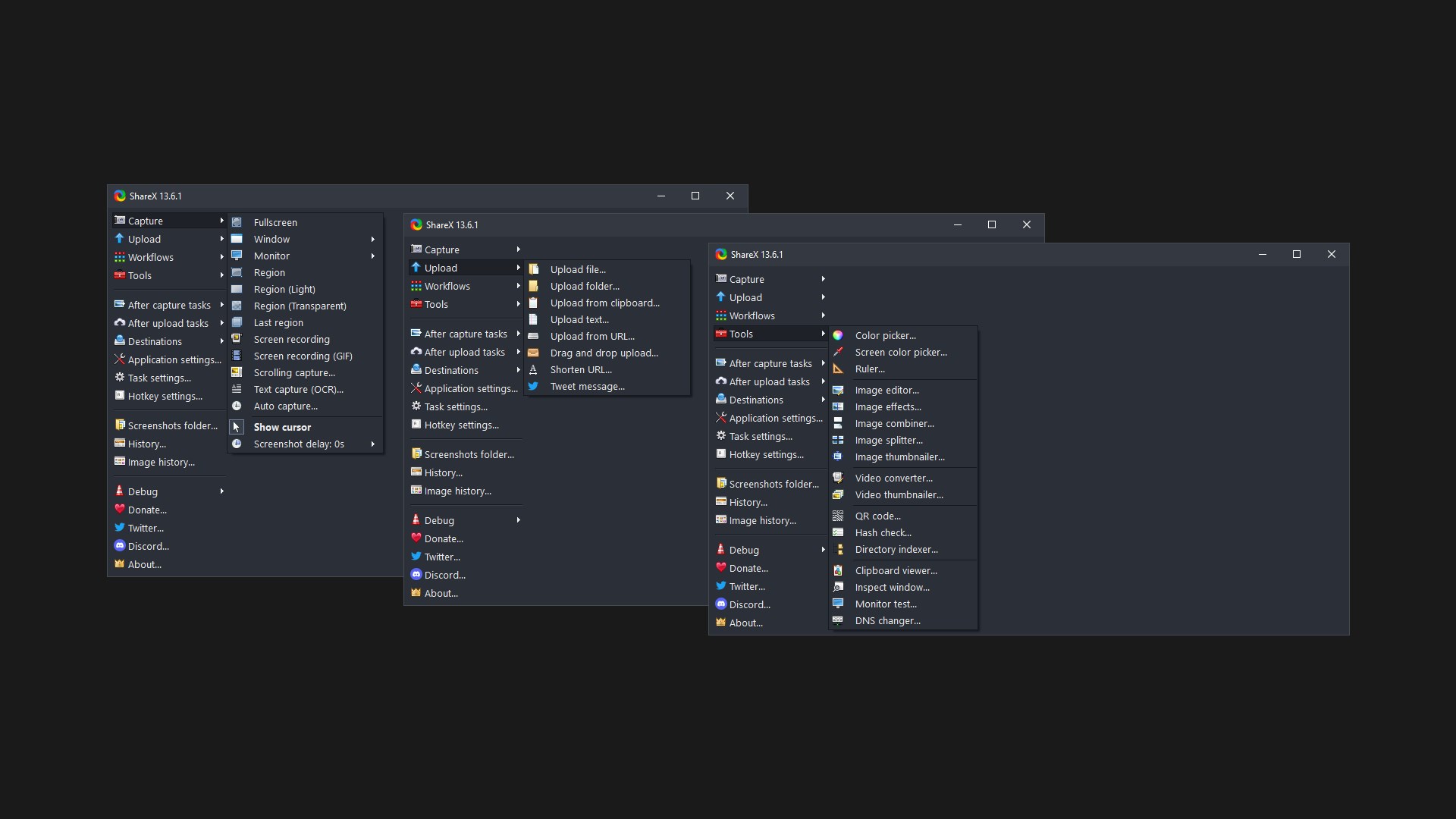
ShareX supports many ways to capture or record your screen. The main capture methods are:
• Fullscreen
• Active window
• Active monitor
• Window menu
• Monitor menu
• Region
• Region (Light)
• Region (Transparent)
• Last region
• Custom region
• Screen recording
• Screen recording (GIF)
• Scrolling capture
• Webpage capture
• Text capture (OCR)
• Auto capture
There are many configurable screen capture settings such as showing the cursor, transparent window capture, delayed capture, multiple region selection with different shapes, etc.
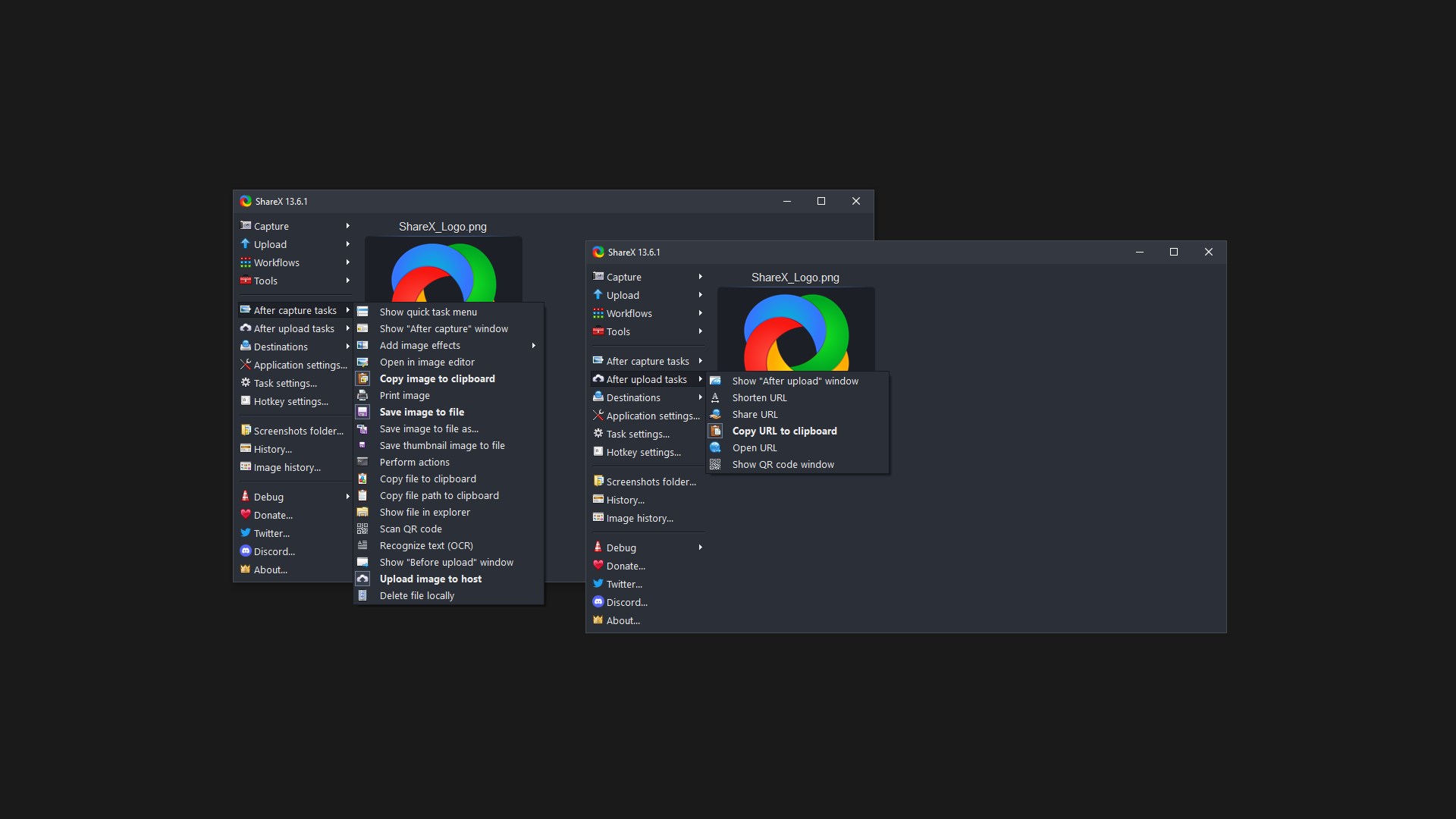
After the capture the following automated tasks can be executed:
• Show quick task menu
• Show "After capture" window
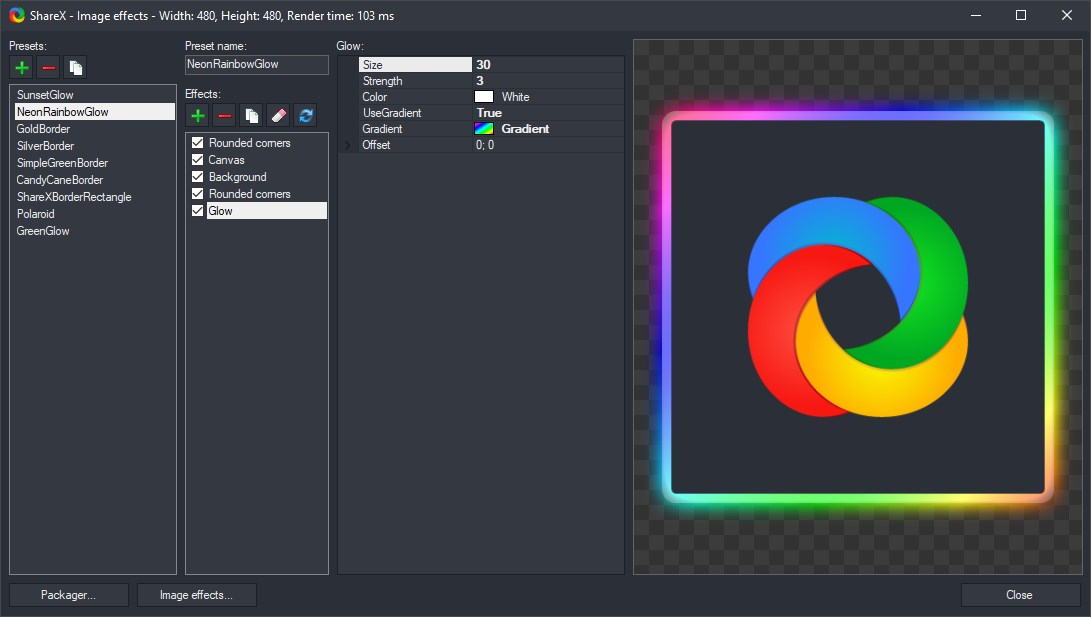
• Add image effects / watermark
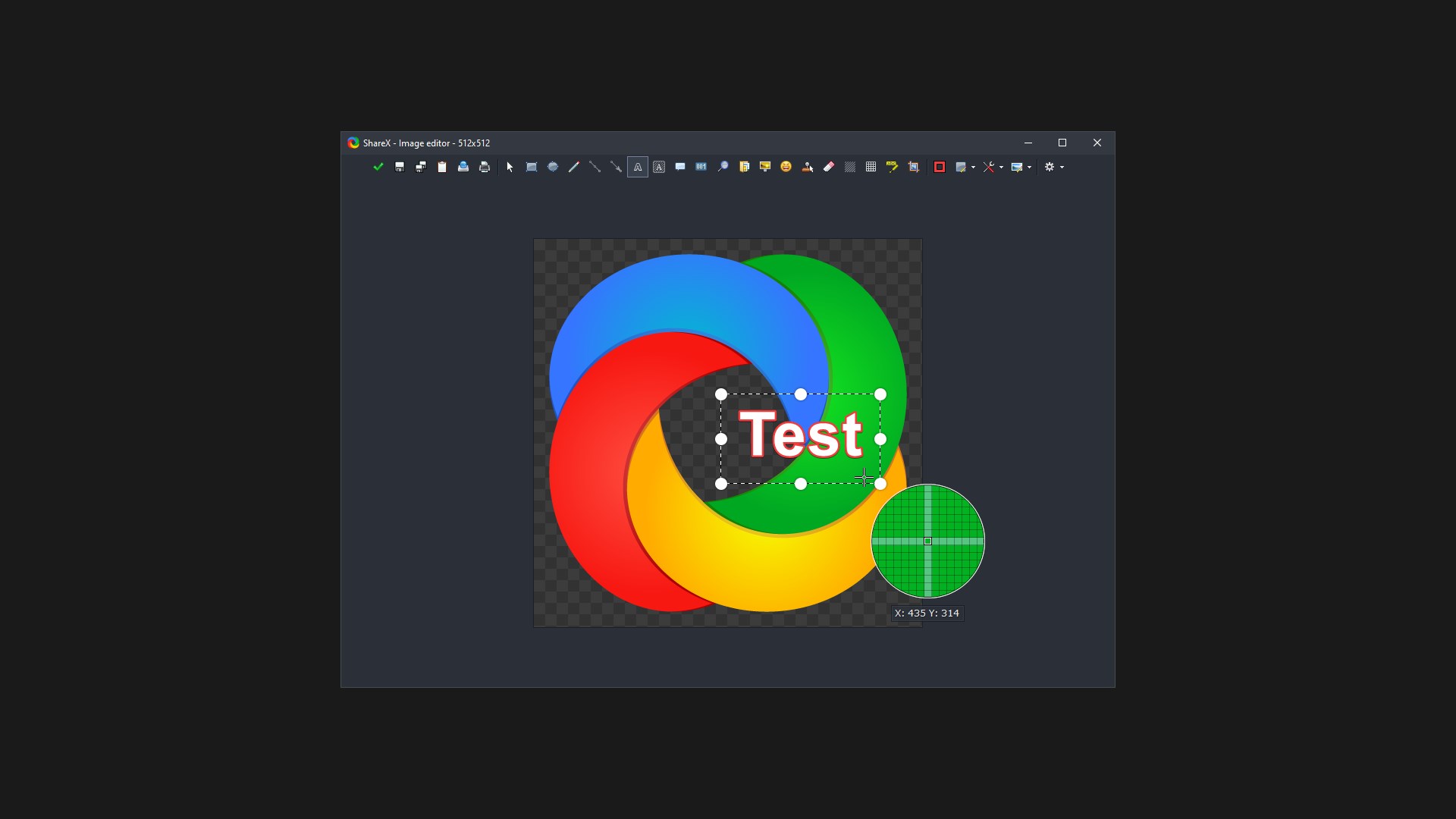
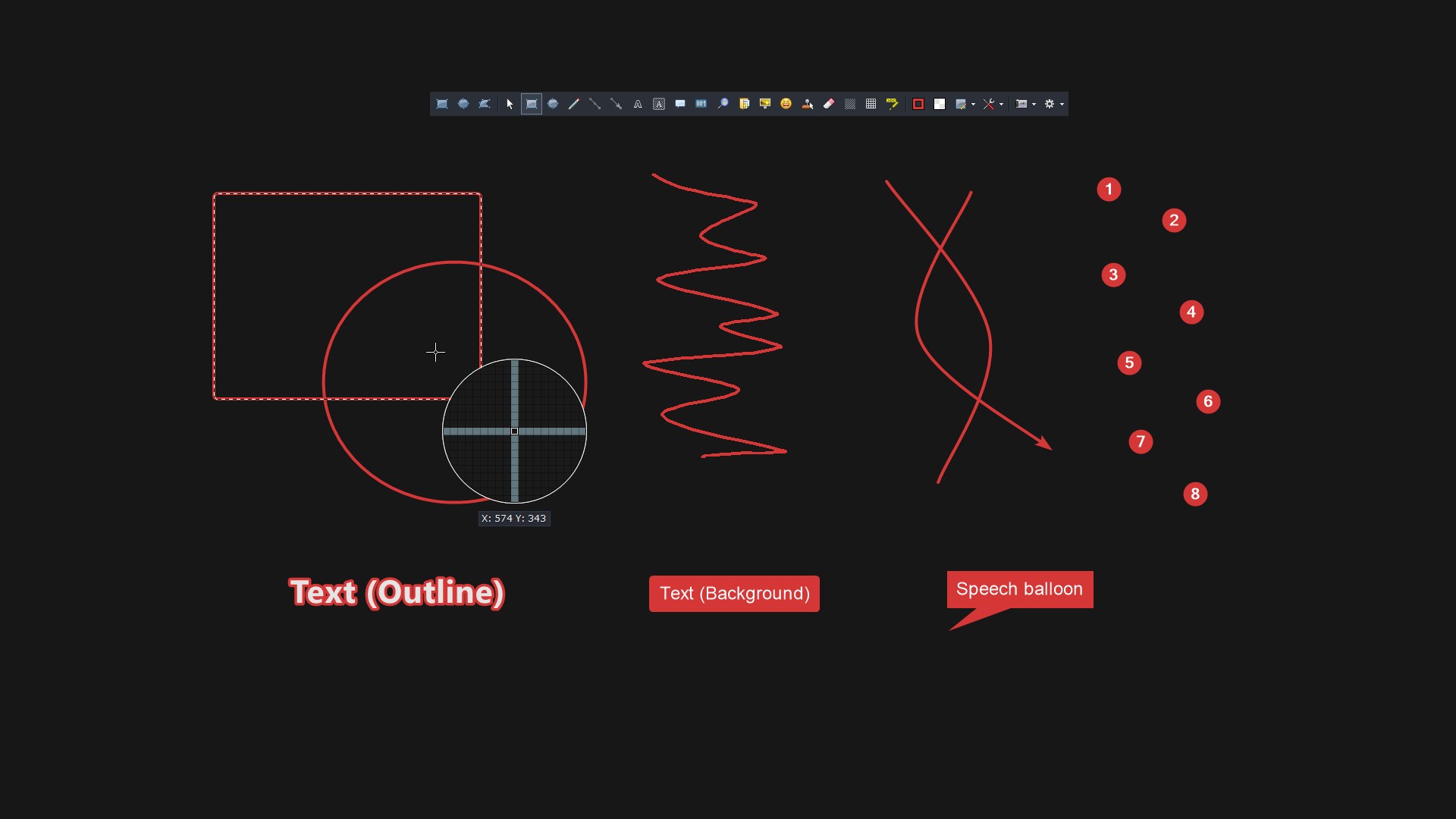
• Annotate image
• Copy image to clipboard
• Print image
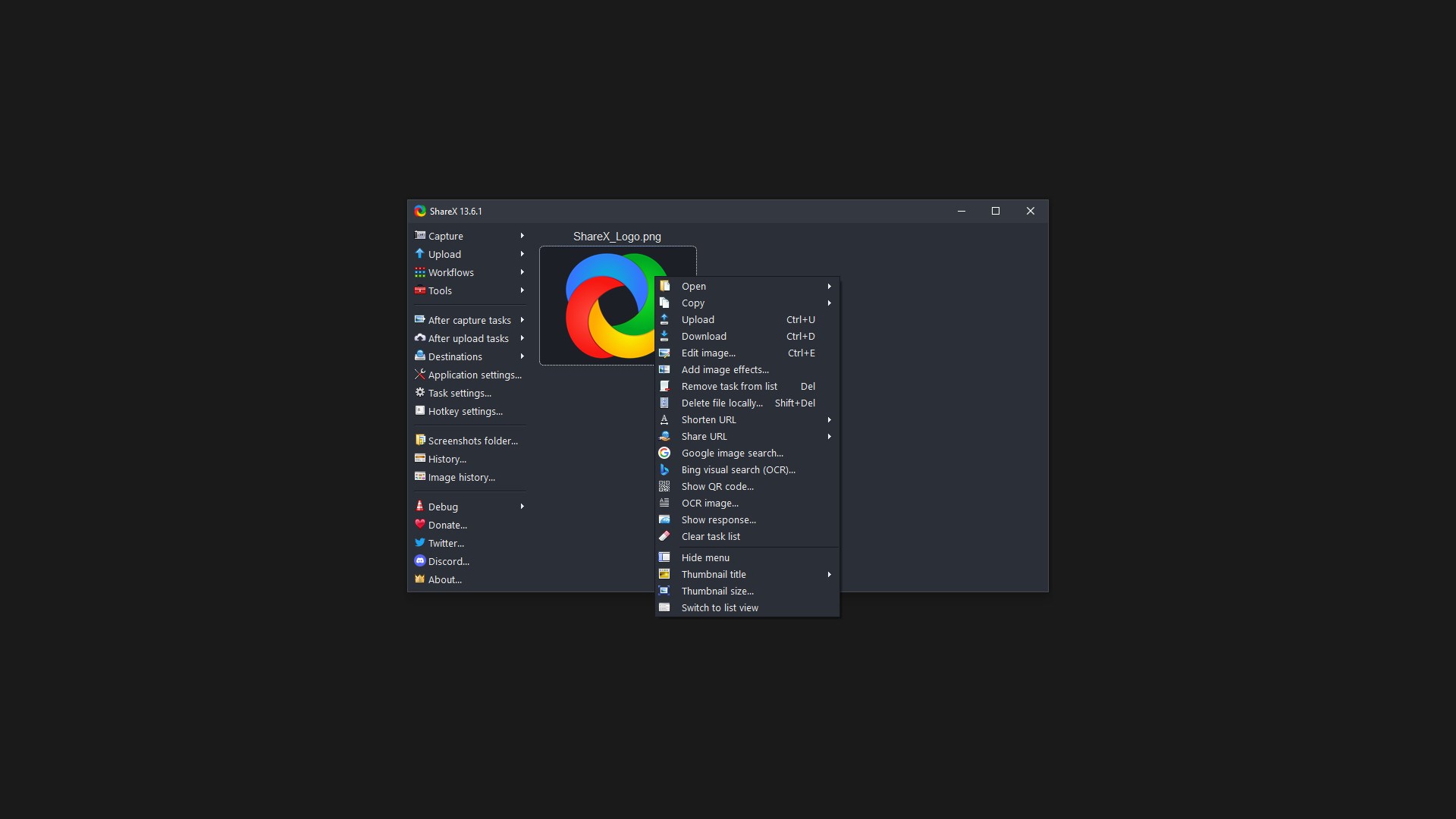
• Save image to file
• Save image to file as...
• Save thumbnail image to file
• Perform actions
• Copy file to clipboard
• Copy file path to clipboard
• Show file in explorer
• Recognize text (OCR)
• Show "Before upload" window
• Upload image to host
• Delete file locally
For example, the captured image can be opened in image annotator and after that, the image can be automatically saved to the hard disk and uploaded to your destination of choice.
ShareX allows you to upload any type of files with these methods:
• Upload file
• Upload folder
• Upload from clipboard
• Upload from URL
• Drag and drop upload
• Upload from Windows shell context menu
• Upload from Windows send to menu
• Watch folder
After the upload, any of the following automated tasks can be executed:
• Show "After upload" window
• Shorten URL
• Share URL
• Copy URL to clipboard
• Open URL
• Show QR code window
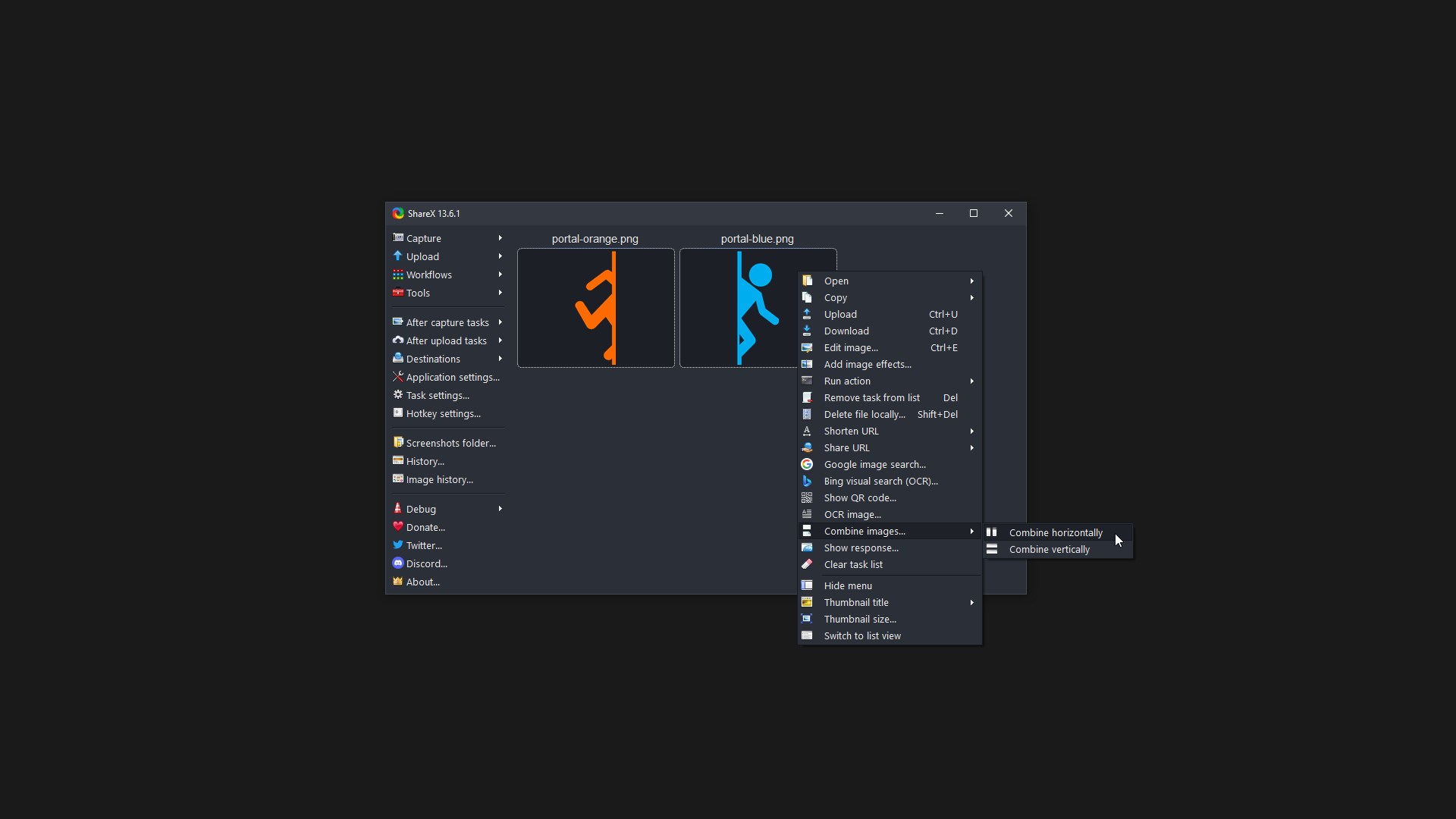
For example, the uploaded image URL can be automatically shortened using one of the 15 URL shortener services and the shortened URL can be copied to the clipboard.
ShareX also comes with a few simple productivity tools:
• Color picker
• Screen color picker
• Annotate image
• Image effects
• Hash check
• DNS changer
• QR code
• Ruler
• Directory indexer
• Image combiner
• Image thumbnailer
• Video thumbnailer
• FTP client
• Tweet message
• Monitor test
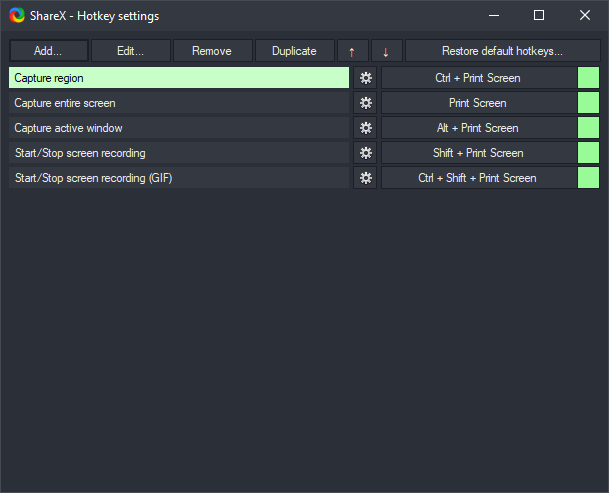
ShareX has an advanced hotkey system which allows you to use any of these capture methods, upload options or tools with their own task settings. These are called "Workflows". Workflows allow each hotkey to have its own after capture tasks, after upload tasks, destination etc. For example, you can set your screen recording hotkey to upload to a specific destination, bypassing the default destination. This way, only videos will be uploaded to this configured file destination.
Falls es eine App-Version für iOS/Mac oder Windows gibt, die wir nicht kennen, füge den Store-Link hier ein — wir erkennen automatisch, welcher Store.
So findest du die URL:1. Die App im jeweiligen Store öffnen. 2.In der App-Store-App: auf das Teilen-Symbol tippen → „Link kopieren“. Im Browser: die URL aus der Adresszeile kopieren — sie enthält apps.apple.com/…/id… oder apps.microsoft.com/detail/…. 3. Hier einfügen.
Füge den Original-Link aus dem Apple App Store oder Microsoft Store ein. Wir holen alle Details automatisch.
So findest du die URL:
1. Die App im jeweiligen Store öffnen. 2.In der App-Store-App: auf das Teilen-Symbol tippen → „Link kopieren“. Im Browser: die URL aus der Adresszeile kopieren — sie enthält apps.apple.com/…/id… oder apps.microsoft.com/detail/…. 3. Hier einfügen.
Android-Apps können nur von ihren Entwicklern eingereicht werden.



 Screenshot Snipping Tool
Screenshots aufnehmen, bearbeiten und direkt teilen
 Screen Video Recorder Express
Bildschirm aufnehmen und Videos schnell teilen
 TapRecord: Bildschirm Recorder
Bildschirm, Audio und Webcam in HD aufnehmen und schneiden
 ShareX (Car Sharing)
Autos mieten und buchen
 Screenshot - Bildschirmaufnahme
Screenshots erstellen, bearbeiten und Text per OCR
 Ausschneiden und skizzieren
Screenshots erstellen, bearbeiten und teilen