Screenshot appears after consentScreenshot appears after consentScreenshot appears after consentScreenshot appears after consentScreenshot appears after consent
Summary
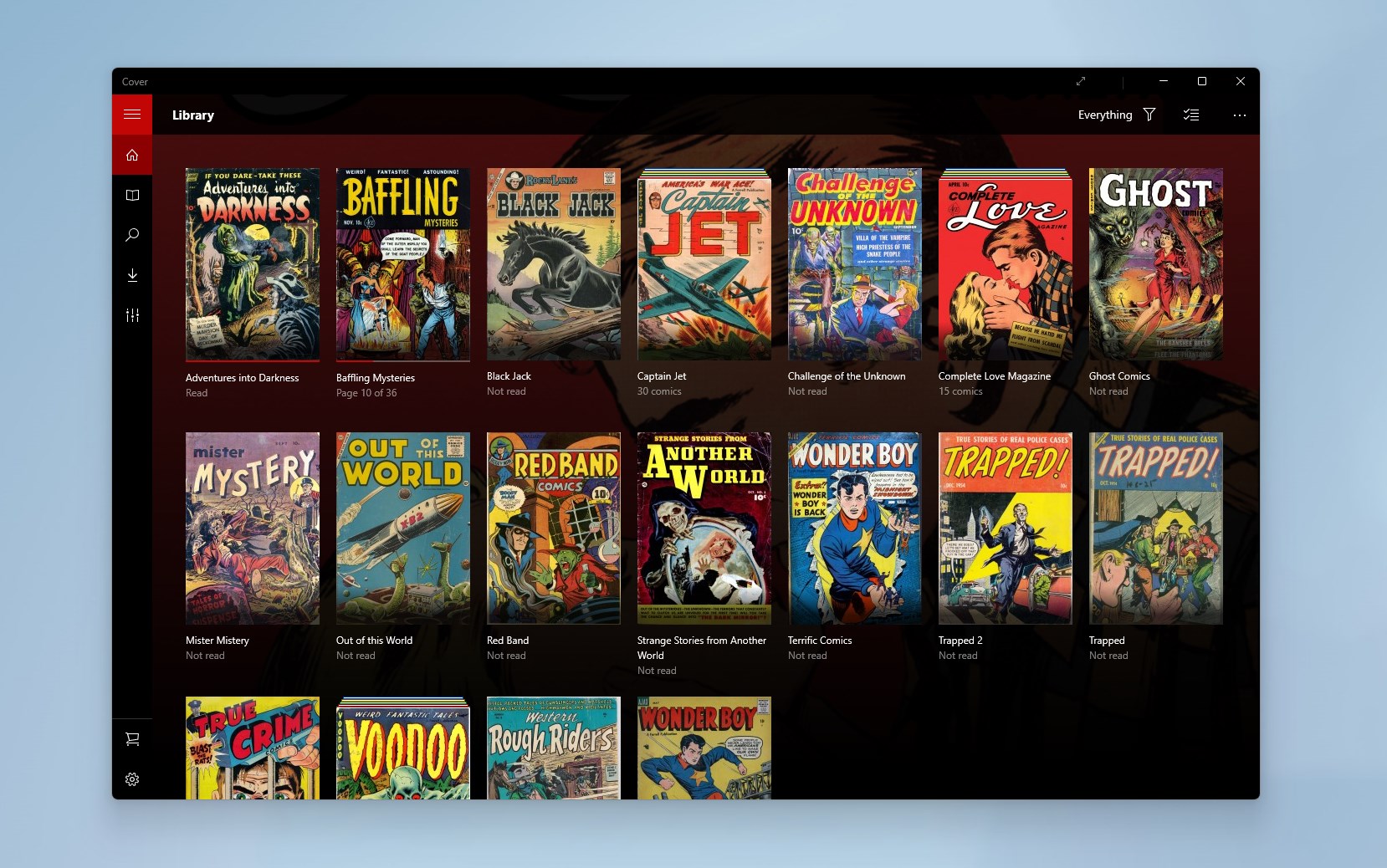
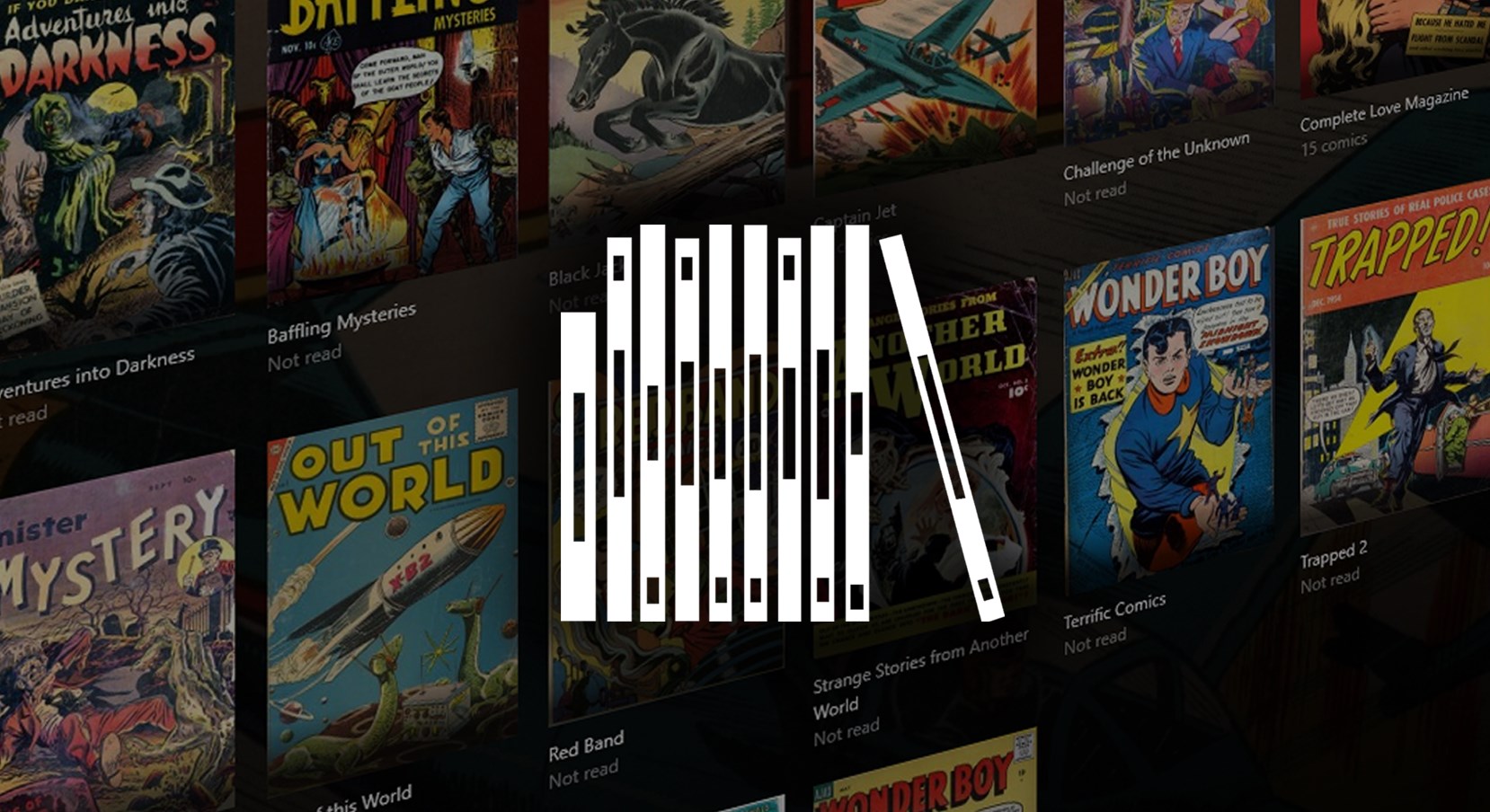
Cover - Comic reader is a comic and manga reader app for Windows. It imports entire folders in one step and organizes them into a library with shelves, read status and page tracking. Files can be stored locally, on a network, or in OneDrive, Google Drive and Dropbox, with automatic syncing when comics are added or edited in Windows Explorer. It supports formats including CBZ, CBR, 7Z, CBT, PDF and image-based EPUB. Reading can be customized with single or dual page layouts, continuous scrolling, cropping, night mode and a right-to-left manga mode, and offline reading is available for cloud-stored files.
Show the developer's original descriptionHide the original description
Cover is the best app to read and manage your comics and manga on Windows.
With more than 1.7M downloads and 4+ stars, Cover has been featured several times by Microsoft in the US, France, Canada and more.
Import all your folders in a single step, browse them in a beautiful UI, and enjoy a powerful, fast reader. Cover supports a broad range of formats, loads your files from OneDrive, Google Drive and Dropbox, and syncs automatically when you add or edit comics in Windows Explorer.
How it works:
- Add the folders that hold your comics, from local disk, network, or cloud
- Let Cover import and organize your library automatically
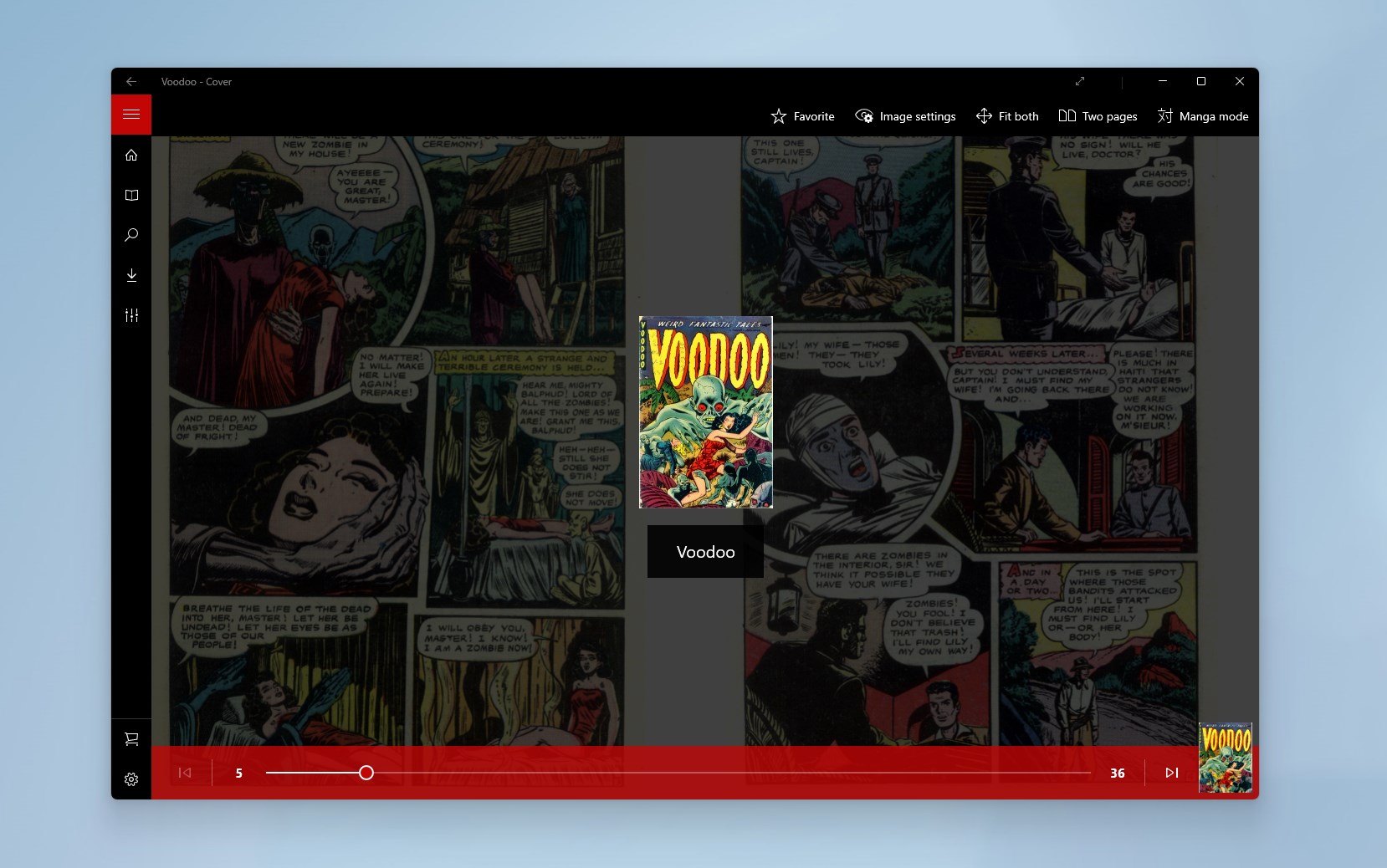
- Choose your reading layout: single page, dual page, or continuous scroll
- Read left to right, or right to left in manga mode
- Track your progress, bookmark pages, and mark favorites
Download Cover and start reading your favorite comic books.
The main features that make Cover awesome:
- All of your file formats are supported: CBZ/ZIP, CBR/RAR, 7Z/CB7, CBT, PDF, EPUB (images only)
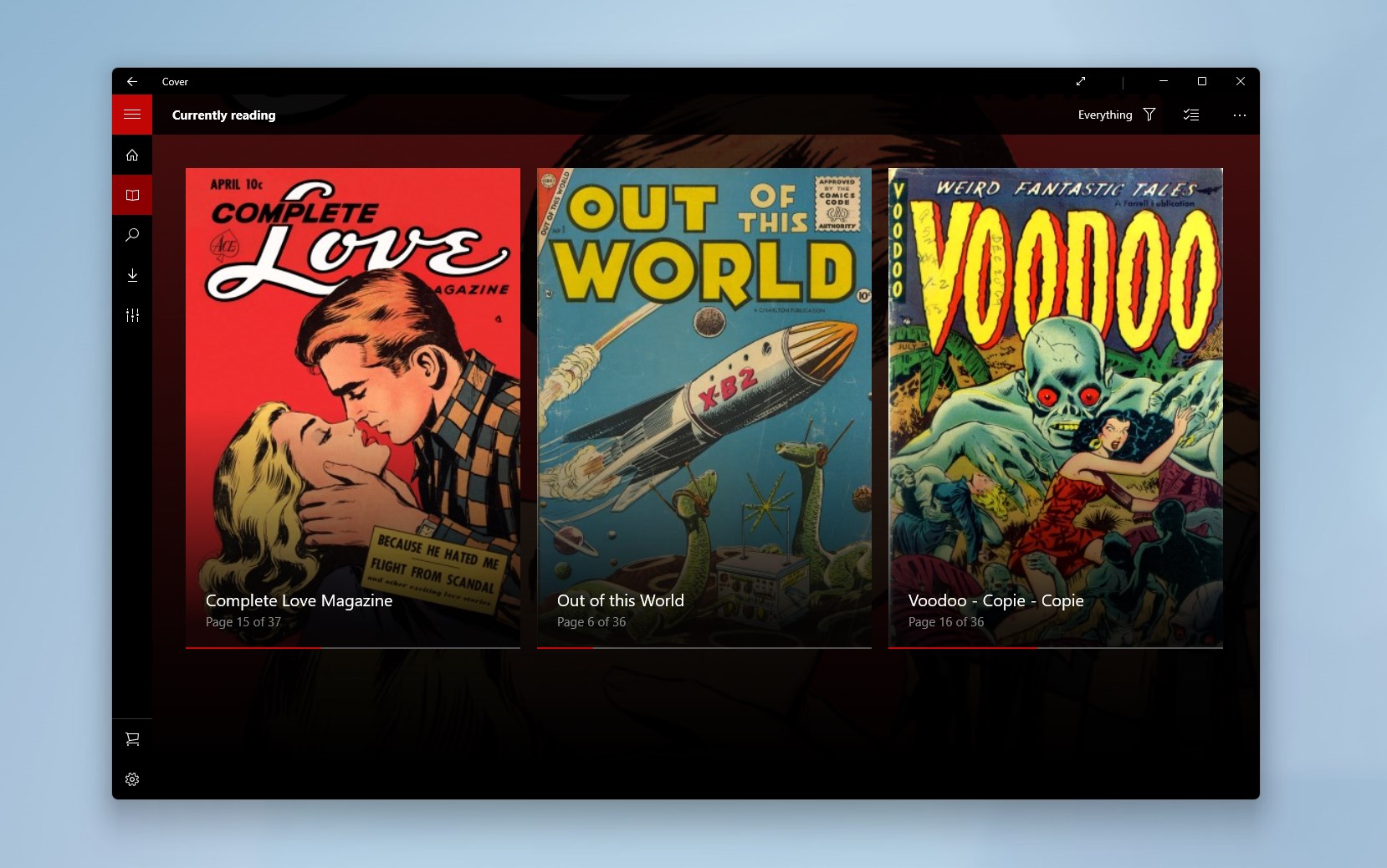
- Crystal-clear library management: Shelves, read/unread status, page count, current page
- Store your comic books wherever you want: Local folder, local network, OneDrive, Google Drive, Dropbox.
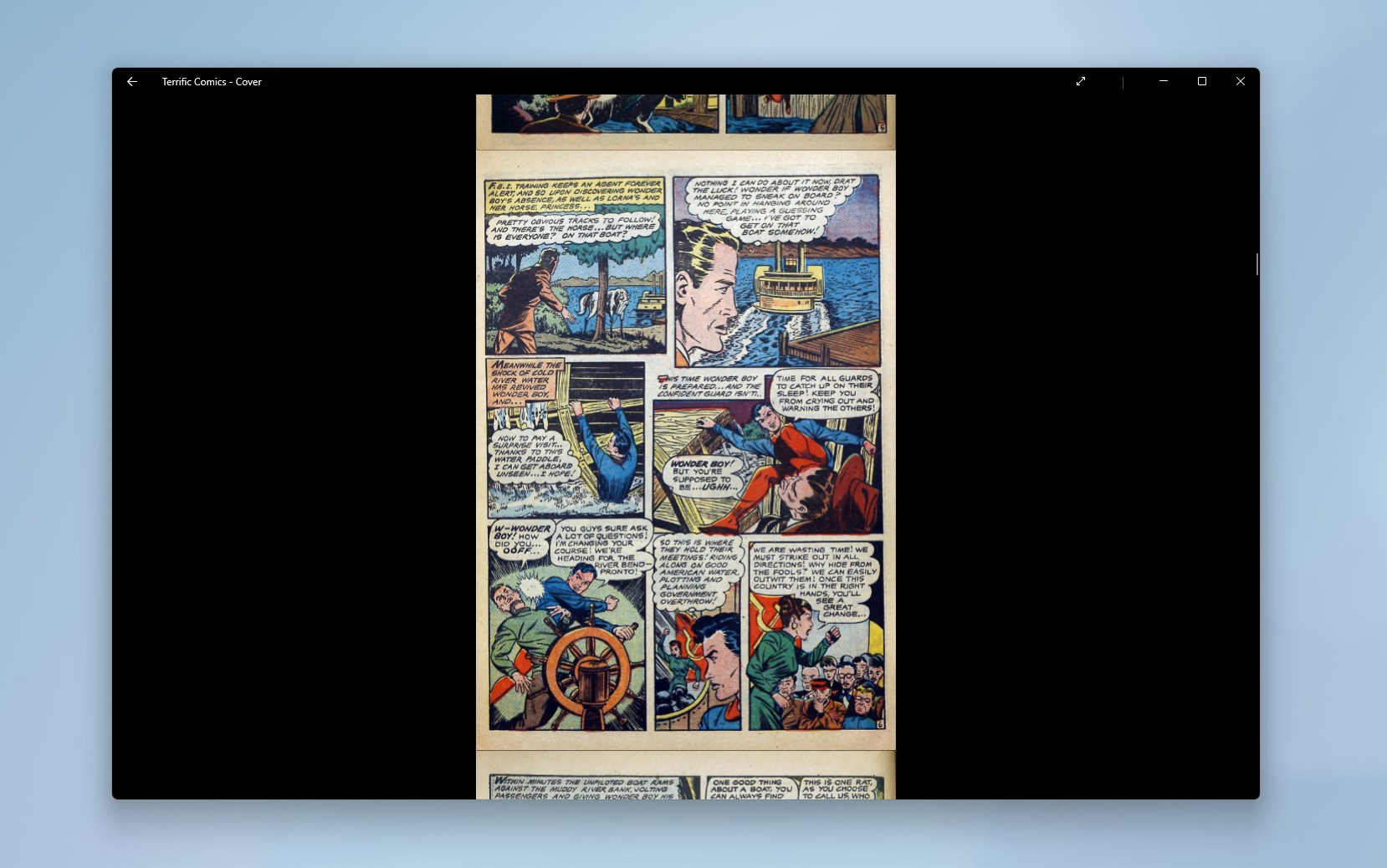
- Customize your reading experience: single/dual page, vertical scrolling, fit width/height/page, background color, cropping, night mode
- Offline reading for your cloud-stored comics
- Open standalone files from within Cover, or directly from Explorer
- Find any book fast with Search, Favorites and Smartviews
- Smooth reading with all the touch gestures and keyboard shortcuts you are used to
- Keep track of your progress with live tiles even after you close the app
- Full multilanguage support
Get full access:
- Build an unlimited library from folders or single files.
- Read in dual page, continuous scroll, and right-to-left manga mode.
- Save named bookmarks and load your comics from OneDrive, Google Drive, Dropbox and local network.
Subscribe to access premium app features; subscription details:
- Payment will be charged to your Microsoft account at confirmation of purchase.
- Subscription automatically renews unless auto-renew is turned off at least 24 hours before the end of the current period.
- The account will be charged for renewal within 24 hours prior to the end of the current period.
- Subscriptions may be managed by the user and auto-renewal may be turned off by going to the user's Microsoft account settings after purchase.
- Available plans: monthly and yearly.
Terms & Conditions and Privacy Policy: available in additional information
If you have any questions, please contact us at whatsticker@outlook.com
Note: The app does not contain any comic book. You can download comics separately from websites such as imagecomics.com or comicbookplus.com. Cover is compatible with any DRM-free comic book
If there is a version of this app for iOS/Mac or Windows we don't know about, paste the store link here — we'll auto-detect the store.
How to find the URL:1. Open the app in its store. 2.In the App Store app: tap the Share icon → “Copy Link”. In the browser: copy the URL from the address bar — it contains apps.apple.com/…/id… or apps.microsoft.com/detail/…. 3. Paste it here.
Paste the original link from the Apple App Store or Microsoft Store. We fetch all details automatically.
How to find the URL:
1. Open the app in its store. 2.In the App Store app: tap the Share icon → “Copy Link”. In the browser: copy the URL from the address bar — it contains apps.apple.com/…/id… or apps.microsoft.com/detail/…. 3. Paste it here.
Android apps can only be listed by their developer.



 Thorium Reader
Read ebooks, audiobooks, comics and manga in one app
 Aquile Reader - EPUB PDF CBZ CBR COMIC - eBook reader
Read EPUB, PDF, comics and manga on all devices
 BookFusion
One library to organize and read eBooks, PDFs and comics
 Total eBook Reader
Read ebooks and documents in various formats
 Book Bazaar Reader
Read and organize free books from multiple sources
 PocketBook Reader
Read e-books and listen to audiobooks in many formats