


Screenshot appears after consentScreenshot appears after consentScreenshot appears after consentScreenshot appears after consentScreenshot appears after consentScreenshot appears after consent
Summary
FileBot is a file organizing and renaming tool for movies, TV shows, anime and music. It matches files against TheMovieDB or TheTVDB and then renames, moves, copies or links them according to the chosen settings. It is customizable to fit different naming and folder structures. It is described as useful for anyone using HTPC software like Plex, Kodi or Emby to manage their media libraries. It also supports extracting archives in bulk and checking SFV, MD5, SHA1 or SHA256 files for integrity.
Show the developer's original descriptionHide the original description
** Please visit www.filebot.net and read the manual, watch the video tutorials and ask any questions you may have in the FileBot Forums to ensure that FileBot is the right tool for the task at hand *before* making a purchase decision. **
FileBot is the ultimate tool for organizing and renaming Movies, TV Shows, Anime or Music. It's smart, highly customizable, and just works.
If you're using HTPC software like Plex, Kodi or Emby then FileBot is a must-have utility!
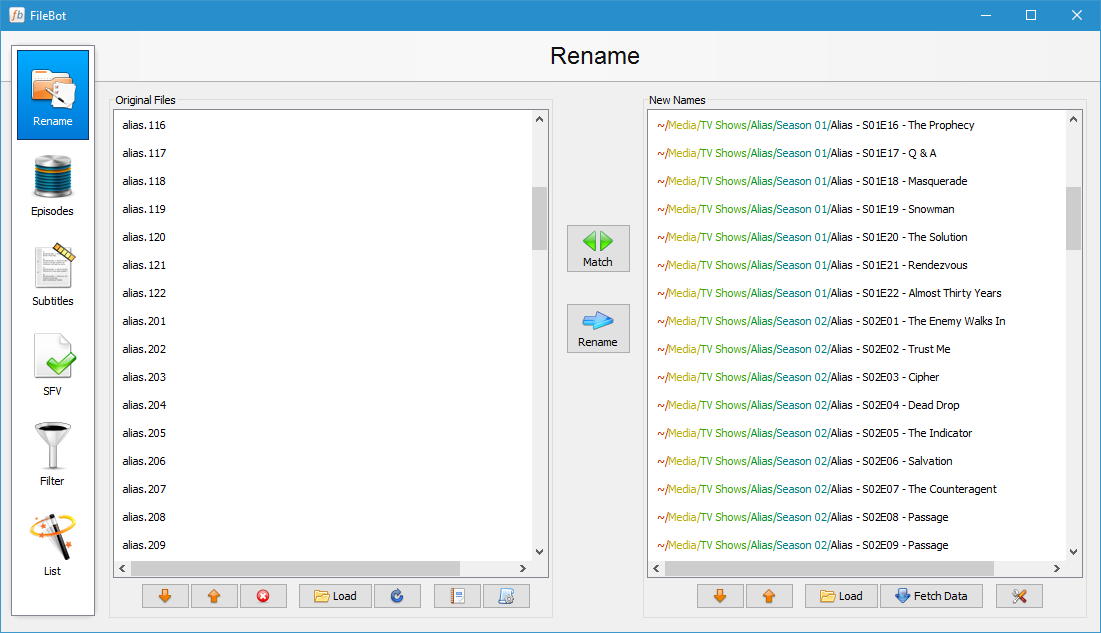
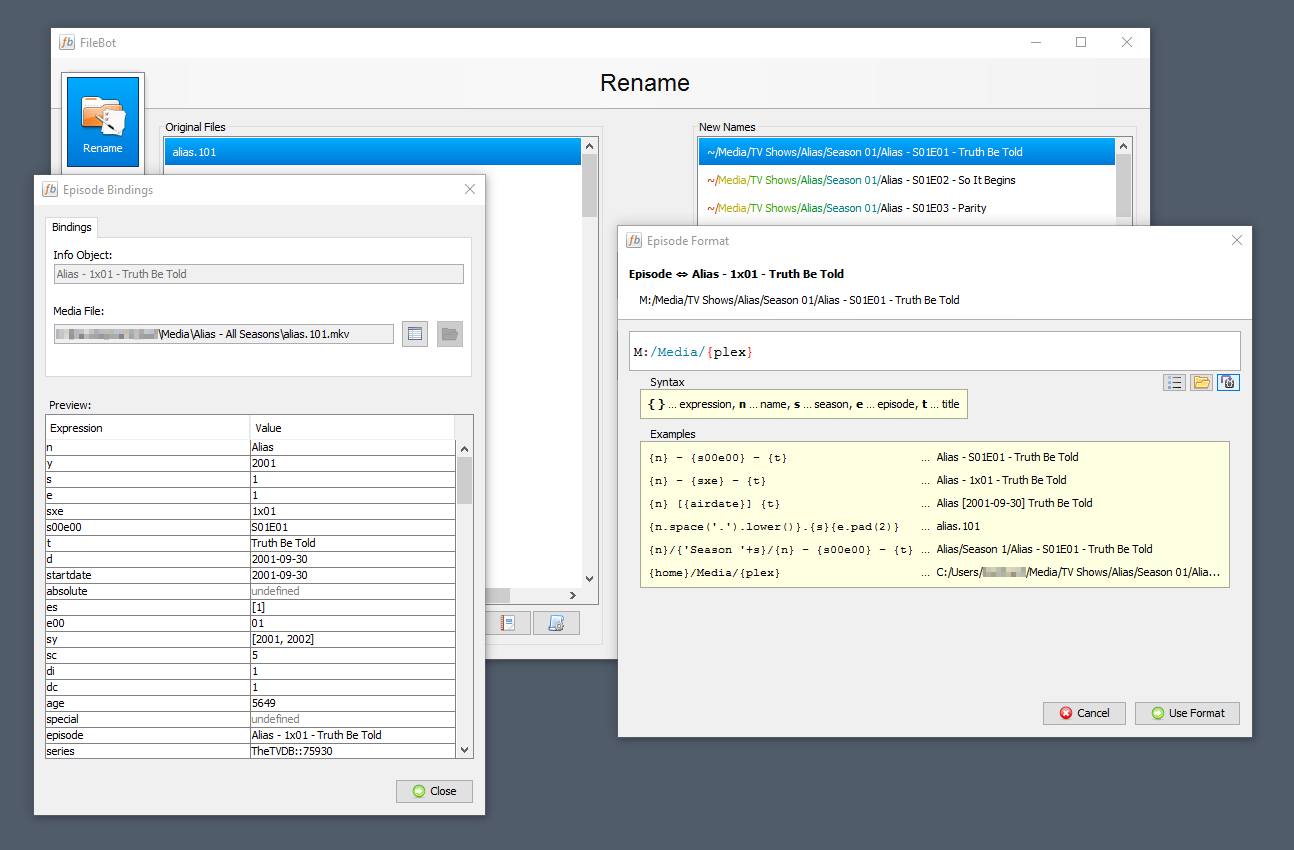
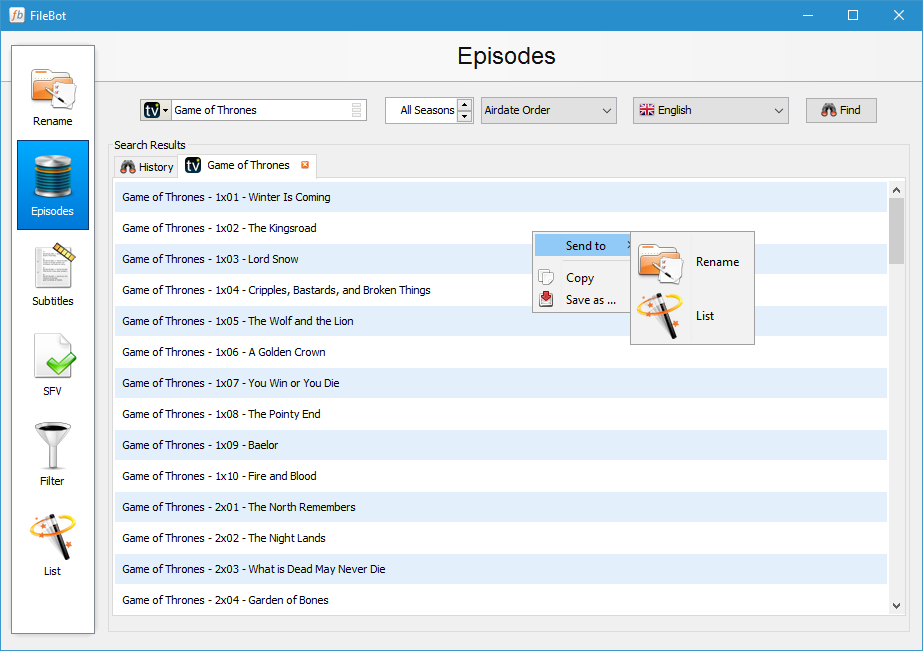
FileBot will match your files against TheMovieDB or TheTVDB and then rename (or move / copy / symlink / hardlink) them exactly the way you want it. Anything is possible!
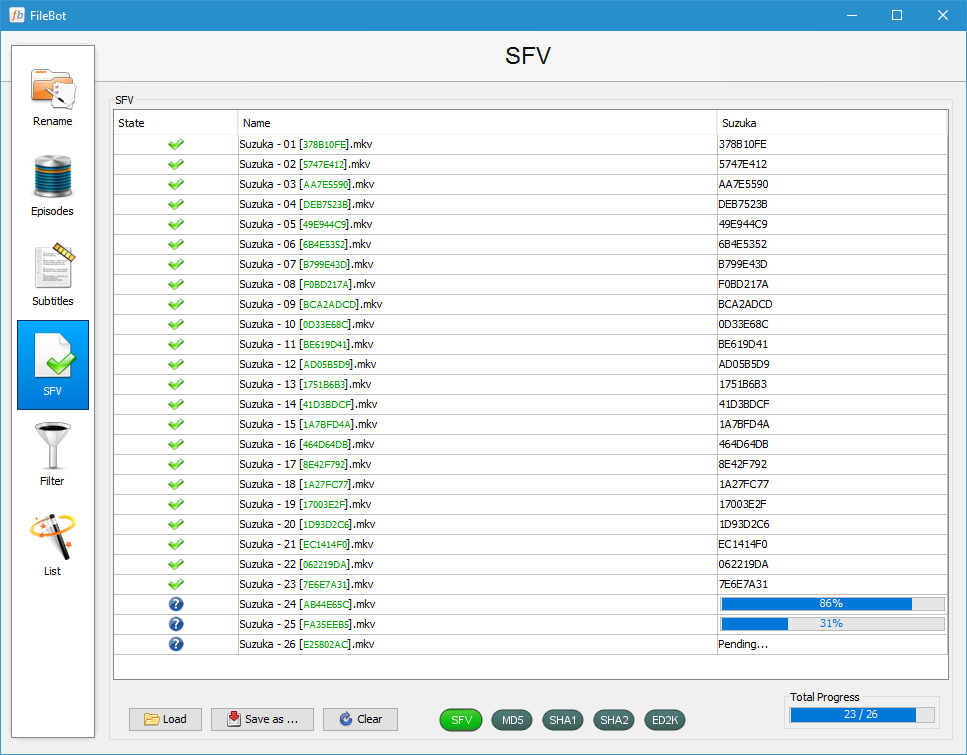
If you need help extracting archives en masse or checking SFV / MD5 / SHA1 / SHA256 files then FileBot will get that done too.
Getting Started:
Organize your media files:
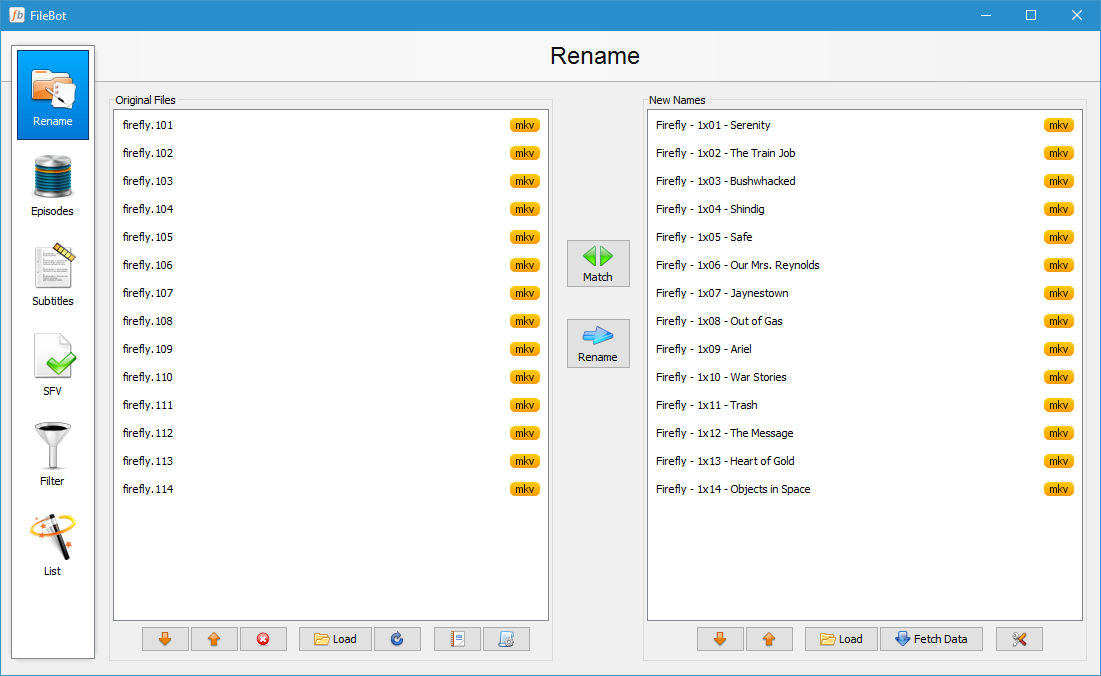
1. Drag media files onto "Original Files"
2. Click "Fetch Data" and select a database
3. Hit "Rename"!
Still having trouble? Visit us at www.filebot.net and have a look at the FAQ and Forums. You can report bugs or request help via Discord or by making a New Topic in the Forums.
If there is a version of this app for iOS/Mac or Windows we don't know about, paste the store link here — we'll auto-detect the store.
How to find the URL:1. Open the app in its store. 2.In the App Store app: tap the Share icon → “Copy Link”. In the browser: copy the URL from the address bar — it contains apps.apple.com/…/id… or apps.microsoft.com/detail/…. 3. Paste it here.
Paste the original link from the Apple App Store or Microsoft Store. We fetch all details automatically.
How to find the URL:
1. Open the app in its store. 2.In the App Store app: tap the Share icon → “Copy Link”. In the browser: copy the URL from the address bar — it contains apps.apple.com/…/id… or apps.microsoft.com/detail/…. 3. Paste it here.
Android apps can only be listed by their developer.