Screenshot appears after consentScreenshot appears after consentScreenshot appears after consentScreenshot appears after consentScreenshot appears after consentScreenshot appears after consentScreenshot appears after consentScreenshot appears after consent
Screenshot appears after consentScreenshot appears after consentScreenshot appears after consentScreenshot appears after consentScreenshot appears after consentScreenshot appears after consentScreenshot appears after consentScreenshot appears after consent
Screenshot appears after consentScreenshot appears after consentScreenshot appears after consentScreenshot appears after consentScreenshot appears after consentScreenshot appears after consentScreenshot appears after consent
Screenshot appears after consentScreenshot appears after consentScreenshot appears after consentScreenshot appears after consentScreenshot appears after consentScreenshot appears after consentScreenshot appears after consent
Summary
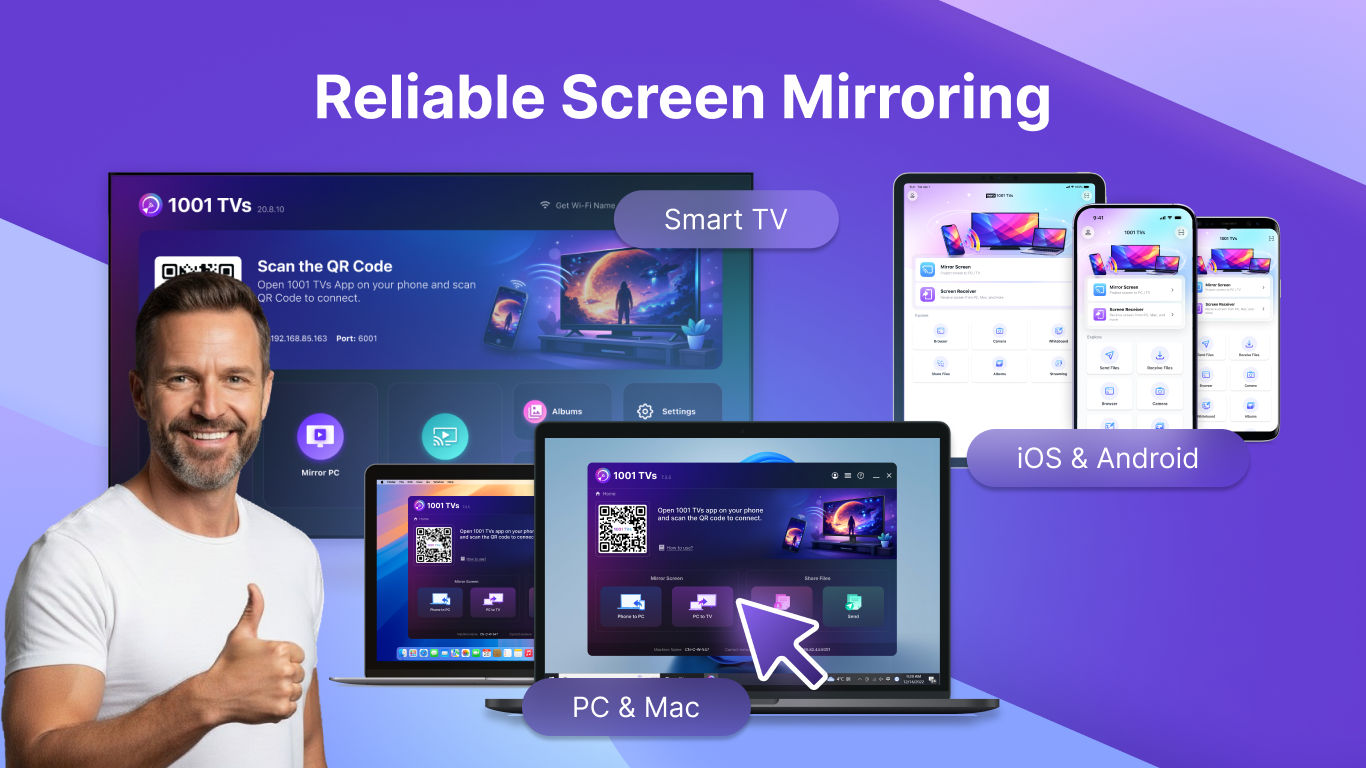
1001TVs: Screen Mirror & File Transfer is a screen mirroring app that casts phones, tablets, Macs and other computers to a Windows PC, and can also mirror a computer screen to a phone, tablet, Mac, Windows PC or TV. It offers real-time mirroring with low latency and synchronized audio and video, plus automatic rotation preserving aspect ratio for vertical videos. Multiple devices can be mirrored simultaneously, useful for presentations, and PC or Mac users can mirror the full screen, an extended screen or a single window. It also supports live mirroring of an iPhone camera or whiteboard, with all mirroring data staying within the local network.
Show the developer's original descriptionHide the original description
1001 TVs is a screen mirroring app that mirrors screens from your phone, tablet, Mac, or other computers to your Windows PC, and also mirrors your computer screen to your phone, tablet, Mac, Windows PC, or TV.
⭐ Why You'll Love It?
1. Smooth & Clear Display – Original Image Quality
High frame rate, high definition, flicker-free, and easy on the eyes. Subtitles stay crystal clear with flexible configuration options. Perfect for watching videos with captions and comments.
2. Perfect for TikTok, YouTube and Vertical Videos
Auto rotation automatically follows your phone's rotation, perfectly maintaining the original aspect ratio. Enjoy TikTok on a big screen, just like using a large smartphone. Vertical screen mode lets you manually set any angle on your PC, Mac or TV.
3. Ultra-Low Latency Performance
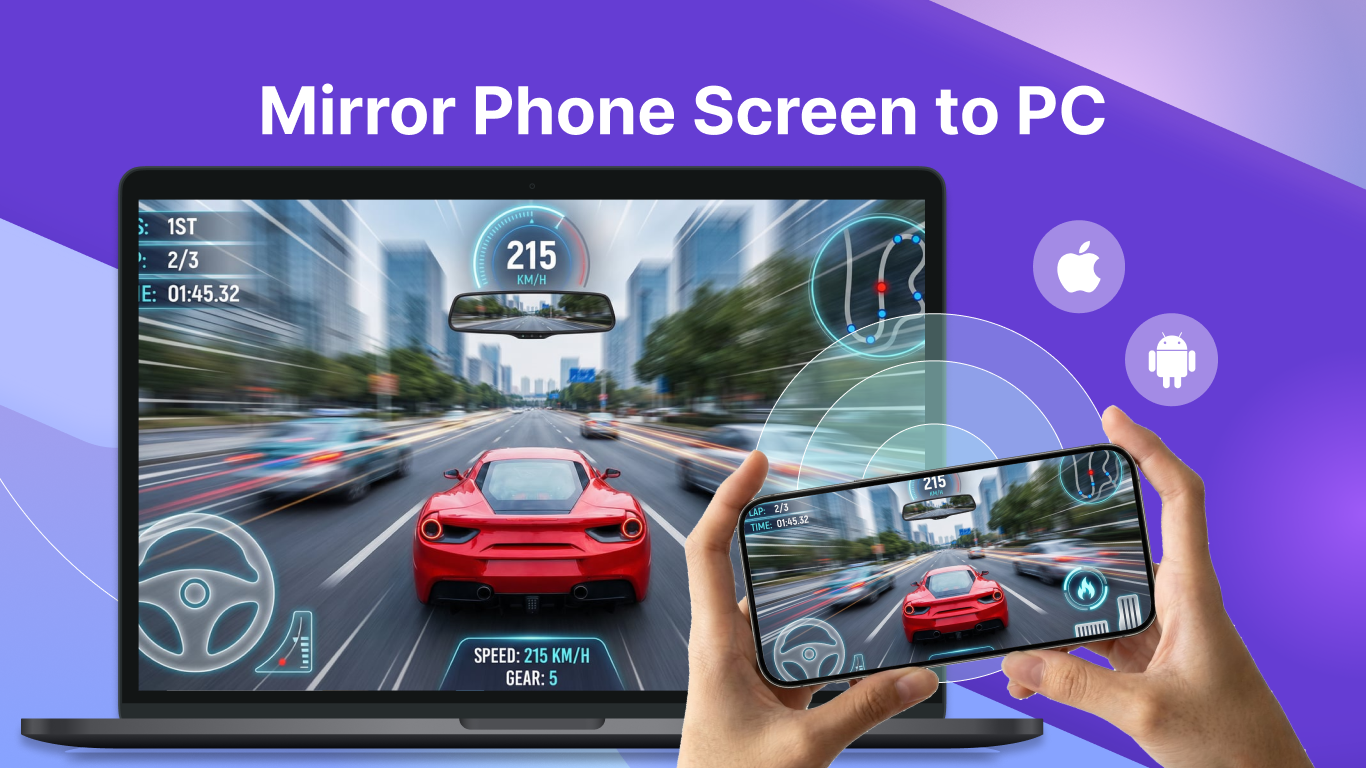
Real-time low-latency mirroring with optimal balance between image quality and smoothness. Synchronized audio and video—no lag. Perfect for gaming and streaming.
4. Multi-Device Mirroring
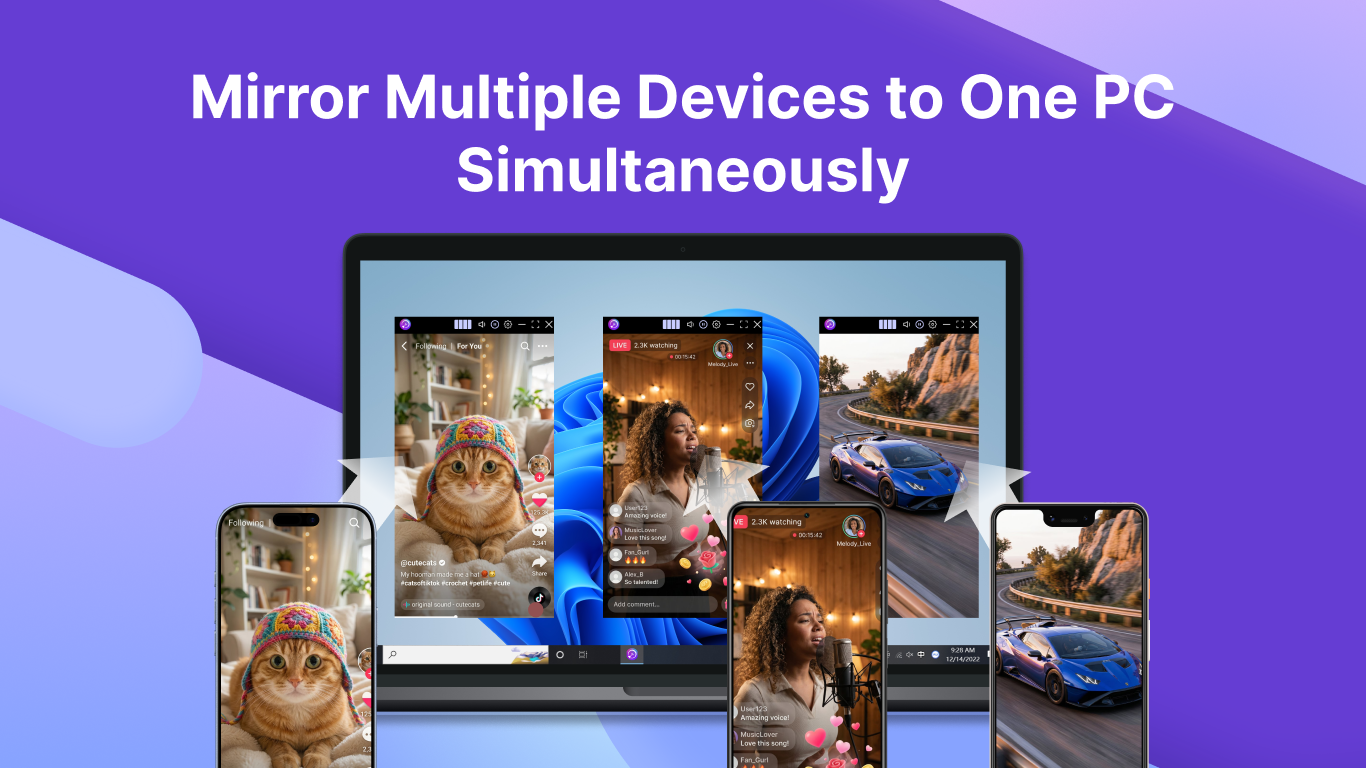
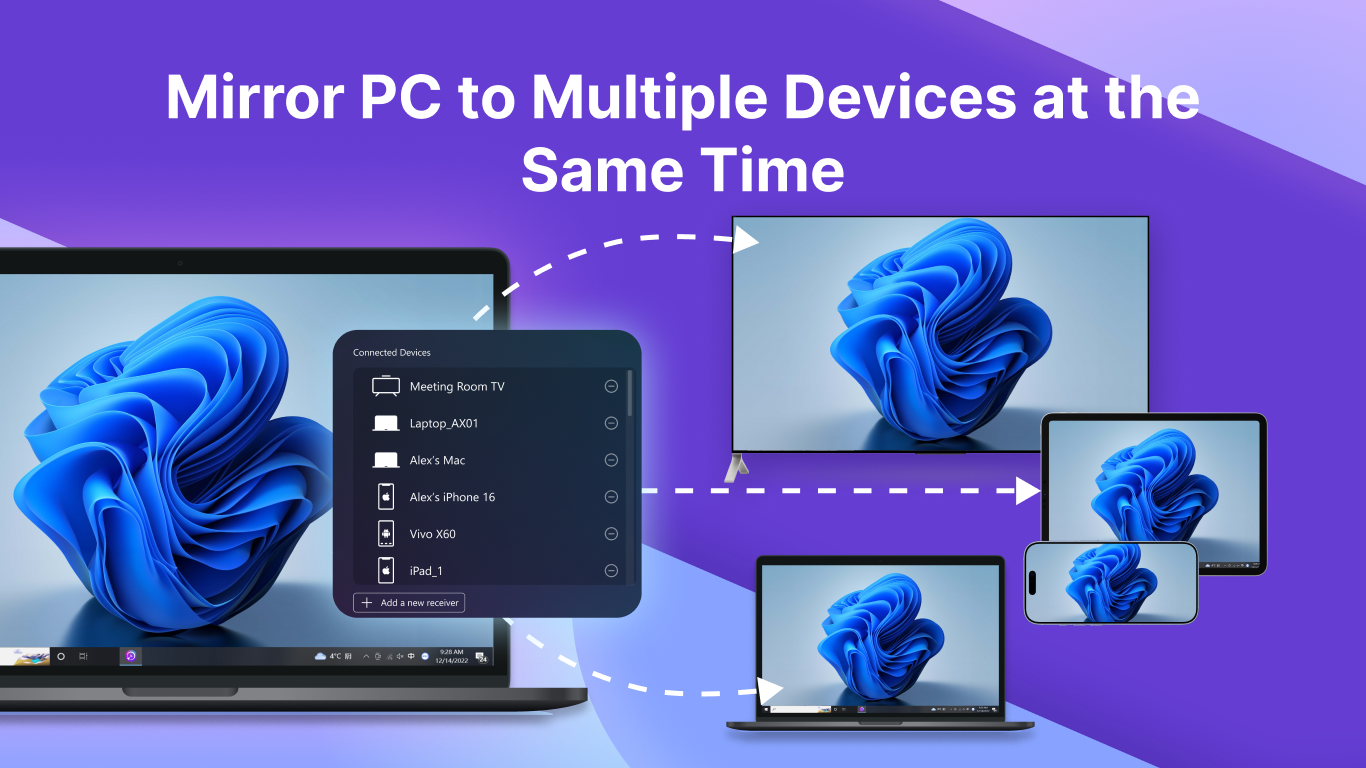
Mirror multiple iPhones, Android phones, or tablets to one PC, or mirror one PC to multiple devices, including TVs, phones, tablets, Macs, and other PCs — simultaneously. Ideal for presentations and events.
5. Flexible PC Screen Mirroring
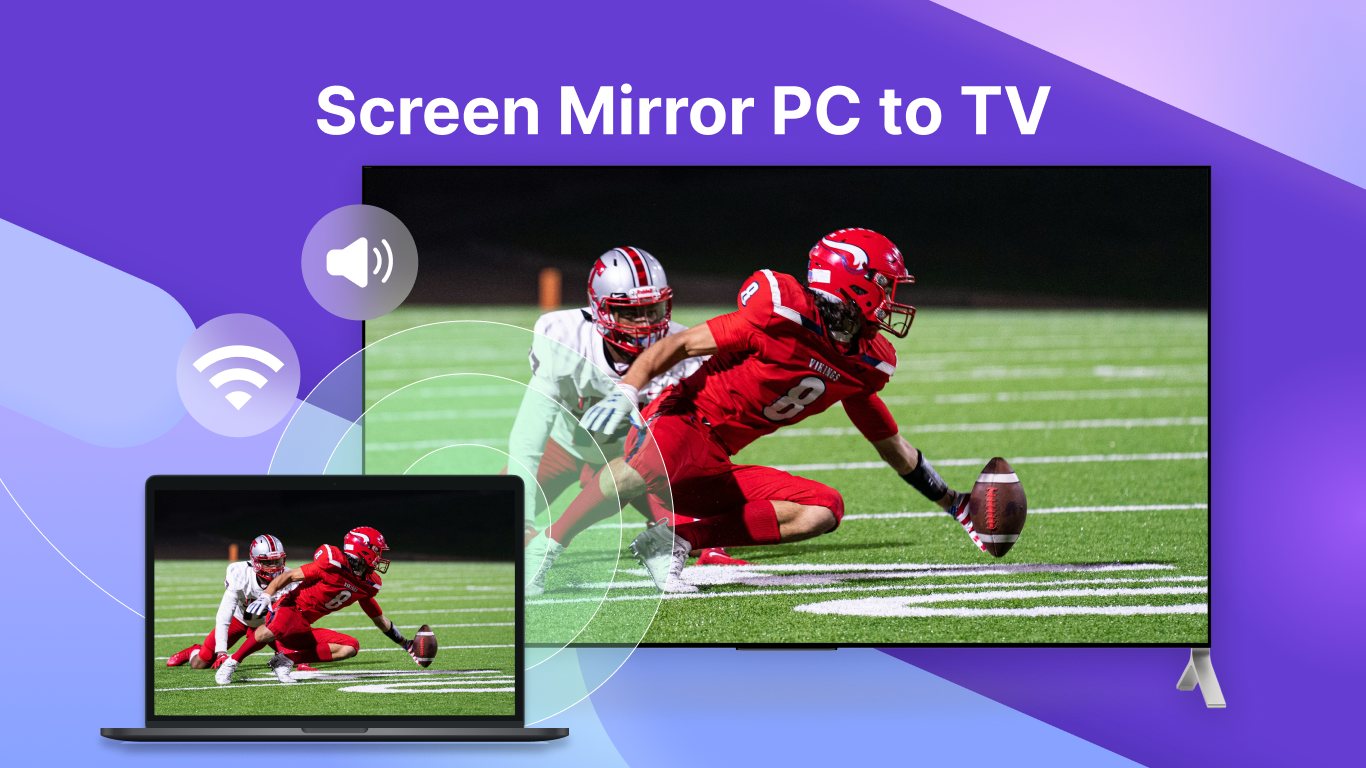
Supports mirroring the Primary Screen, Extended Screen, or a single window from your PC/Mac to TVs and other devices. Mirror only the secondary screen to keep your main display private, or share just one specific window for focused presentations.
6. Smart Display & Window Control
Three modes (Fit/Fill/Scale) smartly adapt to your screen, eliminating black bars when you cast to TV. On the PC or Mac receiver, you can freely zoom the mirroring window, switch to full screen, hide the title bar, and more.
7. 100% Private & Secure
All screen mirroring data stays within your local network, never uploaded to the internet, ensuring 100% privacy protection.
8. Easy to Use
No complicated setup — just one tap to connect. Pause or resume anytime right from your Windows PC.
⭐ Additional Features
1. Annotation Tool - Draw and annotate directly on the mirrored screen (PC/Mac receiver only)
2. Fast File Transfer – Easily transfer files between your PC, Mac, phones, tablets, and more. (Also supports sending files from PC/Mac to TV) No USB cables needed for wireless file transfer.
3. iPhone Camera Live Mirroring (with Flip Option) – Real-time camera mirroring for easier big-screen selfies and video calls.
4. iPhone Whiteboard – Writing or Drawing on your iPhone and mirror to PC, Mac, or TV in real time for seamless presentations and collaboration.
* How to Use?
1. Install 1001 TVs screen mirroring app on this Windows PC and the device you want to mirror to (PC, Mac, TV, phone or tablet).
2. Ensure both devices are connected to the same Wi-Fi network for wireless display.
3. Open the app, select the device or scan the QR code to start.
* The following features are available for free trial, paid membership required on sender side after trial.
1. Screen mirroring from Phone to PC
2. File Transferring from Phone to PC
3. Screen mirroring from PC to TV (and other devices)
4. File Transferring from PC to TV (and other devices)
Email: 1001tvs@nero.com
Website: https://www.1001tvs.com
Terms: https://1001tvs.com/license/en/terms.html
Privacy: https://1001tvs.com/license/en/privacy.html
Play Store URL for "1001TVs: Screen Mirror & File Transfer"
If there is a version of this app for iOS/Mac or Windows we don't know about, paste the store link here — we'll auto-detect the store.
How to find the URL:1. Open the app in its store. 2.In the App Store app: tap the Share icon → “Copy Link”. In the browser: copy the URL from the address bar — it contains apps.apple.com/…/id… or apps.microsoft.com/detail/…. 3. Paste it here.
Paste the original link from the Apple App Store or Microsoft Store. We fetch all details automatically.
How to find the URL:
1. Open the app in its store. 2.In the App Store app: tap the Share icon → “Copy Link”. In the browser: copy the URL from the address bar — it contains apps.apple.com/…/id… or apps.microsoft.com/detail/…. 3. Paste it here.
Android apps can only be listed by their developer.






 Screen Mirroring Cast to TV.
Mirror screen to other devices and smart TVs
 Quick Assist
Remotely share and control PC screens for support
 AirPlay Screen Mirrorring Receiver
Mirror iPhone or Mac screen to PC or Xbox
 Win AirPlay : Screen Mirroring
Mirror iPhone, iPad and Mac screen to computer
 EasyCast - Screen Mirroring Receiver
Mirror smartphone screen to computer or Xbox
 Screen Recorder Plus - Screen & Webcam Recorder
Record and share screen content in HD