

Screenshot appears after consentScreenshot appears after consentScreenshot appears after consentScreenshot appears after consent
Screenshot appears after consentScreenshot appears after consent
Summary
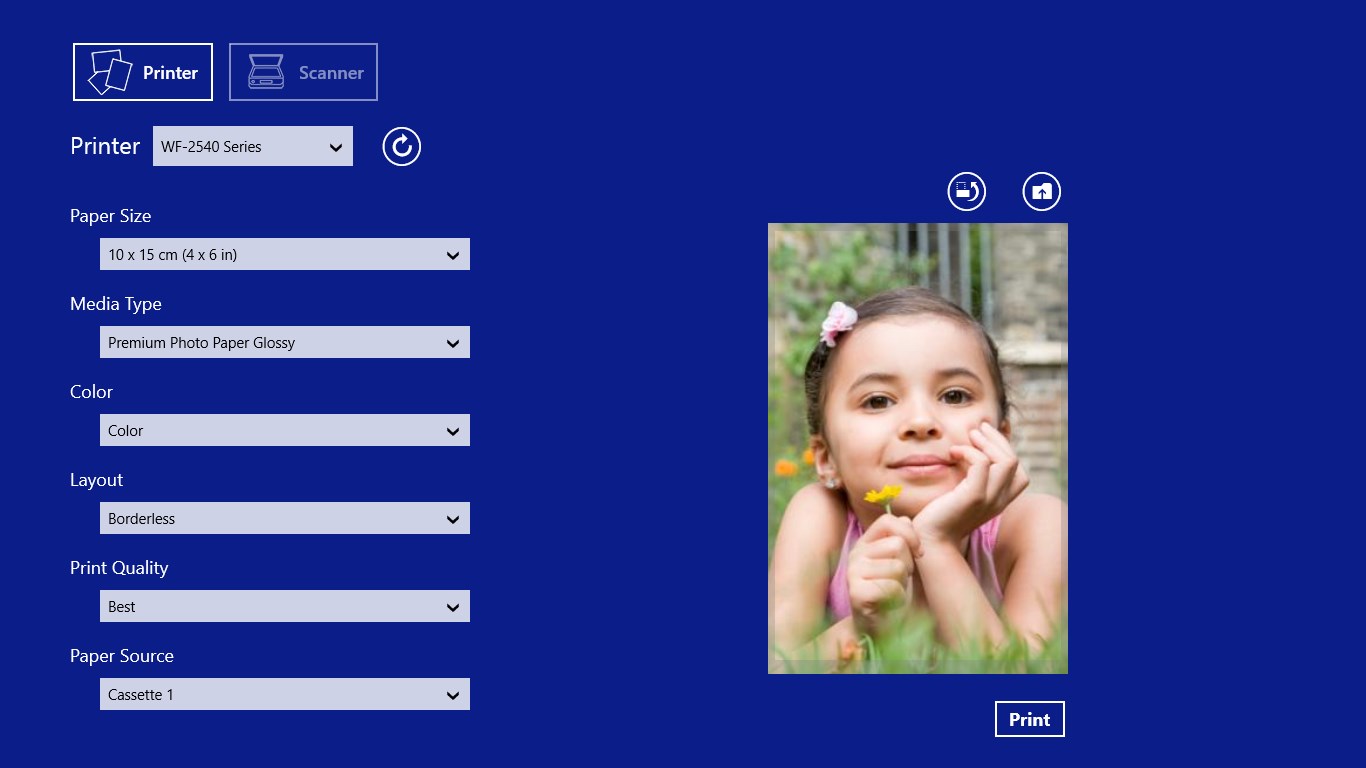
Epson Print and Scan is a print and scan app for Wi-Fi connected Epson All-In-One printers. It offers device selection and document preview for both printing and scanning. For printing, it allows choosing paper size, paper type and color mode. For scanning, it provides preset scan sizes, resolution settings and color mode selection. The interface is designed with touch-enhanced controls.
Show the developer's original descriptionHide the original description
Description
Epson Print and Scan delivers an exceptional print and scan experience in the Start screen for your Wi-Fi connected Epson All-In-One printers on Windows 8 so you can get your work done! The Epson Print and Scan app provides you with familiar basic control that are enhanced for touch to compliment your creativity.
Note:
* This device app does not support All-In-One devices on USB connection at this time.
* This device app does not support Windows 11.
* Searching for a printer may fail due to your network configuration.
Features
Print
- Touch enhanced User Interface
- Device selection
- Document preview
- Paper size
- Paper type
- Color mode
Scan
- Touch enhanced User Interface
- Device selection
- Document preview
- Preset scan sizes
- Resolution
- Color mode
Compatible Models:
XP-820, XP-821, XP-620, XP-621,XP-625, XP-720, XP-721, XP-520, XP-860, XP-760, XP-220
XP-320, XP-324, XP-420, XP-424, XP-225, XP-322, XP-323, XP-325, XP-422, XP-423, XP-425
WF-100, WF-2660, WF-2661, WF-2650, WF-2651, WF-2630, WF-2631
WF-R5690, WF-R5691, WF-R4640, WF-R5190, WF-M5690, WF-M5190, WF-M5191, WF-6530, WF-6510
WF-6010, WF-6090
If there is a version of this app for iOS/Mac or Windows we don't know about, paste the store link here — we'll auto-detect the store.
How to find the URL:1. Open the app in its store. 2.In the App Store app: tap the Share icon → “Copy Link”. In the browser: copy the URL from the address bar — it contains apps.apple.com/…/id… or apps.microsoft.com/detail/…. 3. Paste it here.
Paste the original link from the Apple App Store or Microsoft Store. We fetch all details automatically.
How to find the URL:
1. Open the app in its store. 2.In the App Store app: tap the Share icon → “Copy Link”. In the browser: copy the URL from the address bar — it contains apps.apple.com/…/id… or apps.microsoft.com/detail/…. 3. Paste it here.
Android apps can only be listed by their developer.