




Screenshot appears after consentScreenshot appears after consentScreenshot appears after consentScreenshot appears after consentScreenshot appears after consent
Summary
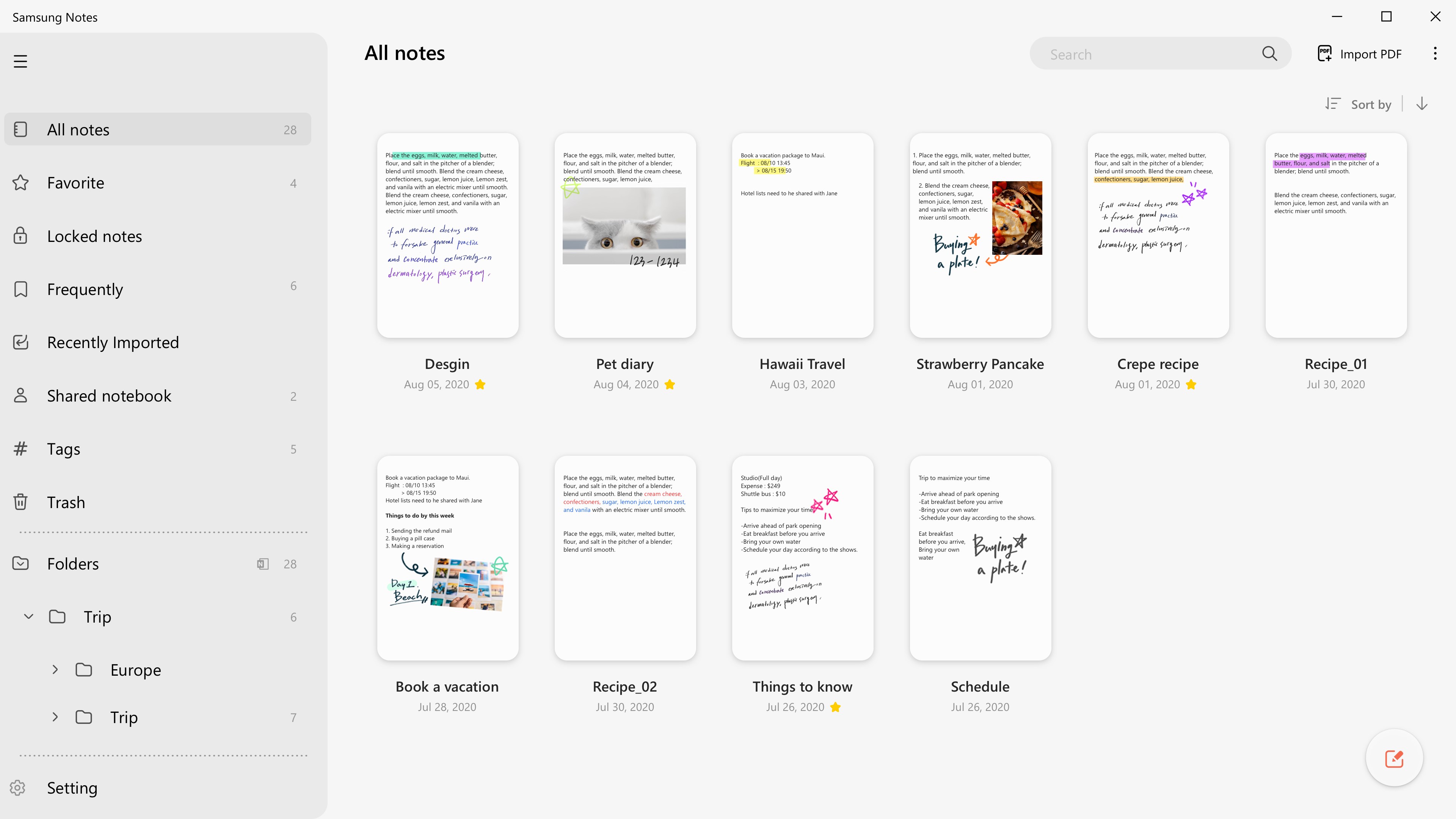
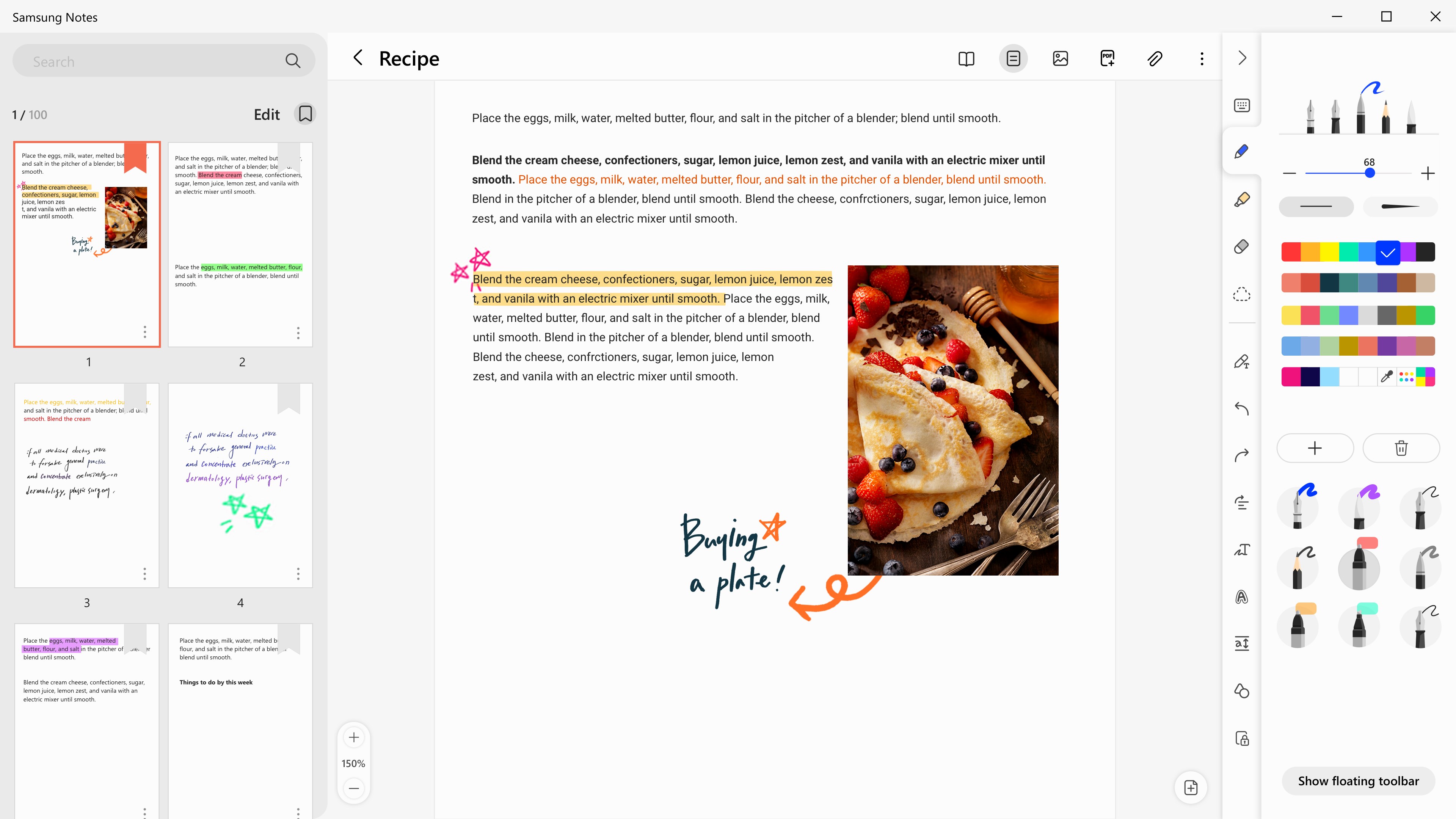
Samsung Notes is a note-taking app that lets users write or draw with the enhanced S Pen and save files to the cloud. Notes can combine text, images, voice recordings and music. Handwriting mode displays handwritten text directly within a note, while a drawing mode offers various brushes and colors for sketching. A voice recording feature allows sound to be captured and attached to a note. Multiple writing tools are available, including pens, fountain pens, pencils and highlighters, each with adjustable colors and thicknesses, along with an eraser for removing specific content.
Show the developer's original descriptionHide the original description
(Samsung Notes is optimized for Samsung Galaxy Books. Other computers may have issues running it.)
"Samsung Notes allows you to use the enhanced S Pen to write or draw, and save files to the Cloud.
You can use the S Pen to create notes that contain notes, memos, images, voices or music on Samsung Notes.
Try creating a new note.
You can create a new note by tapping + at the bottom right of the main screen.
Newly created notes will have the “sdocx” extension.
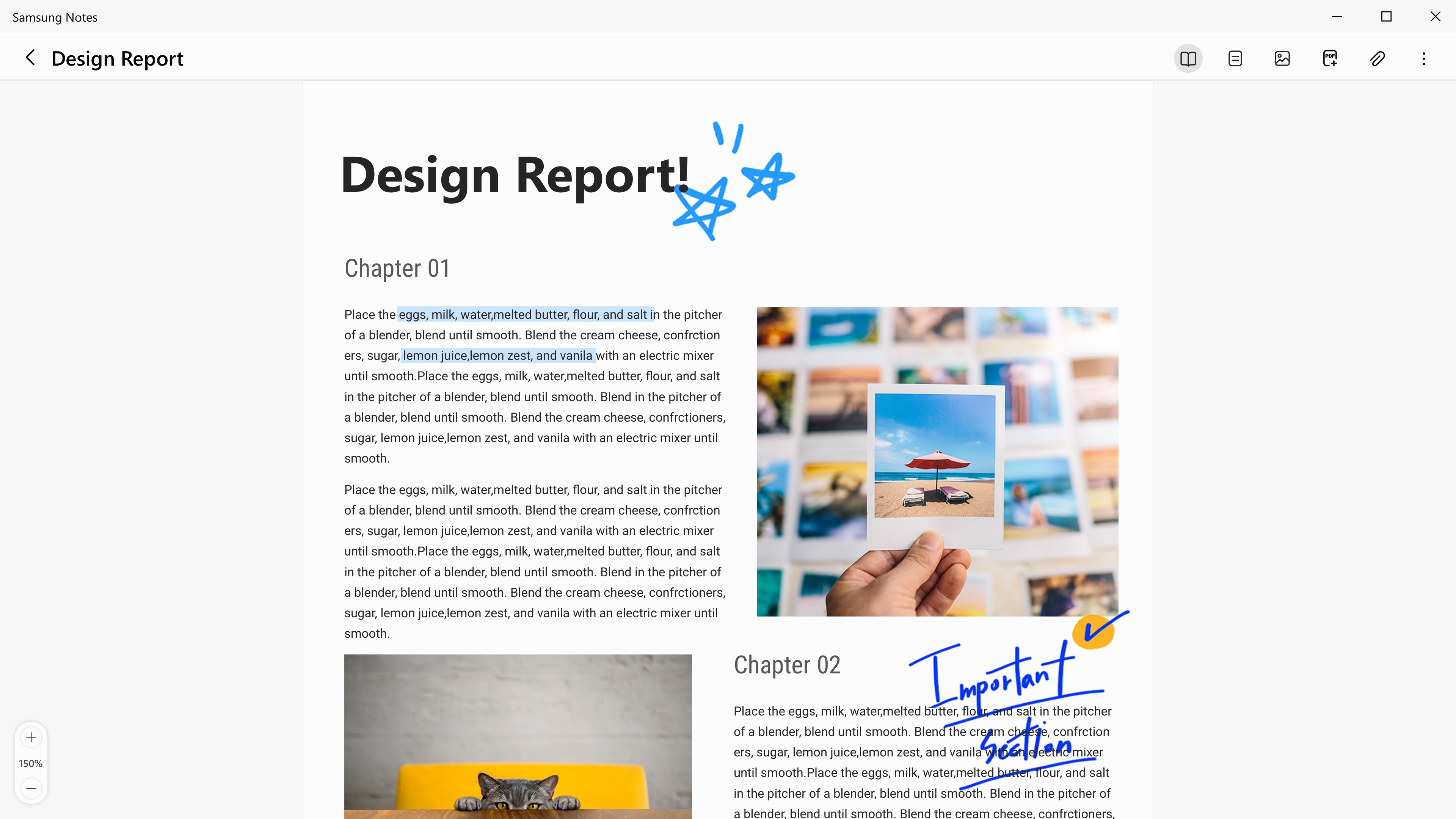
Create notes with your handwriting.
By tapping the Handwriting icon while writing a note, text that you write by hand will directly be displayed.
Try drawing a picture.
By tapping the Drawing icon while writing a note, you can draw with various brushes and colors.
Add a voice recording.
By tapping the Voice Recording icon while writing a note, you can record sound and create a sound-added note.
Try using various writing tools.
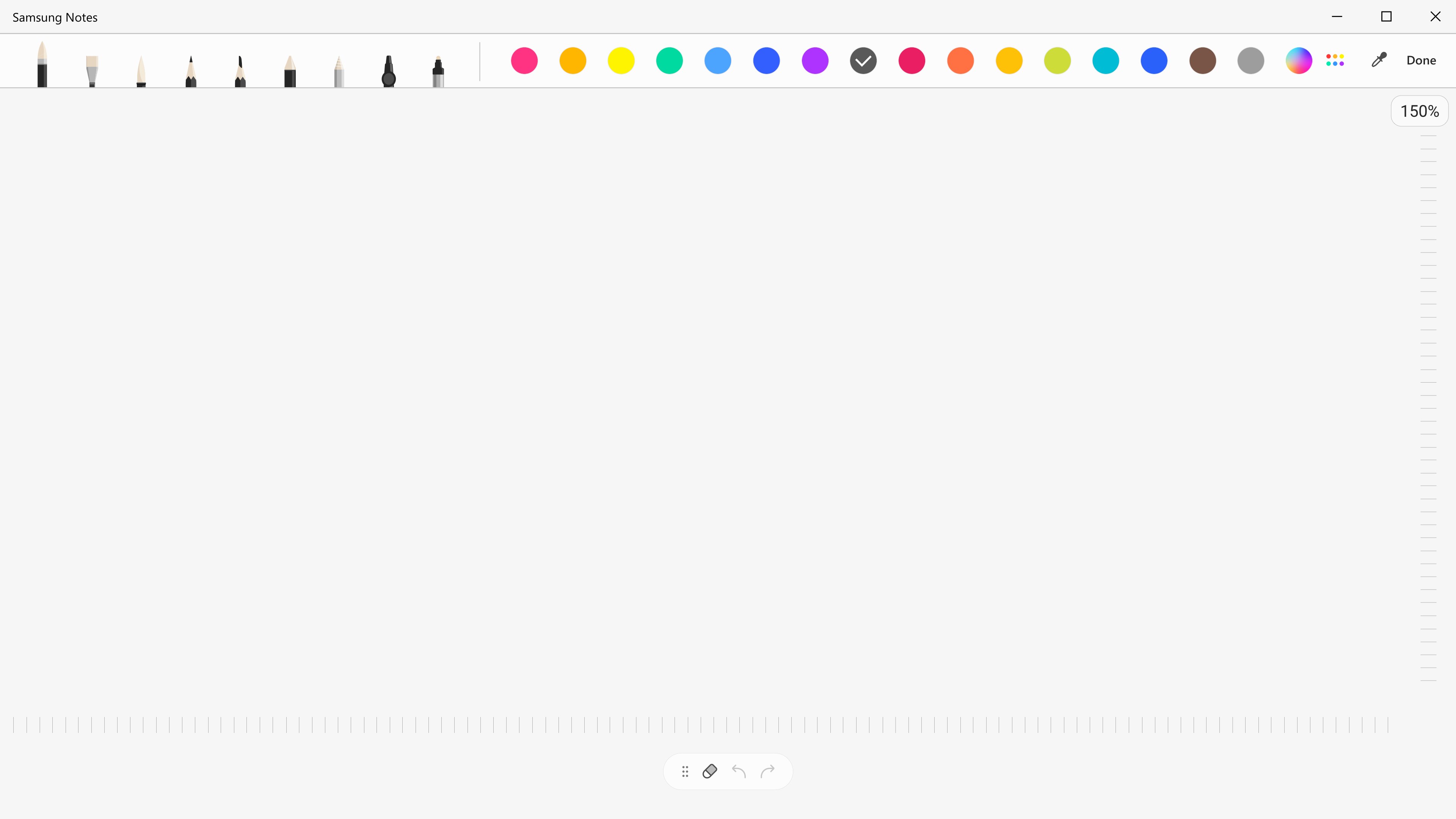
By tapping the Pen icon while writing a note, you can select a variety of writing tools such as pens, fountain pens, pencils, highlighters, etc., as well as various colors and thicknesses.
By tapping the Eraser icon, you can select and erase only the content that you want to remove."
If there is a version of this app for iOS/Mac or Windows we don't know about, paste the store link here — we'll auto-detect the store.
How to find the URL:1. Open the app in its store. 2.In the App Store app: tap the Share icon → “Copy Link”. In the browser: copy the URL from the address bar — it contains apps.apple.com/…/id… or apps.microsoft.com/detail/…. 3. Paste it here.
Paste the original link from the Apple App Store or Microsoft Store. We fetch all details automatically.
How to find the URL:
1. Open the app in its store. 2.In the App Store app: tap the Share icon → “Copy Link”. In the browser: copy the URL from the address bar — it contains apps.apple.com/…/id… or apps.microsoft.com/detail/…. 3. Paste it here.
Android apps can only be listed by their developer.