
Screenshot appears after consentScreenshot appears after consentScreenshot appears after consentScreenshot appears after consentScreenshot appears after consentScreenshot appears after consent
Summary
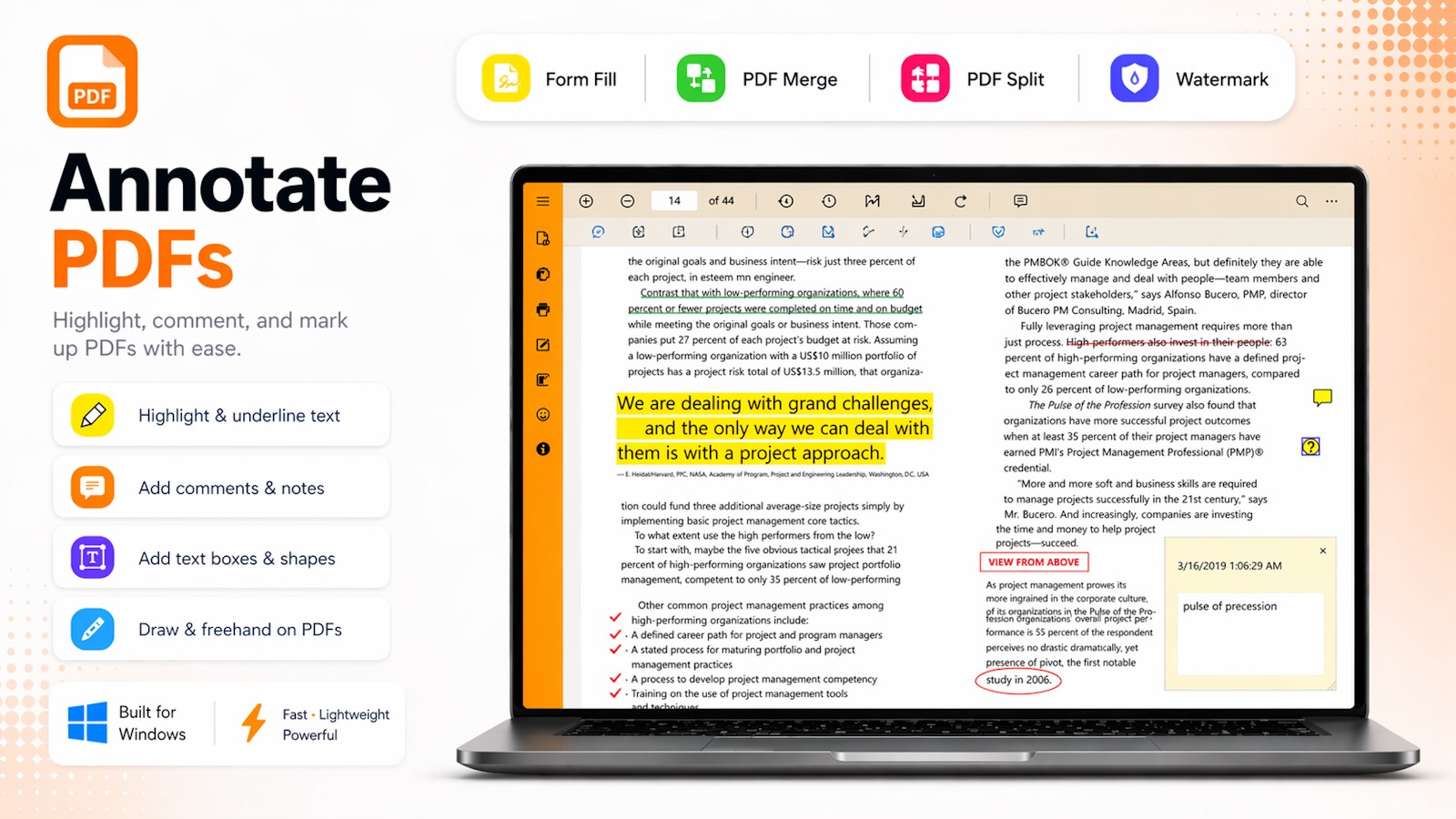
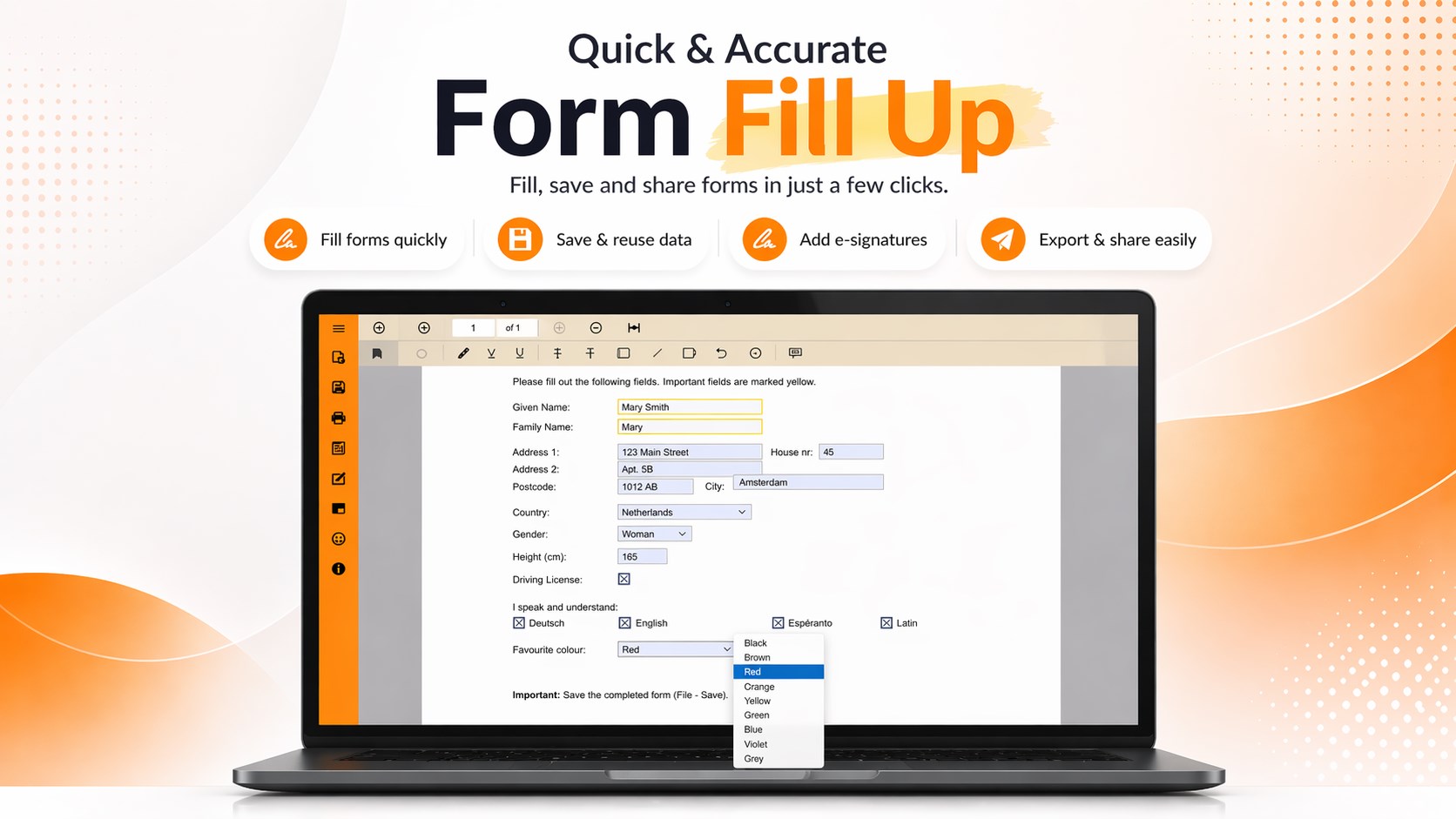
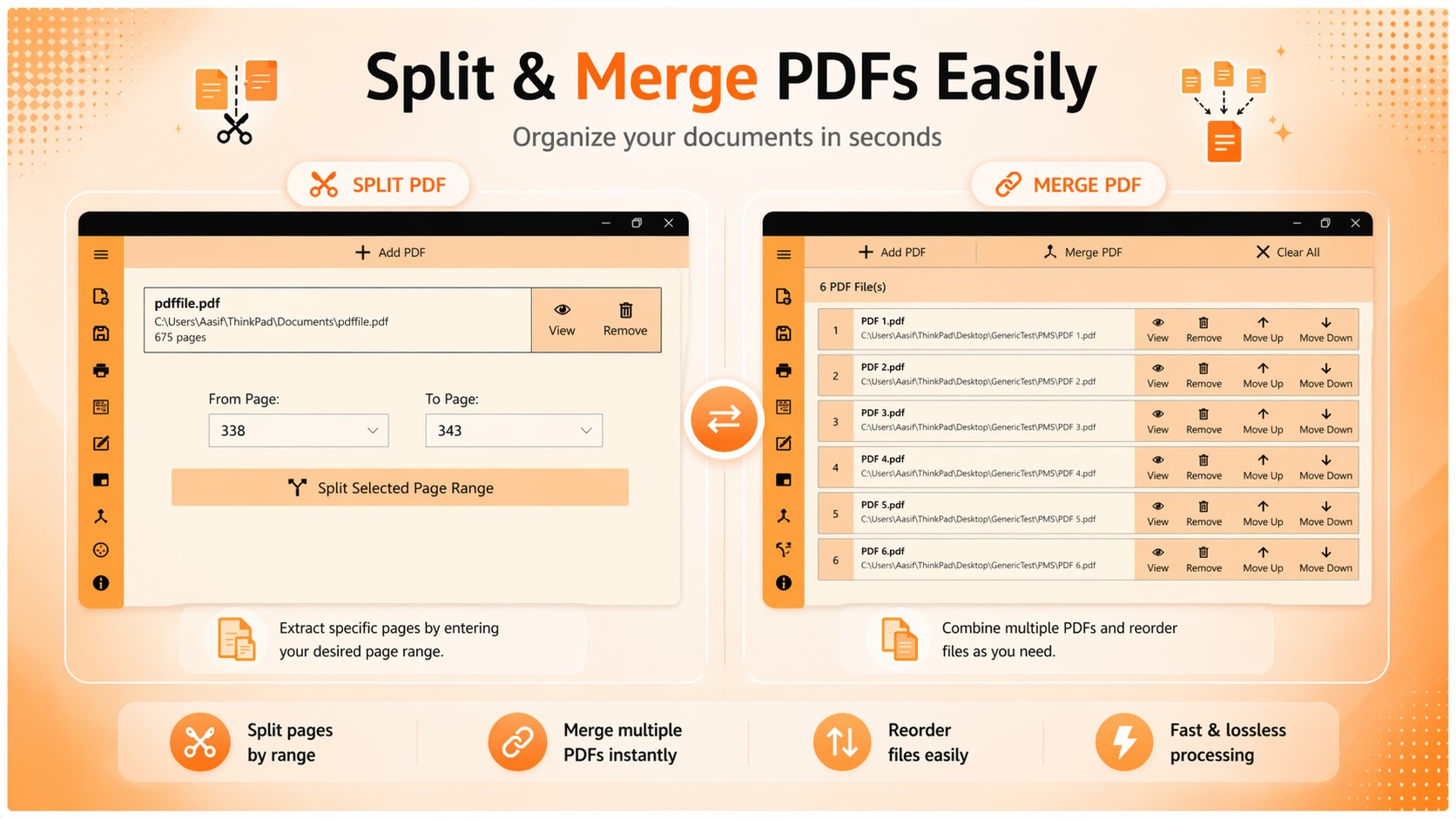
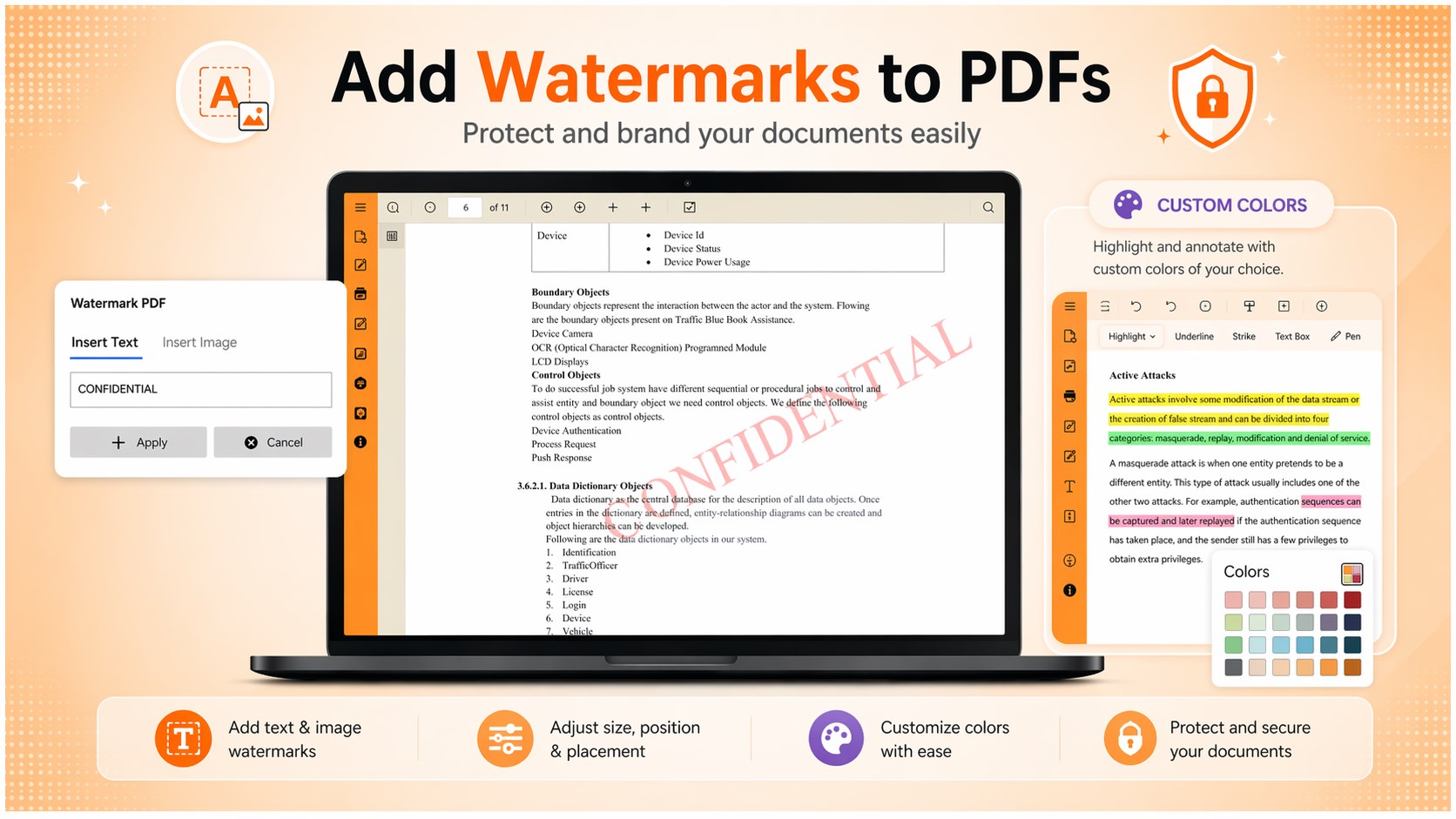
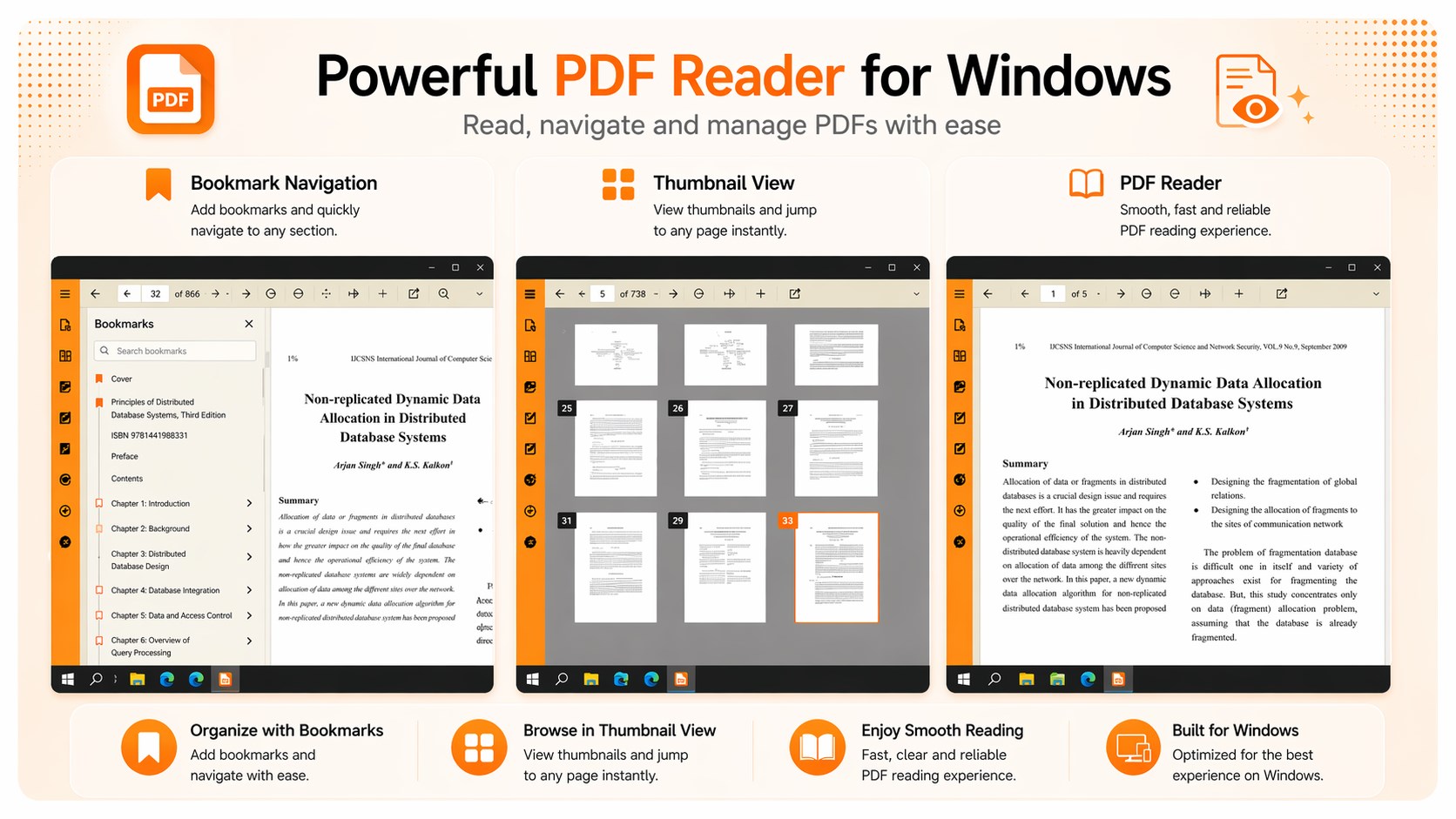
PDF Editor for Windows is a PDF editing tool for annotating, merging, splitting and organizing PDF files. It allows highlighting, underlining, strikeout and comments, along with drawing shapes and freehand notes. Multiple PDFs can be merged instantly, and files can be split or have pages extracted and rearranged before merging. It supports filling text fields, checkboxes, radio buttons and dropdowns, and offers a reader with multiple viewing modes, zoom and full-width reading. Text or image watermarks can be added to PDFs. According to the provider, it works offline and files stay on the device without cloud upload.
Show the developer's original descriptionHide the original description
Edit, Merge & Manage PDFs in Seconds
Fast, lightweight and easy-to-use PDF editor for Windows.
Edit, annotate, merge, split and organize your PDF files without complexity.
# All Essential PDF Tools in One Place
Edit & Annotate
Highlight, underline, strikeout and add comments
Draw shapes and freehand notes
# Merge & Split
Merge multiple PDFs instantly
Split files and extract pages easily
Arrange pages before merging
# Fill Forms
Fill text fields, checkboxes, radio buttons and dropdowns
# Reader
Multiple viewing modes with easy navigation
Zoom and full-width reading
# Watermark
Add text or image watermark to your PDFs
# Fast, Simple & Reliable
Clean interface
Smooth performance
Lightweight and efficient
Designed to help you complete tasks quickly.
# Secure & Private
Works offline
No cloud upload required
Your files stay on your device
Get Started, download now and simplify your PDF workflow.
Note: Basic features are free. Saving and printing require a small upgrade.
If there is a version of this app for iOS/Mac or Windows we don't know about, paste the store link here — we'll auto-detect the store.
How to find the URL:1. Open the app in its store. 2.In the App Store app: tap the Share icon → “Copy Link”. In the browser: copy the URL from the address bar — it contains apps.apple.com/…/id… or apps.microsoft.com/detail/…. 3. Paste it here.
Paste the original link from the Apple App Store or Microsoft Store. We fetch all details automatically.
How to find the URL:
1. Open the app in its store. 2.In the App Store app: tap the Share icon → “Copy Link”. In the browser: copy the URL from the address bar — it contains apps.apple.com/…/id… or apps.microsoft.com/detail/…. 3. Paste it here.
Android apps can only be listed by their developer.