
Screenshot appears after consentScreenshot appears after consentScreenshot appears after consentScreenshot appears after consentScreenshot appears after consentScreenshot appears after consentScreenshot appears after consentScreenshot appears after consentScreenshot appears after consentScreenshot appears after consentScreenshot appears after consentScreenshot appears after consentScreenshot appears after consentScreenshot appears after consentScreenshot appears after consent
Summary
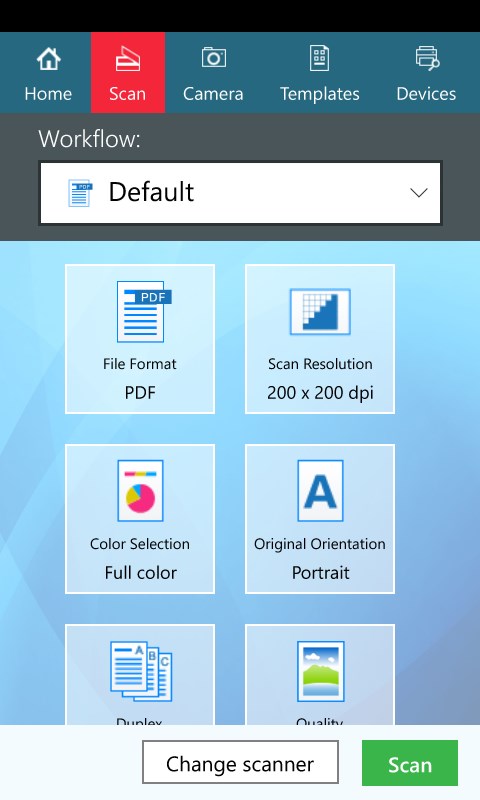
KYOCERA Print Center is a utility app for KYOCERA printers connected to the same network as computers or tablets running Windows 10 or later. It discovers and monitors KYOCERA printers on the network. Documents can be scanned, images captured, and text extracted using optical character recognition. The app also allows selecting or creating lined templates for printing and configuring advanced print settings for KYOCERA printers. In addition, folders in the Driver Library can be specified so that advanced print settings can access watermark images, driver profile files, and saved printouts.
Show the developer's original descriptionHide the original description
KYOCERA Print Center is a utility app for KYOCERA printers that share a network connection with computers or tablets running Windows 10 or later. With this app, you can do the following:
• Discover and monitor KYOCERA printers
• Scan documents, capture images, and extract text using Optical Character Recognition (OCR)
• Select or create lined templates to print
• Configure advanced print settings for KYOCERA printers
• Specify folders in Driver Library that advanced print settings can access for watermark images, driver profile files, and saved printouts
• Access, preview, and print documents saved on your device from a single screen
• Connect to supported cloud services to access folders and files, or upload scanned documents directly
If there is a version of this app for iOS/Mac or Windows we don't know about, paste the store link here — we'll auto-detect the store.
How to find the URL:1. Open the app in its store. 2.In the App Store app: tap the Share icon → “Copy Link”. In the browser: copy the URL from the address bar — it contains apps.apple.com/…/id… or apps.microsoft.com/detail/…. 3. Paste it here.
Paste the original link from the Apple App Store or Microsoft Store. We fetch all details automatically.
How to find the URL:
1. Open the app in its store. 2.In the App Store app: tap the Share icon → “Copy Link”. In the browser: copy the URL from the address bar — it contains apps.apple.com/…/id… or apps.microsoft.com/detail/…. 3. Paste it here.
Android apps can only be listed by their developer.