


Screenshot appears after consentScreenshot appears after consentScreenshot appears after consentScreenshot appears after consentScreenshot appears after consentScreenshot appears after consent
Summary
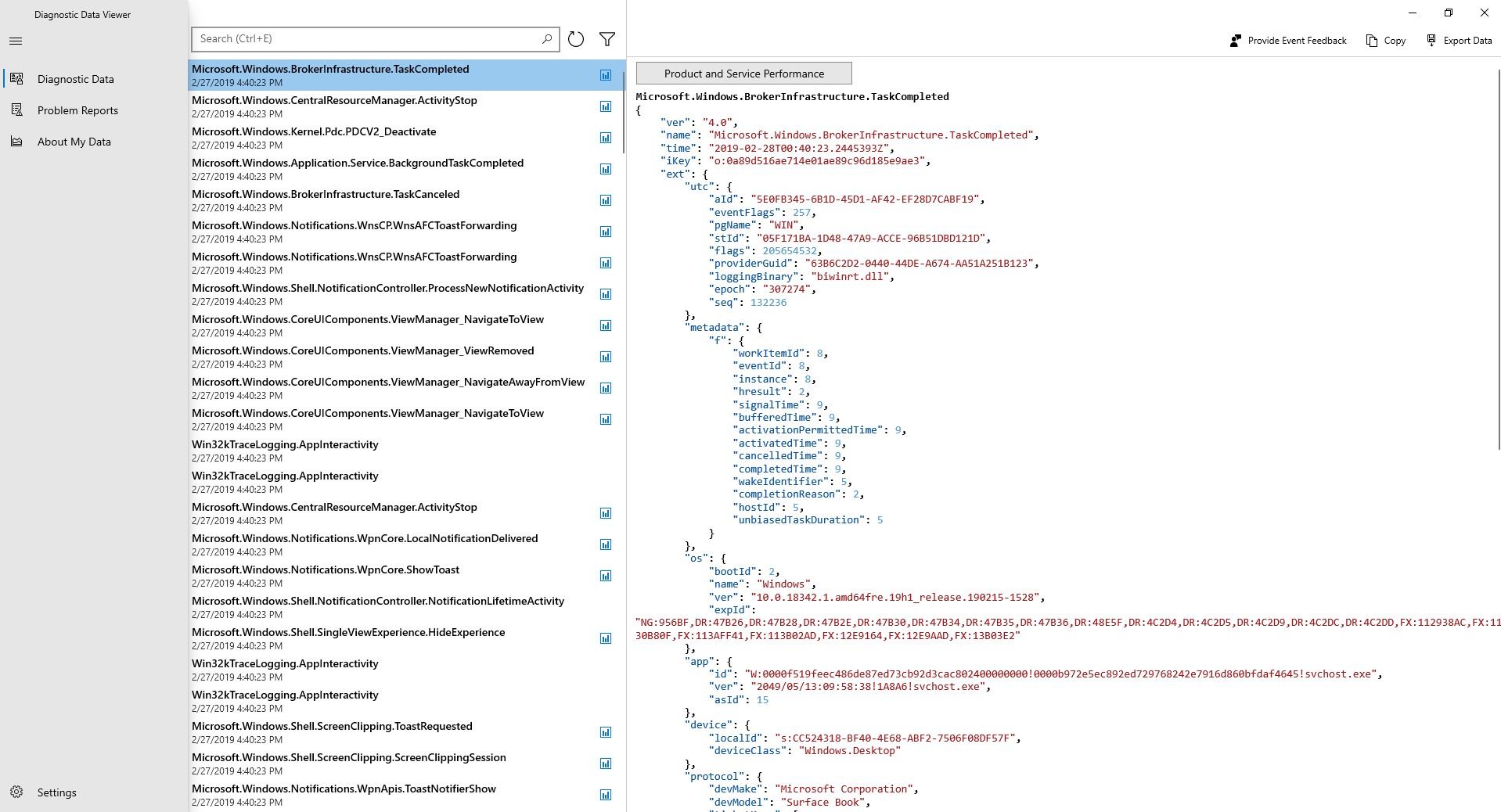
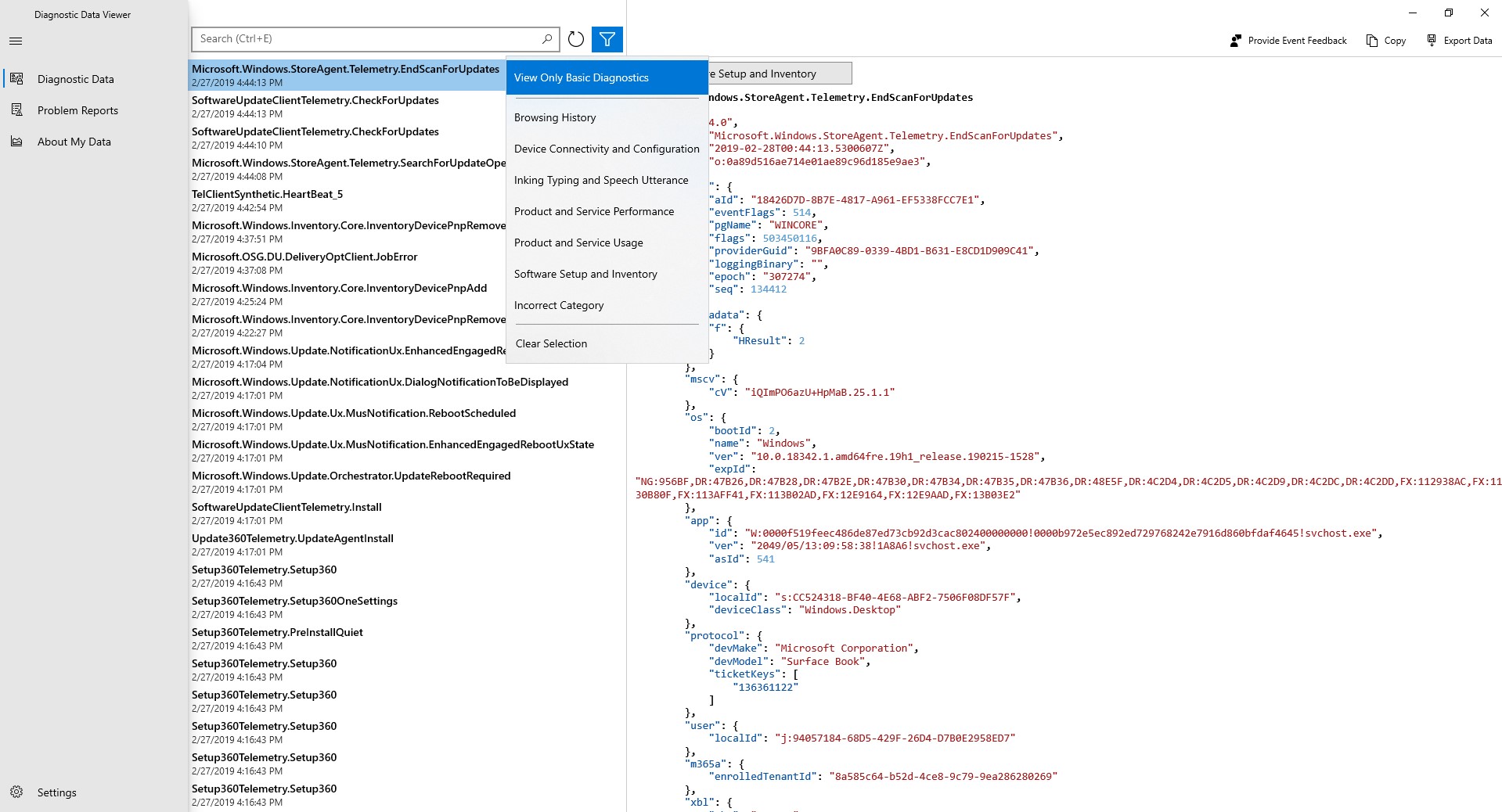
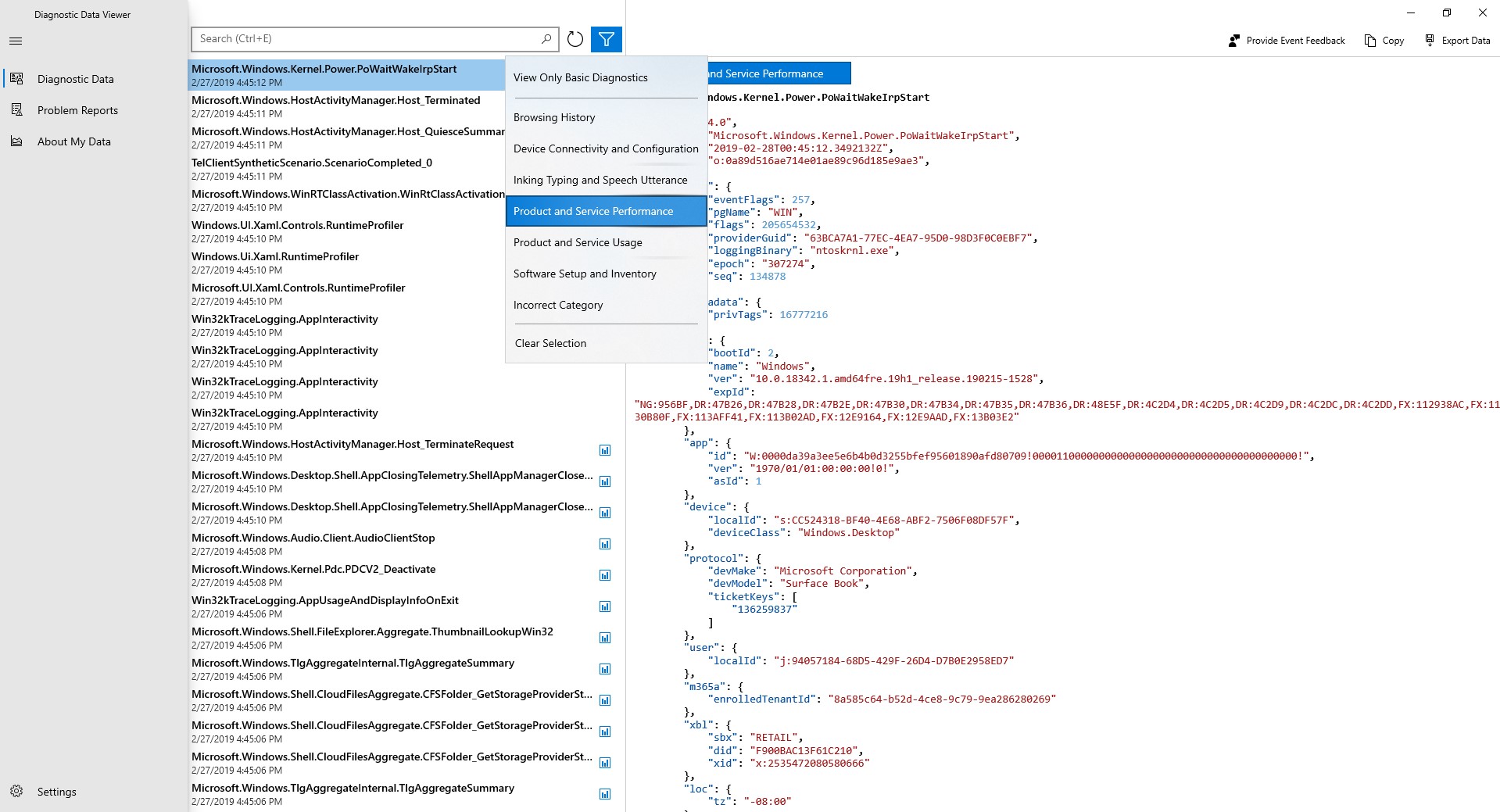
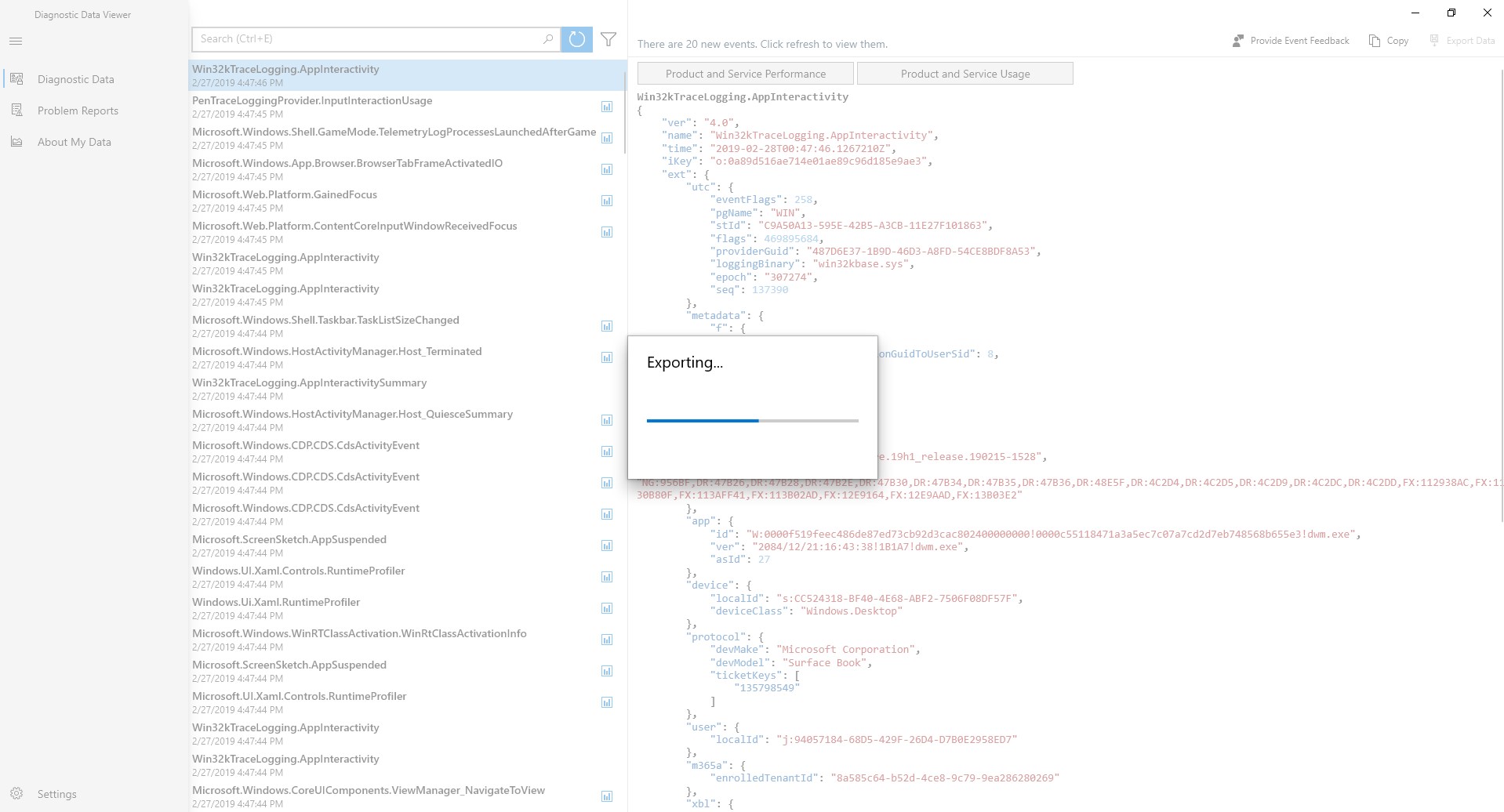
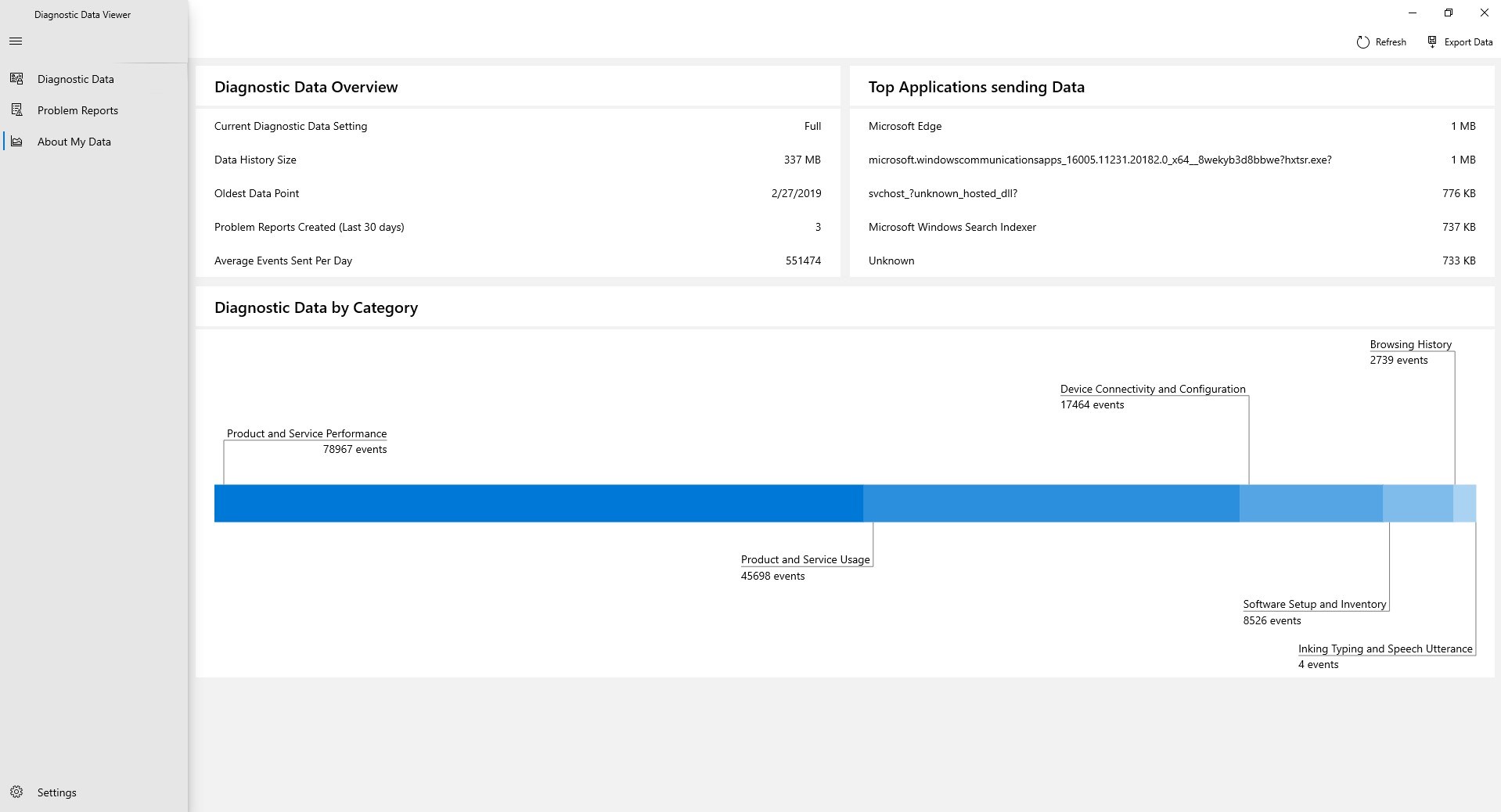
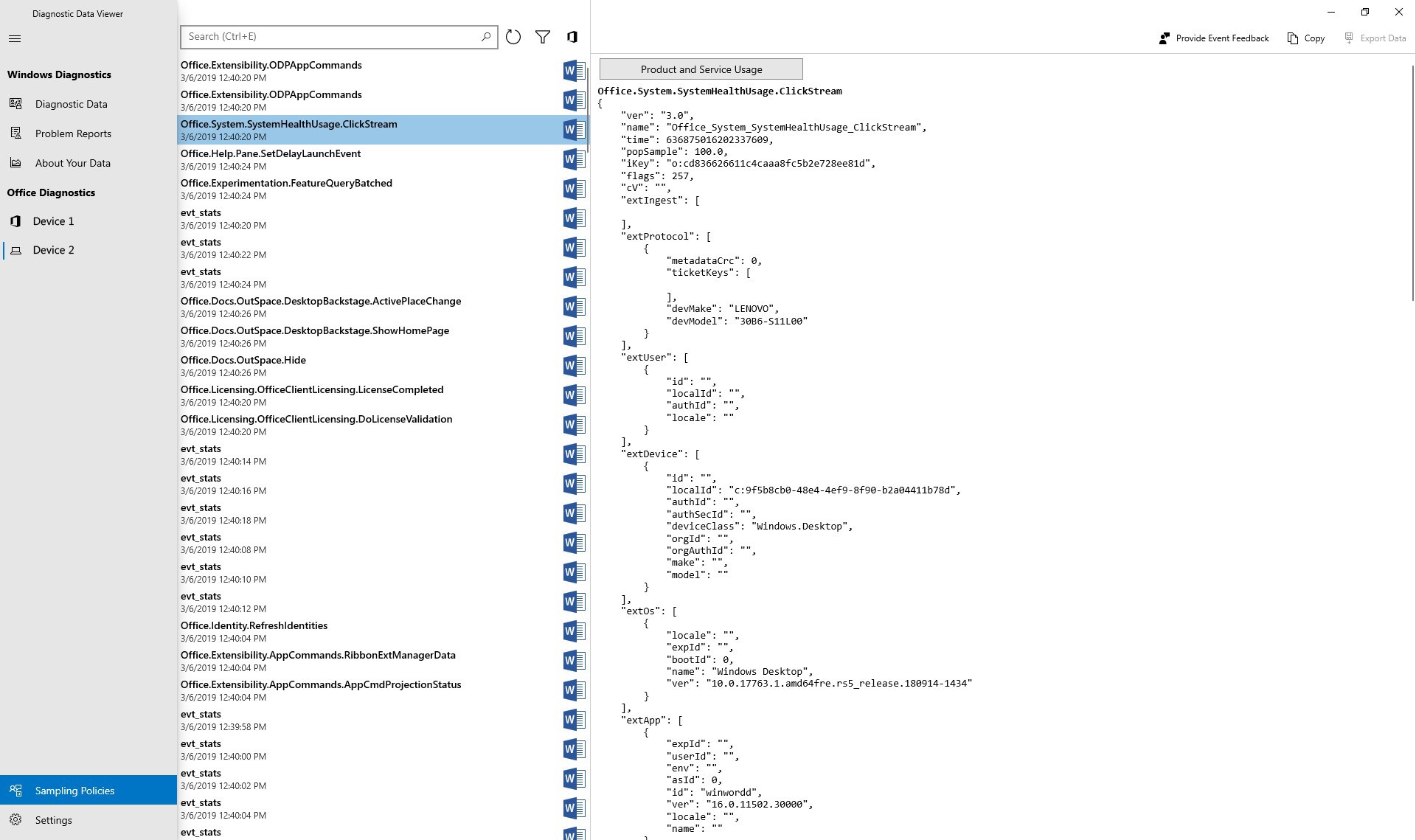
Diagnostic Data Viewer is a diagnostic utility that displays in real time which Windows and Office diagnostic data Microsoft collects from a device, based on privacy choices made in diagnostics settings, showing the data exactly as it is sent to Microsoft. When the privacy setting is Required, the app shows that only the data needed to keep the device up-to-date and secure is collected, while at Optional it also shows additional diagnostic data gathered to improve Microsoft products and services. The app itself collects general usage and startup problem data to improve future versions, letting users opt in or out of sending this usage data.
Show the developer's original descriptionHide the original description
At Microsoft, we care about your privacy. Using Diagnostic Data Viewer, instantly view the diagnostic data that Microsoft collects from Windows and Office in real-time based on the privacy choices you’ve made in your diagnostics settings. With this app, you don’t have to guess what information is being collected from your device.
How does Diagnostic Data Viewer work?
• Immediately see the diagnostic data that Microsoft collects from Windows and Office on your device in real-time, exactly the way it appears when it is sent.
• If you’ve chosen Required for your privacy settings, see that Microsoft collects only the data required to help keep your device up-to-date and secure.
• If you’ve opted into Optional, see that Microsoft collects diagnostic data from your device that helps improve Microsoft products and services to everyone with a better experience.
To help improve future releases of this app, the app also collects general usage and startup problem data. You can opt-in or out of sending this usage data before you accept this tools’ end user license agreement (EULA).
If there is a version of this app for iOS/Mac or Windows we don't know about, paste the store link here — we'll auto-detect the store.
How to find the URL:1. Open the app in its store. 2.In the App Store app: tap the Share icon → “Copy Link”. In the browser: copy the URL from the address bar — it contains apps.apple.com/…/id… or apps.microsoft.com/detail/…. 3. Paste it here.
Paste the original link from the Apple App Store or Microsoft Store. We fetch all details automatically.
How to find the URL:
1. Open the app in its store. 2.In the App Store app: tap the Share icon → “Copy Link”. In the browser: copy the URL from the address bar — it contains apps.apple.com/…/id… or apps.microsoft.com/detail/…. 3. Paste it here.
Android apps can only be listed by their developer.