Screenshot appears after consentScreenshot appears after consentScreenshot appears after consentScreenshot appears after consentScreenshot appears after consentScreenshot appears after consentScreenshot appears after consentScreenshot appears after consent
Summary
Desktop Live Wallpaper+: Video Wallpaper is a live wallpaper app that turns a Windows 10/11 desktop background into a rotating timeline of personal photos and videos. It plays media selected from the user's own hard drive, supporting animated GIFs, various video formats such as MP4, MOV, WMV and AVI, and photo formats including JPG, PNG and BMP. Users control the order of items in the timeline, the display duration of each photo and the sound settings for videos. The app also supports dual-screen setups, with an AI-based mode that projects media either expanded across both monitors or repeated on each. The app is free to use and includes ads displayed within the menu.
Show the developer's original descriptionHide the original description
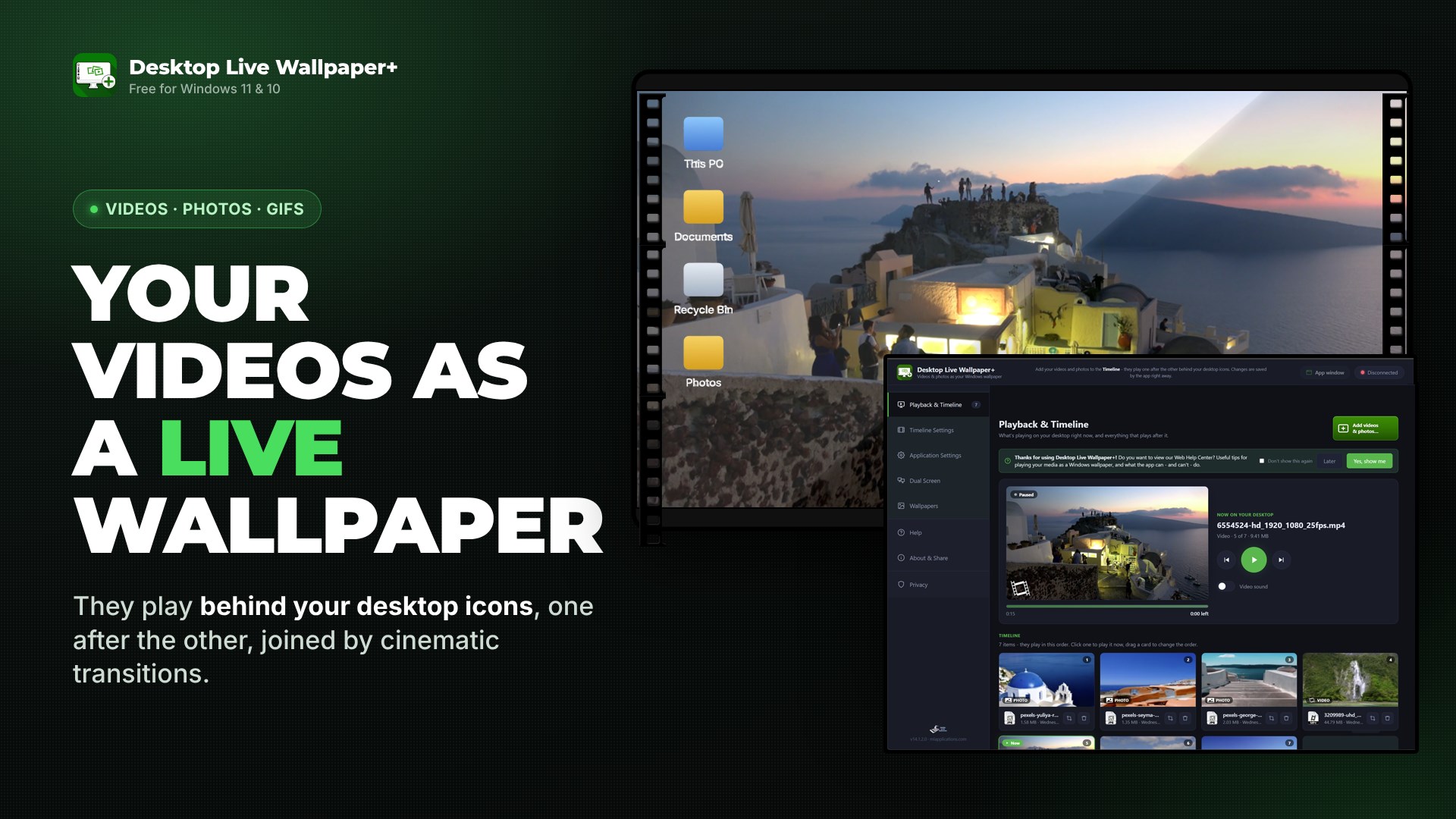
Desktop Live Wallpaper+ turns your own videos, photos and animated GIFs into a live wallpaper for Windows 11 and Windows 10. Your media plays behind your desktop icons, one after the other, joined by cinematic transitions like the ones a video editor makes – and your icons and windows stay exactly where they are.
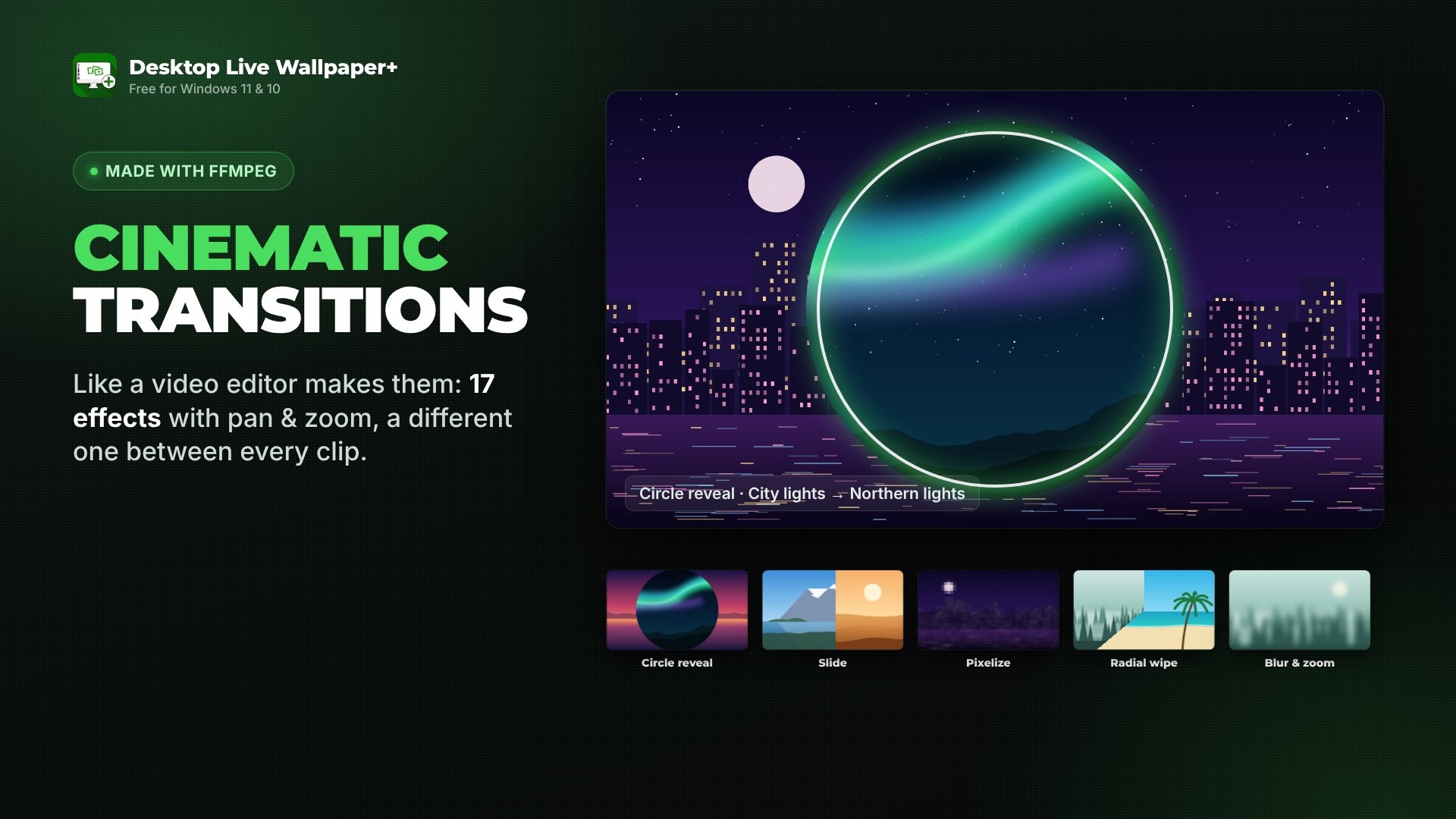
CINEMATIC TRANSITIONS
Between every two items the app plays a real video transition, not a hard cut: circle reveals, radial wipes, slides, pixel dissolves, zooms, blurs and fades, combined with slow pan and zoom movement. Each pair of items gets its own transition, made on your PC with FFmpeg, so your wallpaper flows like a short film.
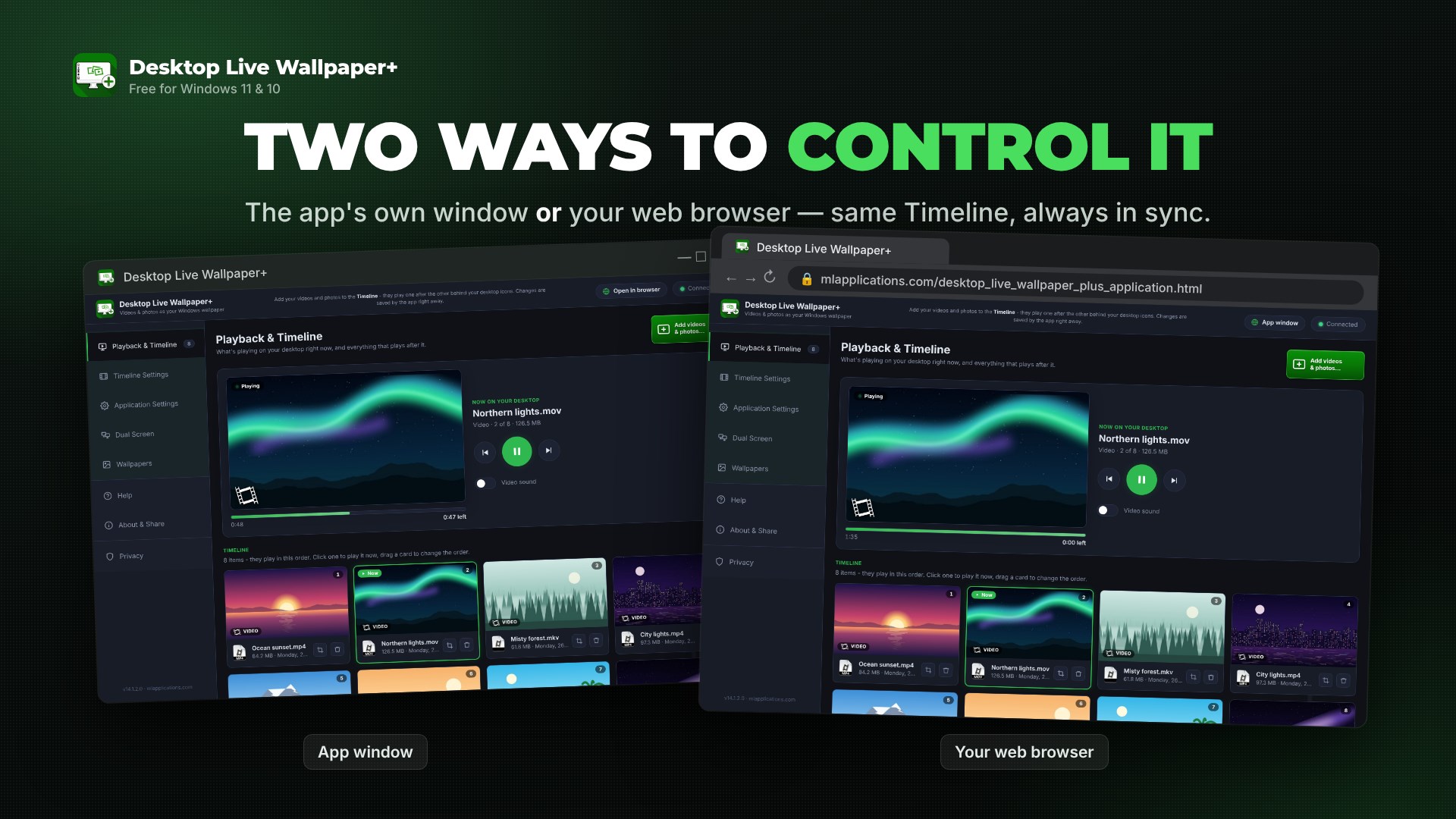
TWO WAYS TO CONTROL IT
Use the app's own window, or open the same controls in your web browser on this PC. Both show the same Timeline and settings, and every change is saved right away. A small start window near the taskbar lets you pick either one.
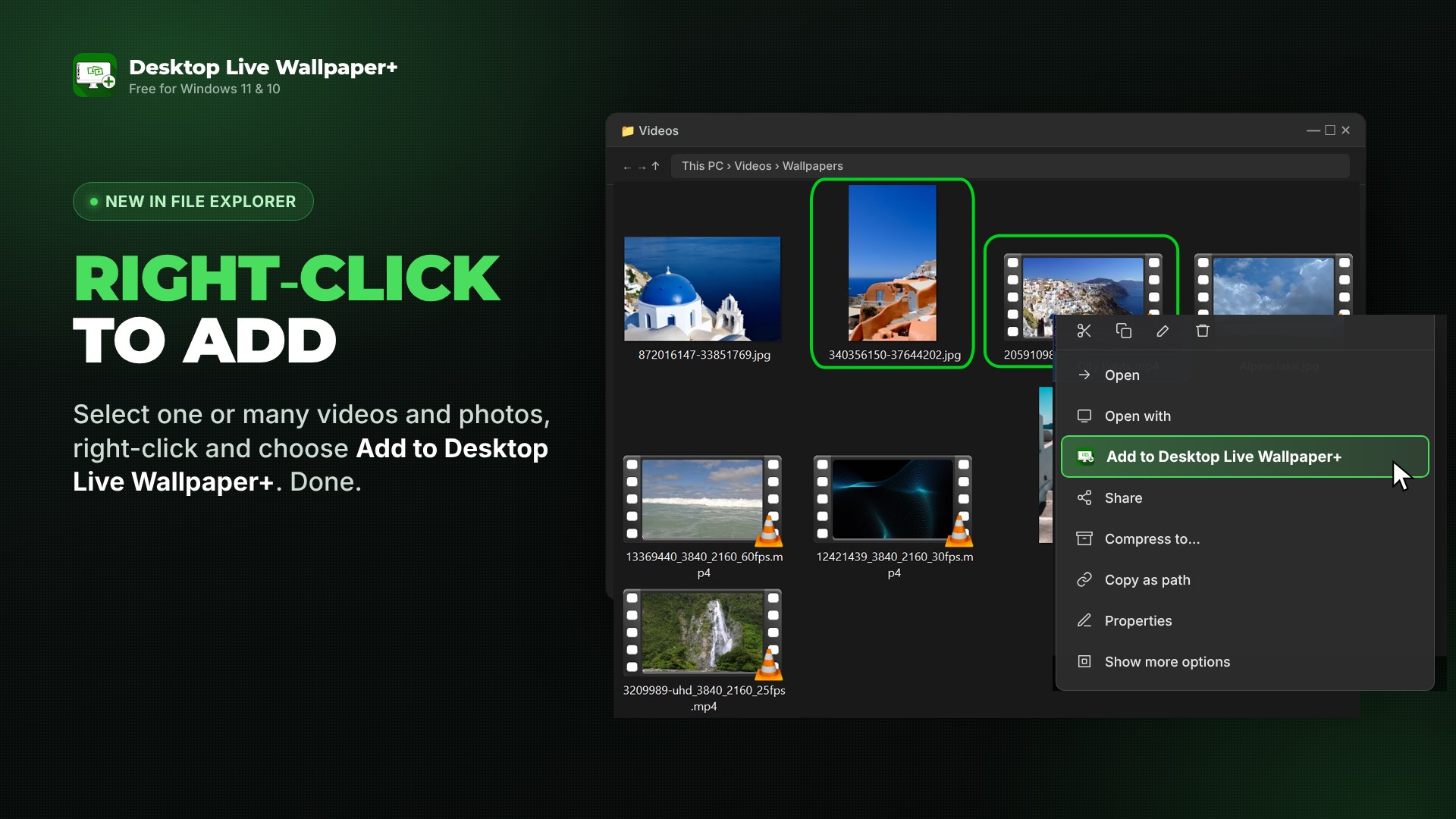
ADD FILES WITH A RIGHT-CLICK
Select one or many videos or photos in File Explorer, right-click and choose "Add to Desktop Live Wallpaper+". They join your Timeline instantly – no need to open the app first.
A TIMELINE YOU CONTROL
• Add videos (MP4, MOV, MKV, WebM, AVI, WMV and more), photos (JPG, PNG, BMP) and GIFs
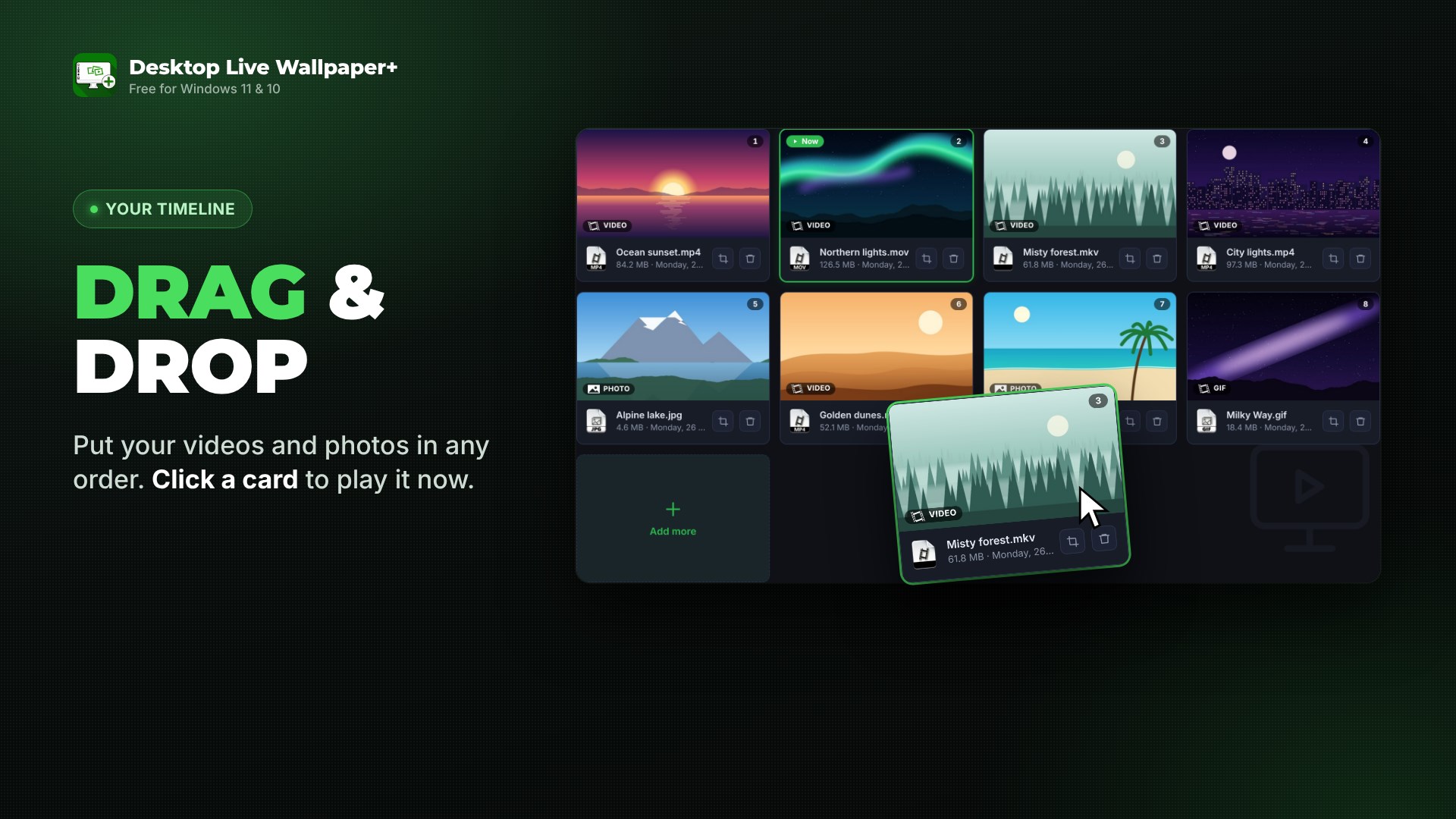
• Drag cards to change the order; click any card to play it now
• Choose how long each photo stays on screen, from 4 seconds to 2 minutes
• A live preview shows what's on your desktop, with the time left
NO MORE STRETCHED PICTURES
Pick Fill, Fit or Stretch for pictures that don't have your screen's shape. With Frame you choose exactly which part of a tall photo or a wide video fills your desktop.
ONE SCREEN OR TWO
Play the wallpaper on the screen you choose, or on two monitors: repeat the same media on both, expand it across them, or let AI mode pick the best way for each item.
MADE FOR EVERY DAY
• Faster start-up with a new loading screen
• Starts with Windows and waits quietly in the notification area
• Hardware (GPU) video decoding for smooth 4K playback with less CPU
• Video sound on or off
• Light and dark theme
• 16 languages: English, Deutsch, Español, Français, Italiano, Português (Brasil and Portugal), Ελληνικά, Suomi, Svenska, Türkçe, Български, Hrvatski, Lietuvių, 한국어 and 日本語
FREE VIDEOS AND HD WALLPAPERS
Need something to play? Browse our free catalogs of short background videos and HD wallpapers on mlapplications.com, picked to look great on a desktop.
PRIVATE BY DESIGN
Your videos and photos never leave your PC. The app plays your own files, and the browser controls only talk to the app running on the same computer.
HOW TO START
1. Open Desktop Live Wallpaper+.
2. Click "Add videos & photos" – or right-click files in File Explorer.
3. Drag them into the order you like. They start playing behind your icons right away.
Desktop Live Wallpaper+ has been on the Microsoft Store since 2019. Free for Windows 11 and Windows 10, on x64 and ARM64 PCs.
Play Store URL for "Desktop Live Wallpaper+: Video Wallpaper"
If there is a version of this app for iOS/Mac or Windows we don't know about, paste the store link here — we'll auto-detect the store.
How to find the URL:1. Open the app in its store. 2.In the App Store app: tap the Share icon → “Copy Link”. In the browser: copy the URL from the address bar — it contains apps.apple.com/…/id… or apps.microsoft.com/detail/…. 3. Paste it here.
Paste the original link from the Apple App Store or Microsoft Store. We fetch all details automatically.
How to find the URL:
1. Open the app in its store. 2.In the App Store app: tap the Share icon → “Copy Link”. In the browser: copy the URL from the address bar — it contains apps.apple.com/…/id… or apps.microsoft.com/detail/…. 3. Paste it here.
Android apps can only be listed by their developer.




 Live Wallpapers +
Animated desktop wallpapers from videos, GIFs and images
 X Live Wallpaper
Set videos, GIFs and webpages as animated desktop wallpapers
 Live Wallpaper Engine Plus
Play live wallpapers with videos and music
 Wallpaper - 4K Live Wallpapers
Animated and static wallpapers for Windows with AI art
 Live Wallpaper by Giantapp
Use videos as animated wallpapers
 Lively Wallpaper
Set GIFs, videos and webpages as wallpaper