


Screenshot appears after consentScreenshot appears after consentScreenshot appears after consentScreenshot appears after consentScreenshot appears after consentScreenshot appears after consentScreenshot appears after consentScreenshot appears after consentScreenshot appears after consentScreenshot appears after consent
Summary
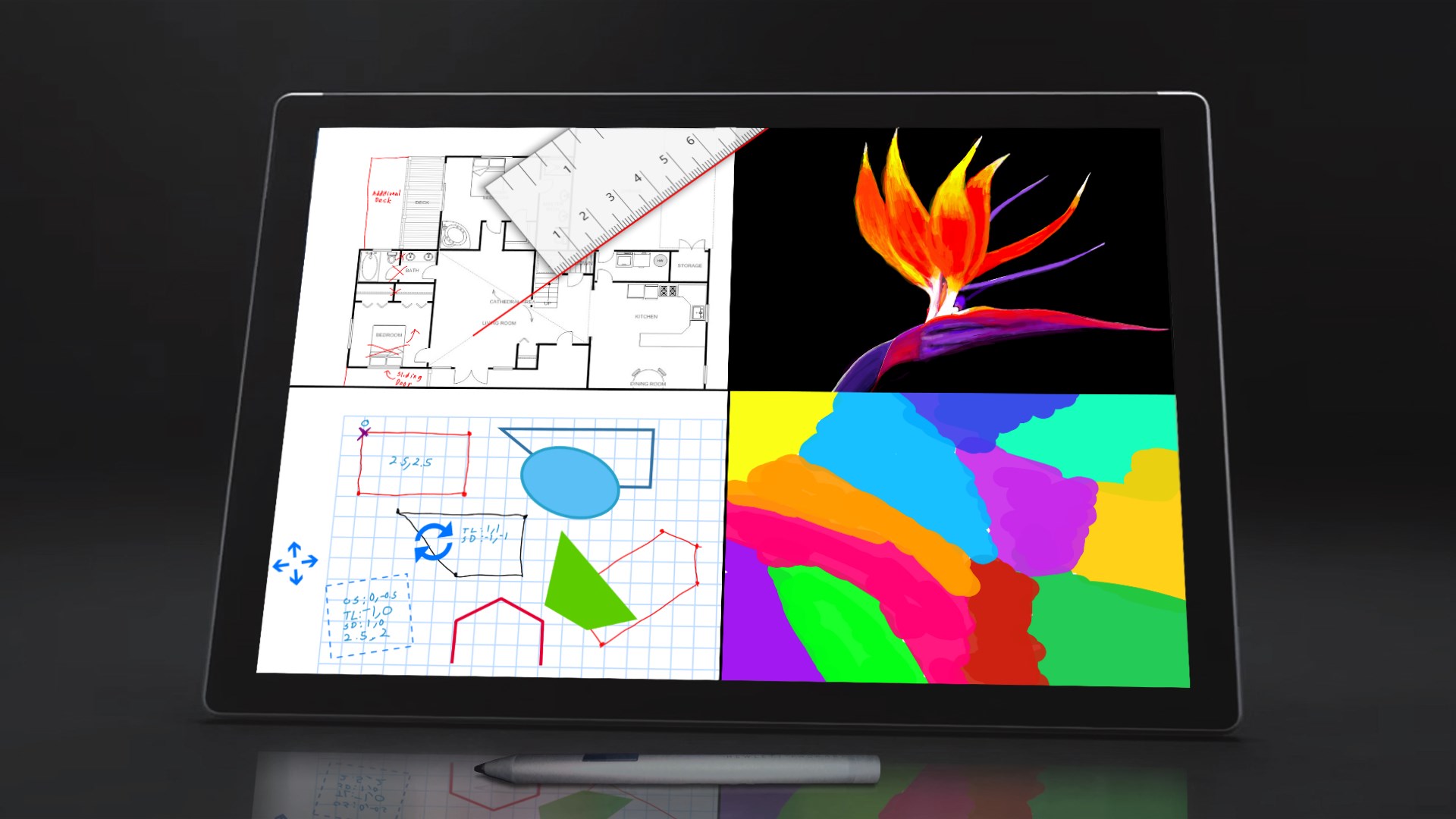
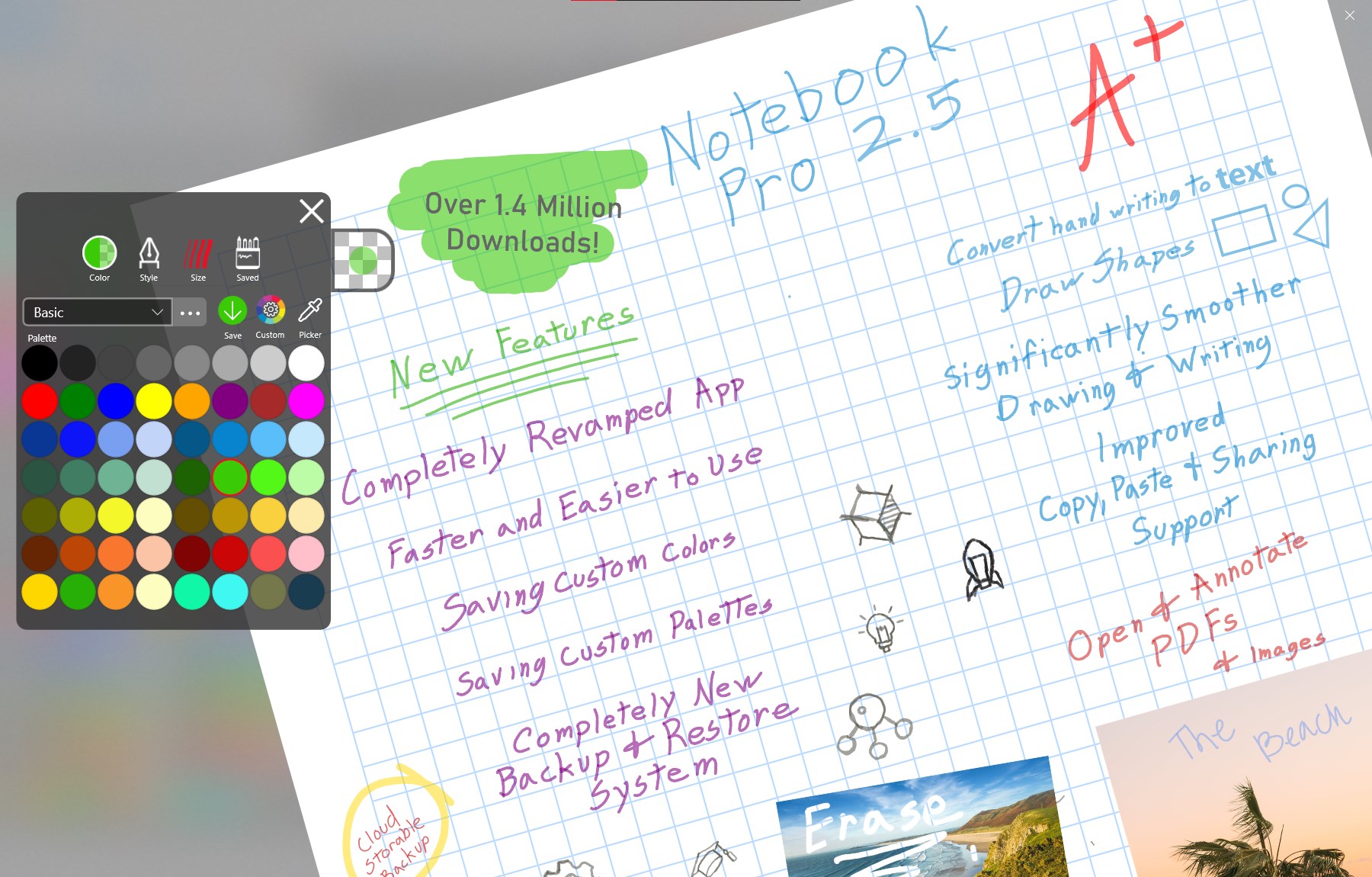
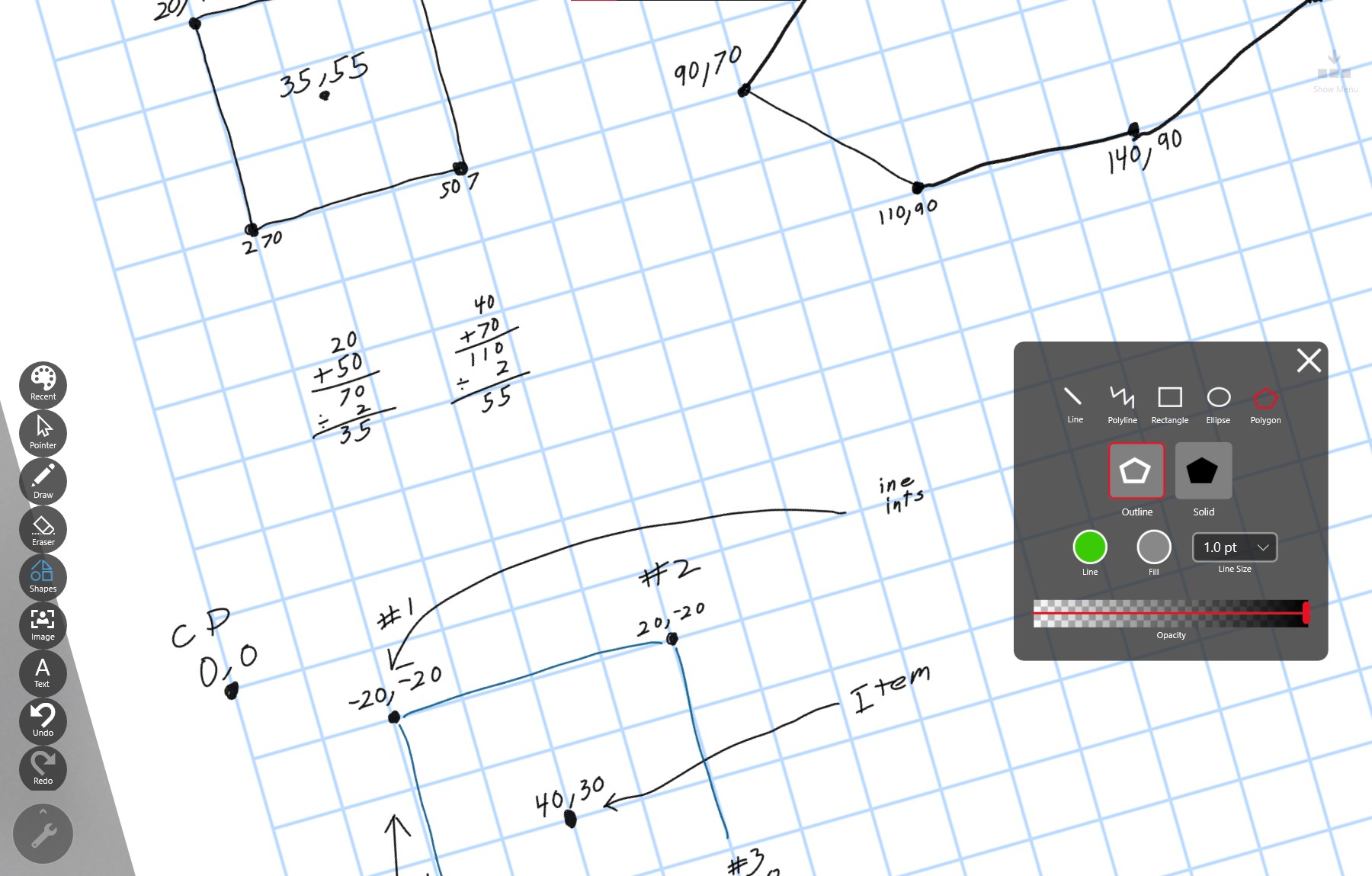
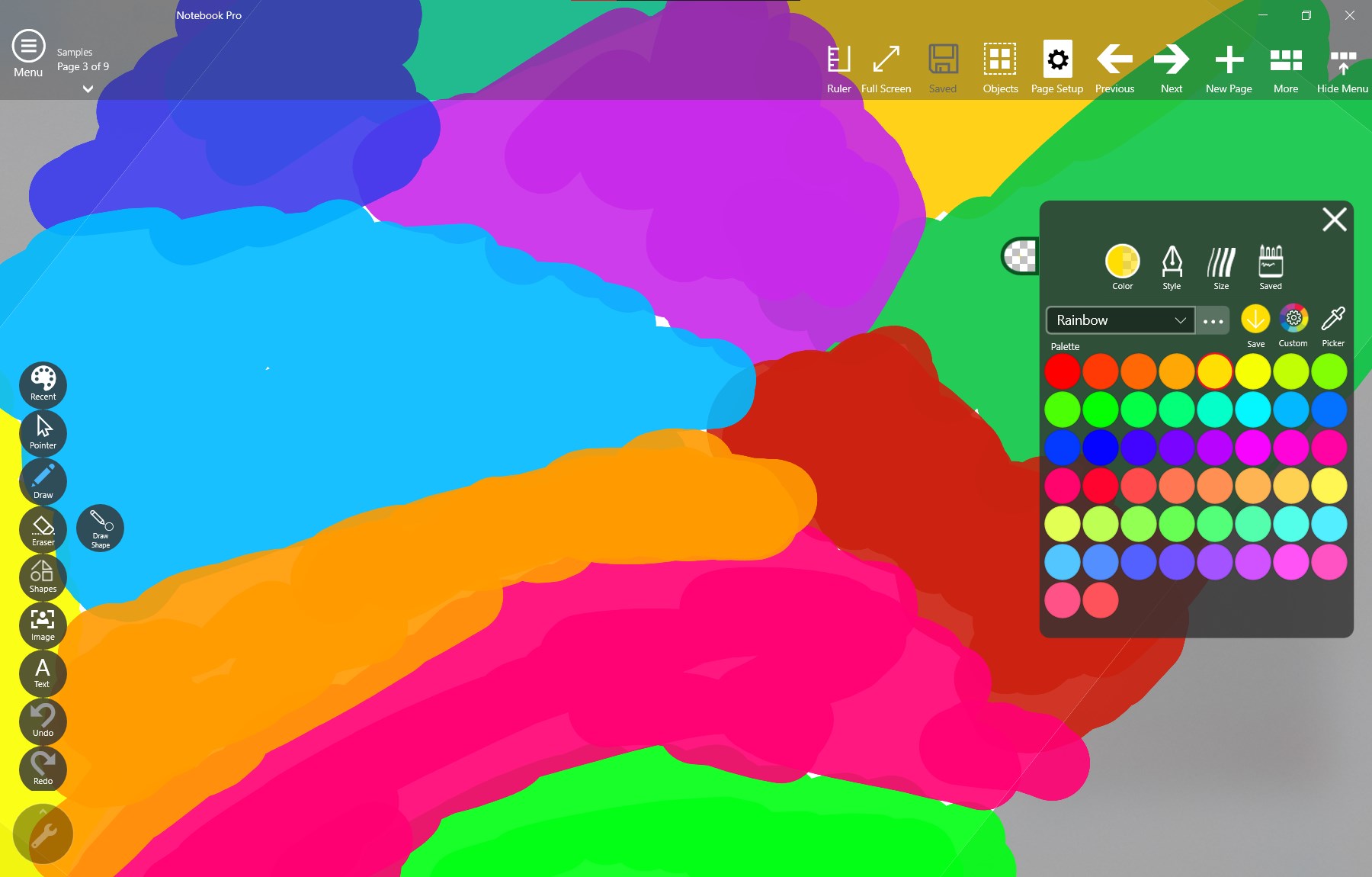
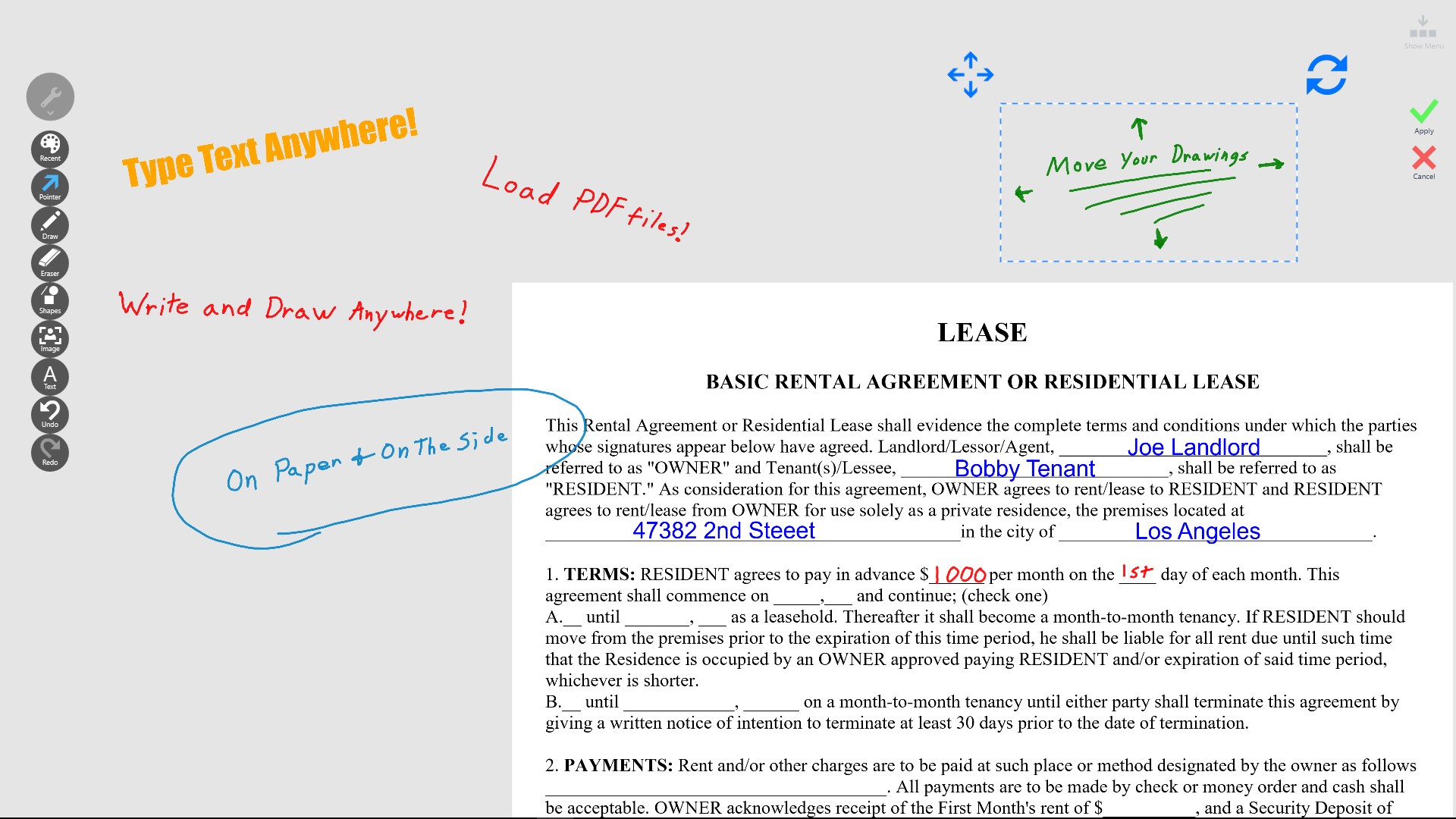
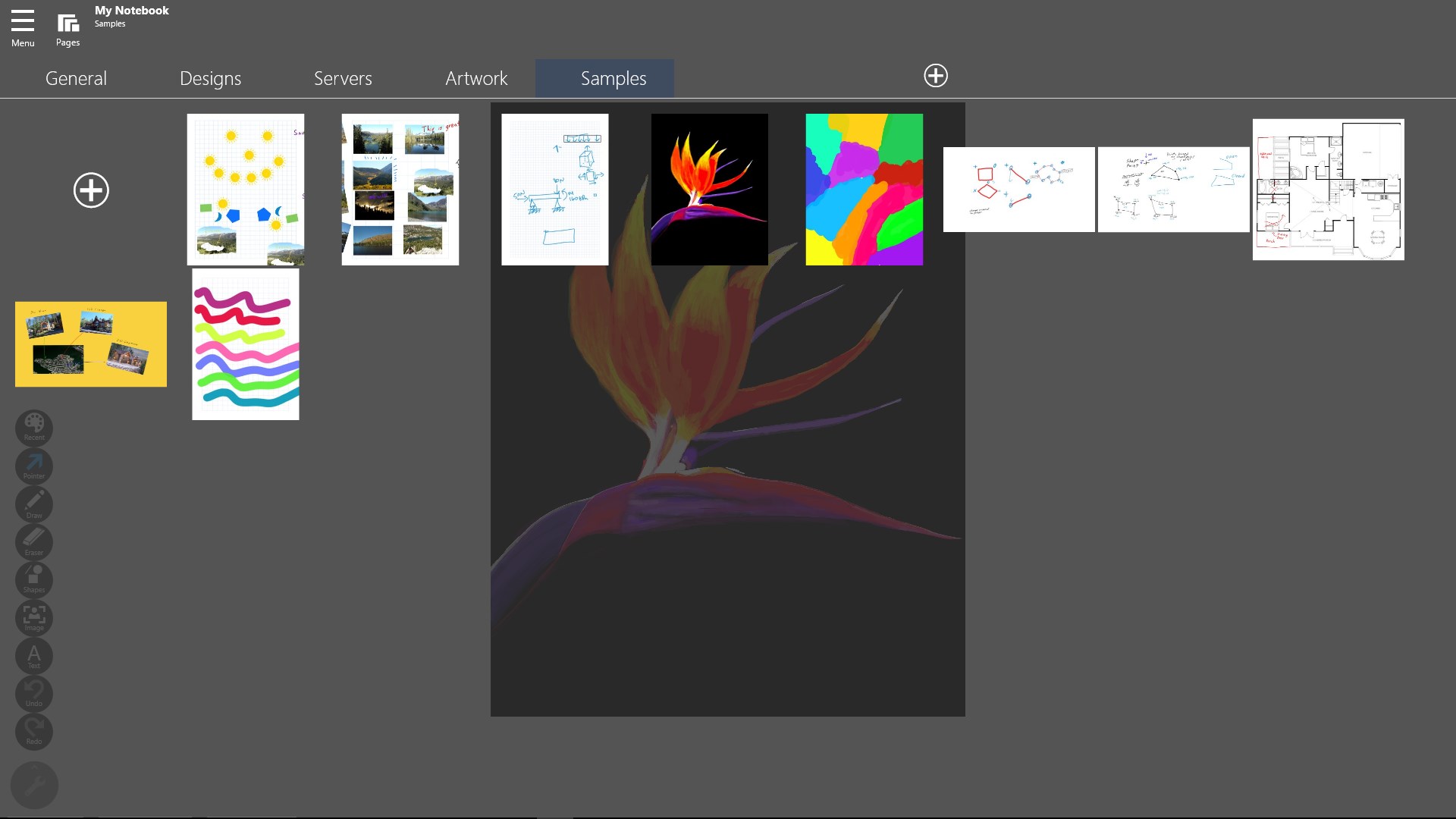
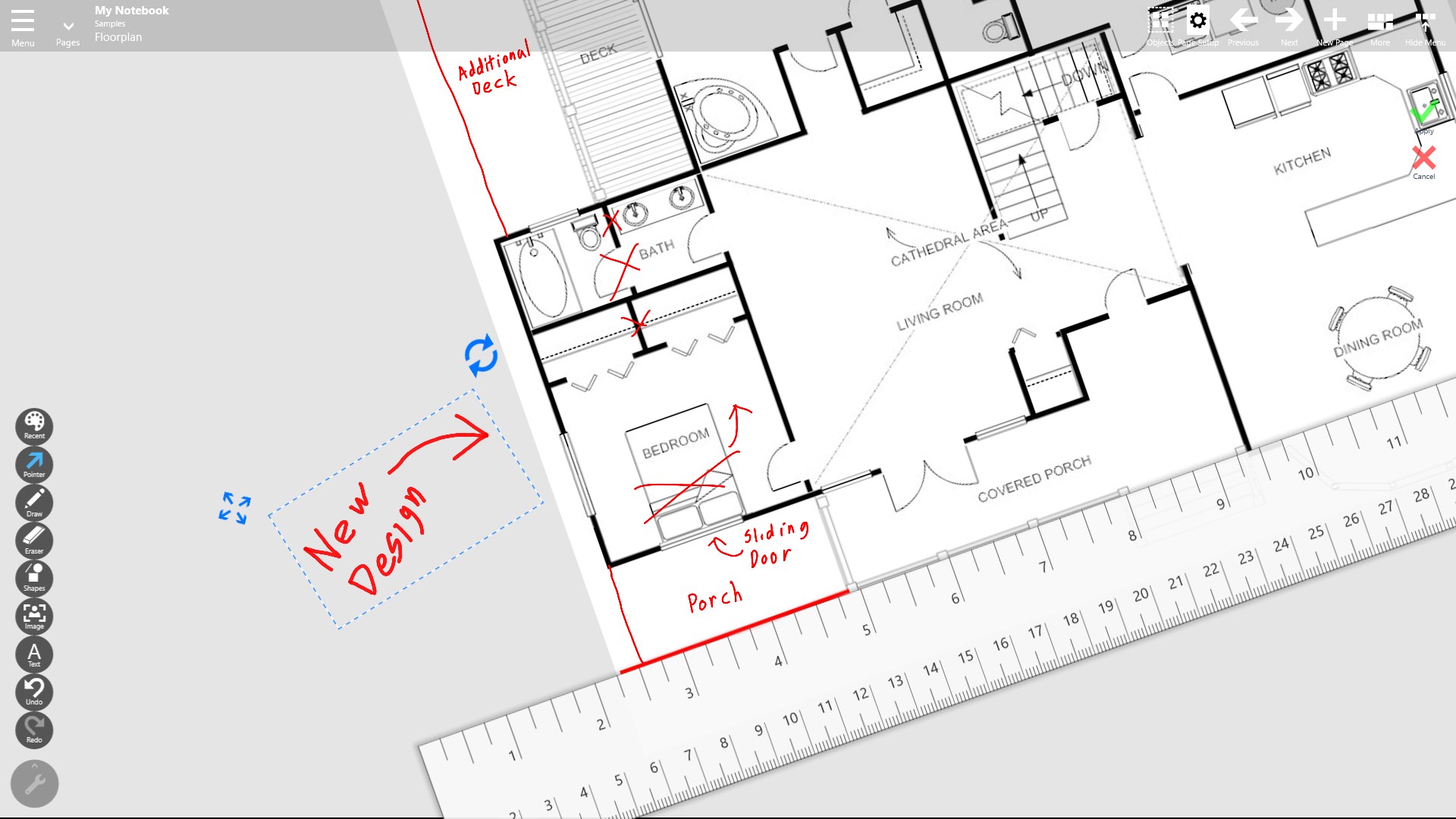
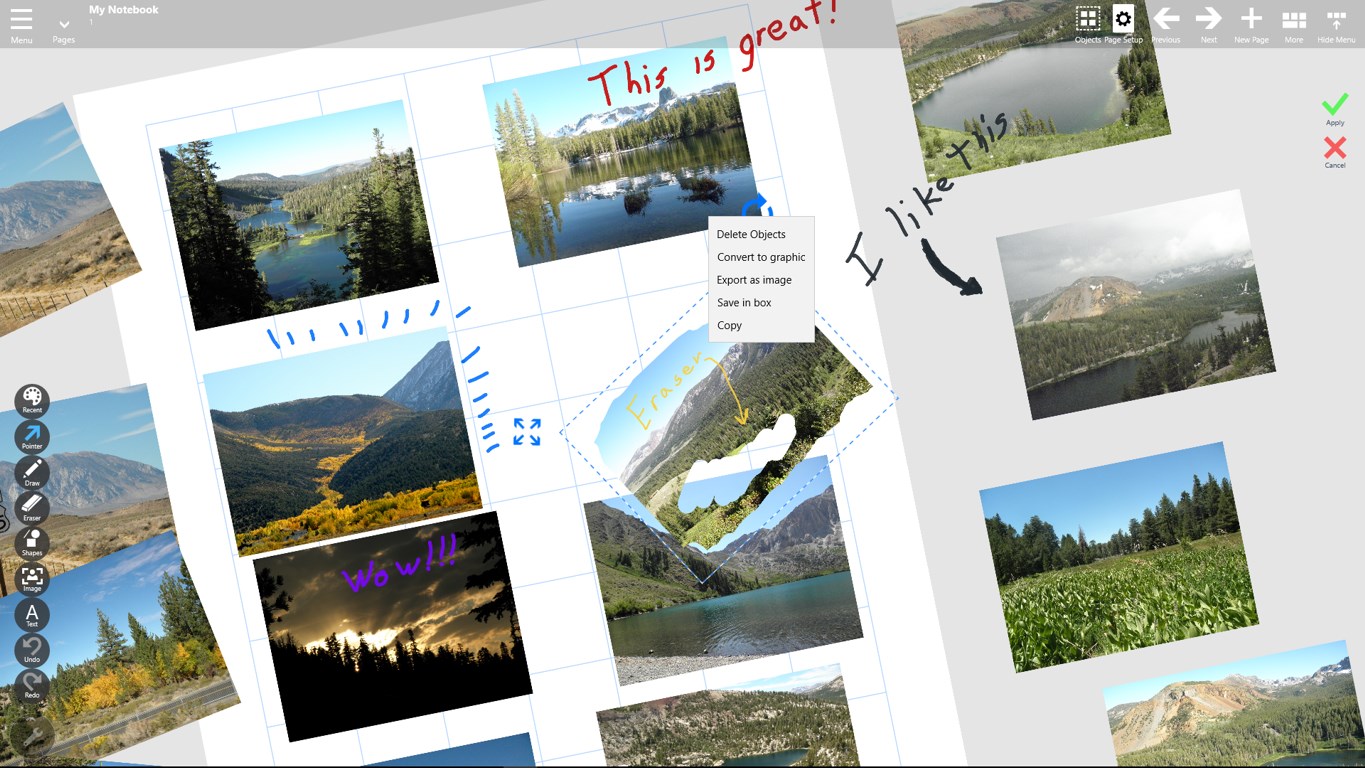
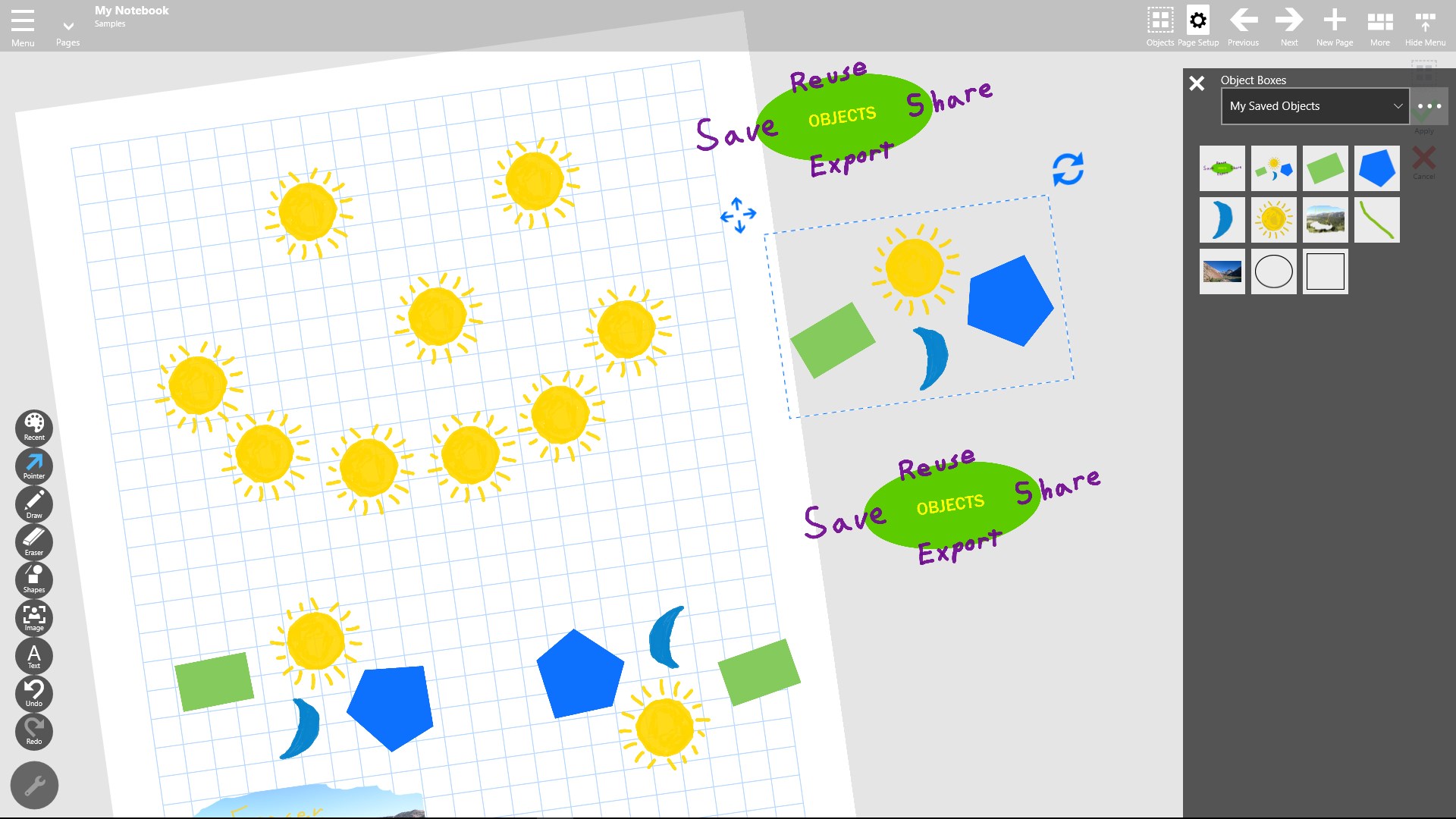
Notebook Pro is a drawing and note-taking app that uses vector-based graphics to replace paper notebooks and whiteboards. It allows annotating PDFs directly within the app. It supports adding text, images, and photos to a virtual canvas. It can be used for writing, whiteboarding, remote teaching, and design work. It functions as a single tool covering the roles of paper, whiteboards, dry-erase boards, and projectors, making it suitable for tasks ranging from product design to quick doodling on images.
Show the developer's original descriptionHide the original description
Replace your paper notebook! Unleash your creativity with the ultimate app for drawing, writing, whiteboarding, remote teaching, note-taking, designing, and more using vector-based graphics.
Annotate PDFs, and add text, images, and photos to a virtual canvas with this amazing smart paper app. Notebook Pro replaces paper, whiteboards, dry-erase boards, and projectors with one powerful and versatile tool.
Discover why over 1.5 million users love Notebook Pro and unleash your creativity today! Notebook Pro is limitless for anything you use paper or whiteboards for, and more. It’s great for everything from designing your next great product to quickly doodling on an image.
If there is a version of this app for iOS/Mac or Windows we don't know about, paste the store link here — we'll auto-detect the store.
How to find the URL:1. Open the app in its store. 2.In the App Store app: tap the Share icon → “Copy Link”. In the browser: copy the URL from the address bar — it contains apps.apple.com/…/id… or apps.microsoft.com/detail/…. 3. Paste it here.
Paste the original link from the Apple App Store or Microsoft Store. We fetch all details automatically.
How to find the URL:
1. Open the app in its store. 2.In the App Store app: tap the Share icon → “Copy Link”. In the browser: copy the URL from the address bar — it contains apps.apple.com/…/id… or apps.microsoft.com/detail/…. 3. Paste it here.
Android apps can only be listed by their developer.