

Screenshot appears after consentScreenshot appears after consentScreenshot appears after consentScreenshot appears after consentScreenshot appears after consentScreenshot appears after consentScreenshot appears after consent
Summary
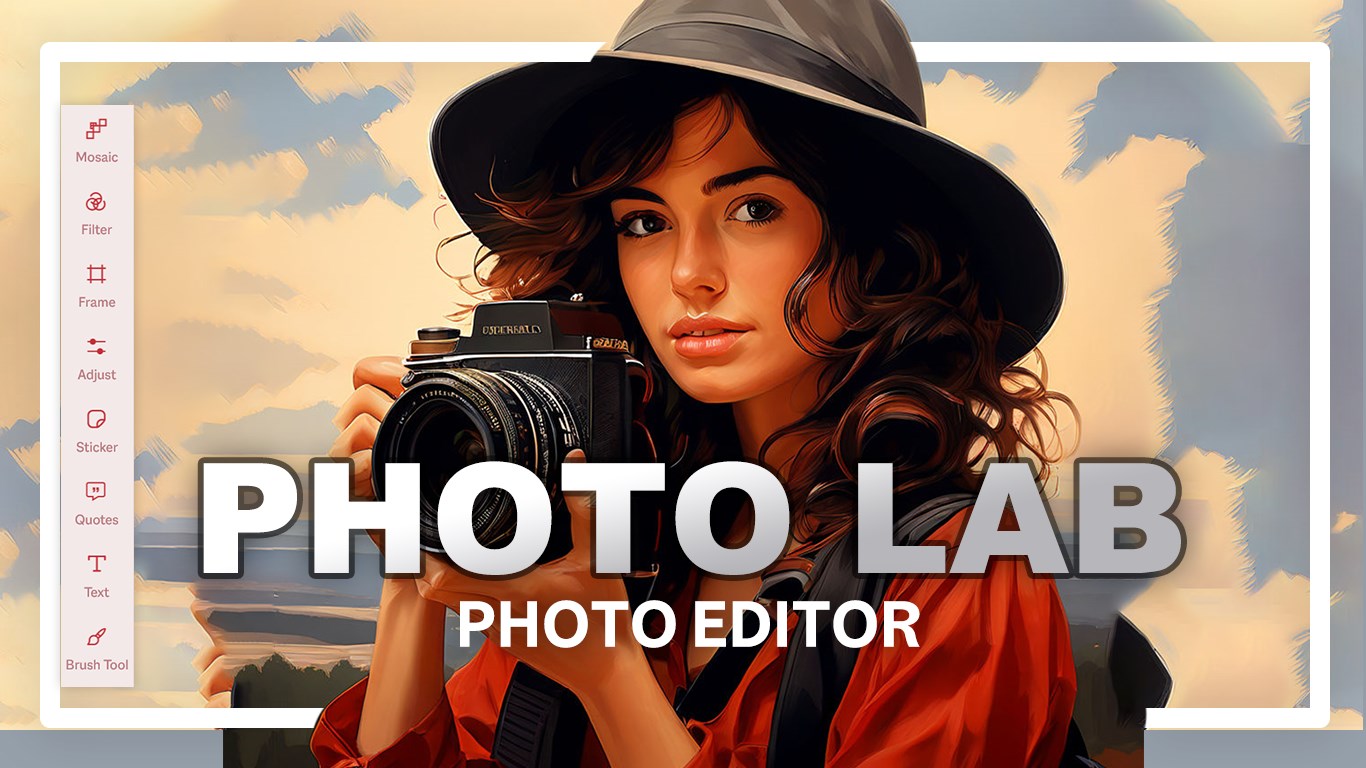
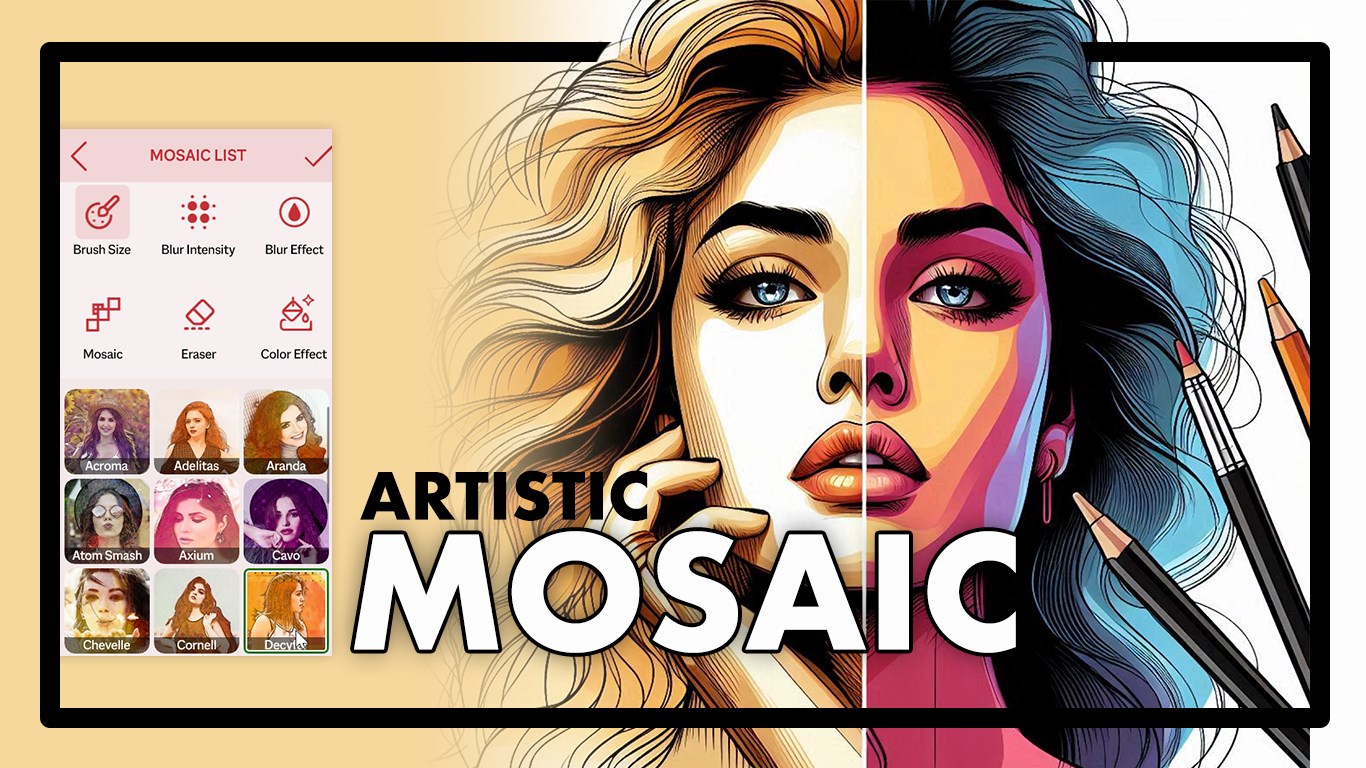
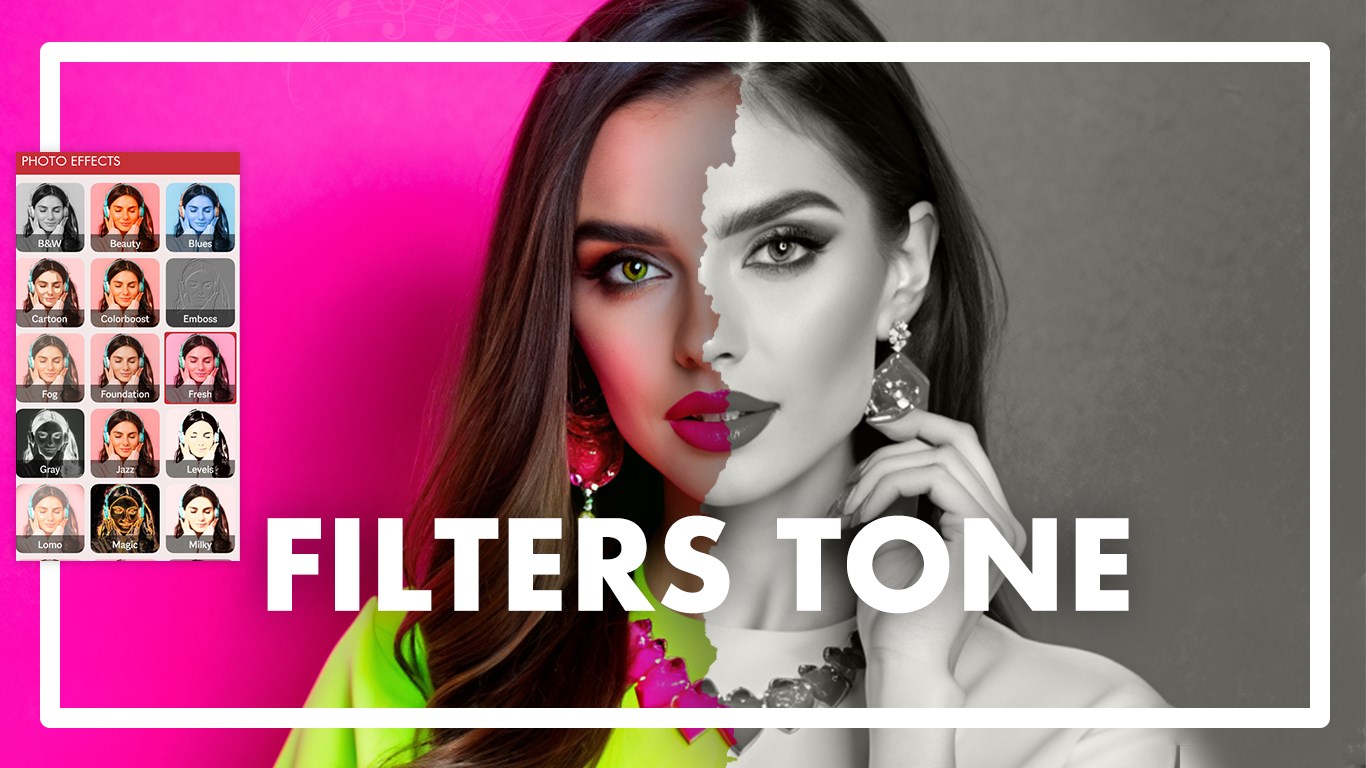
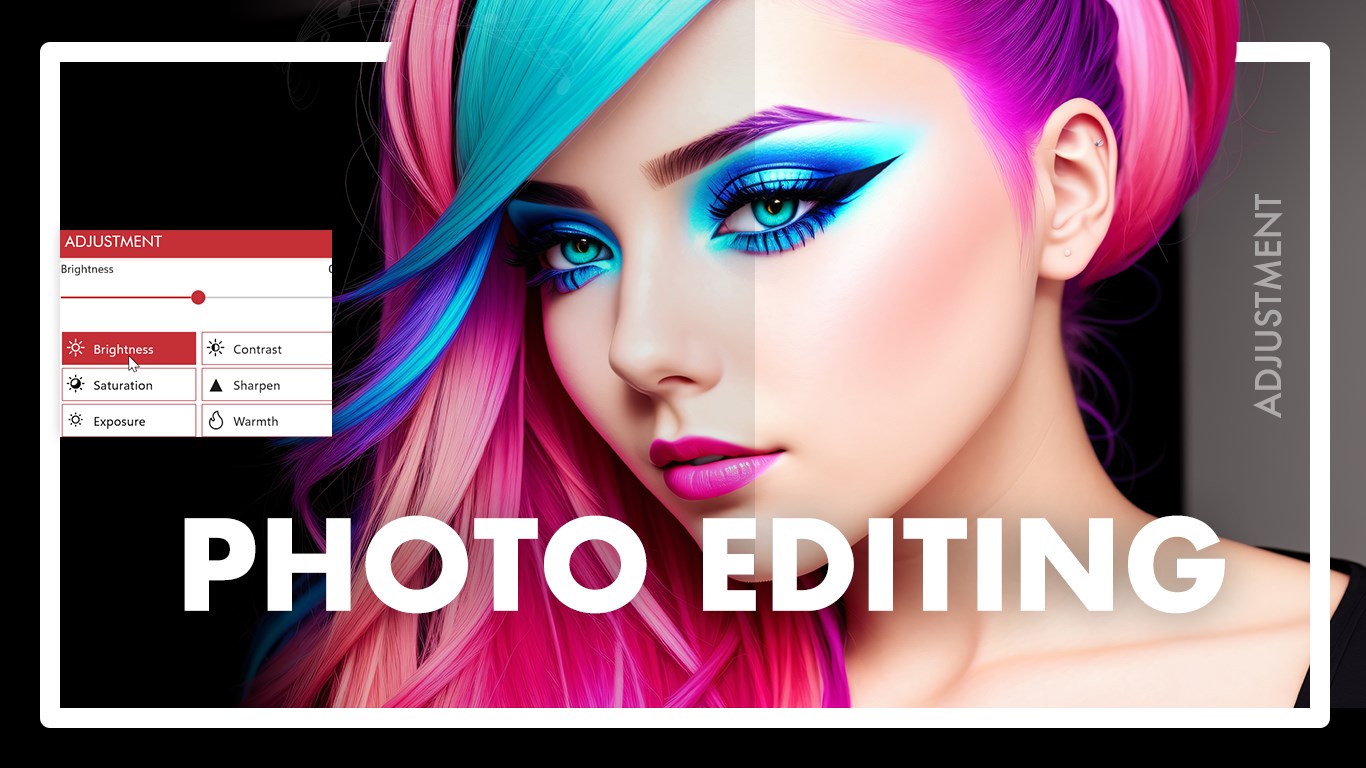
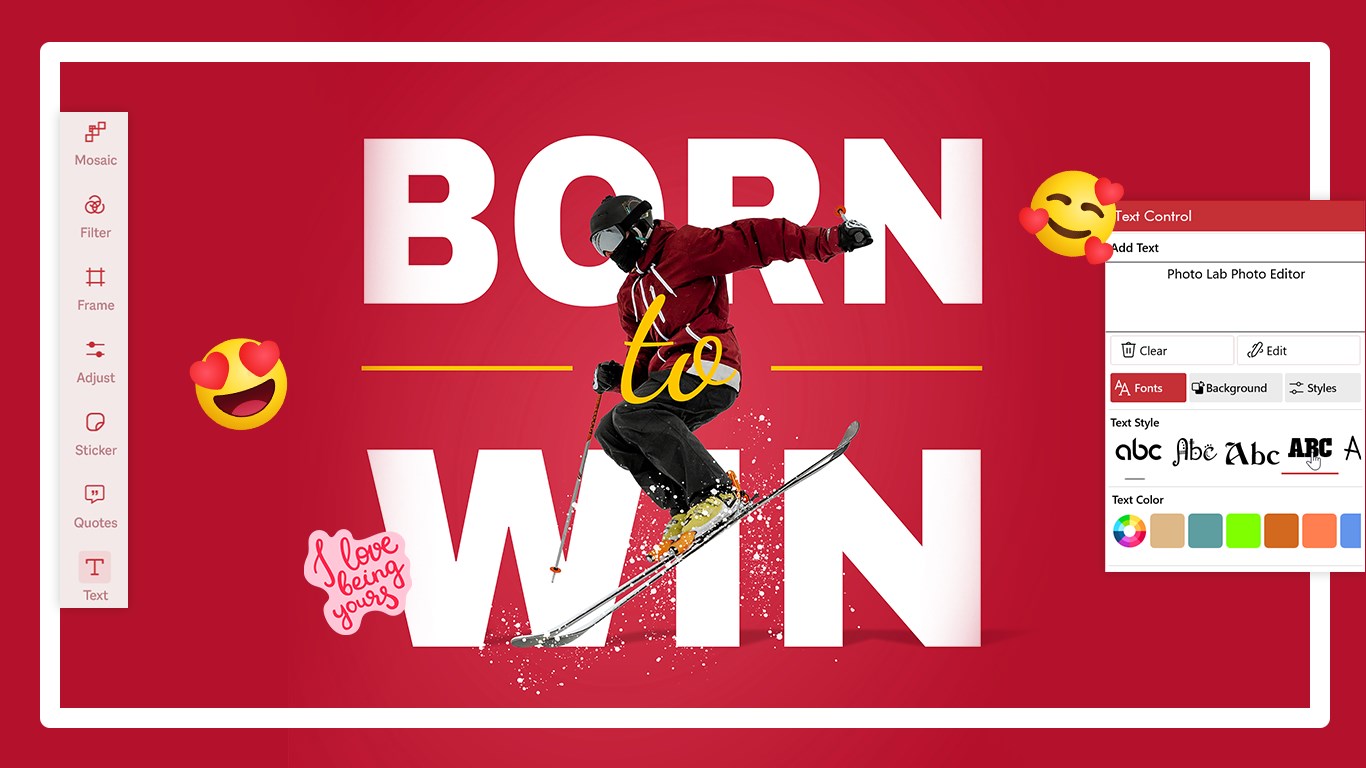
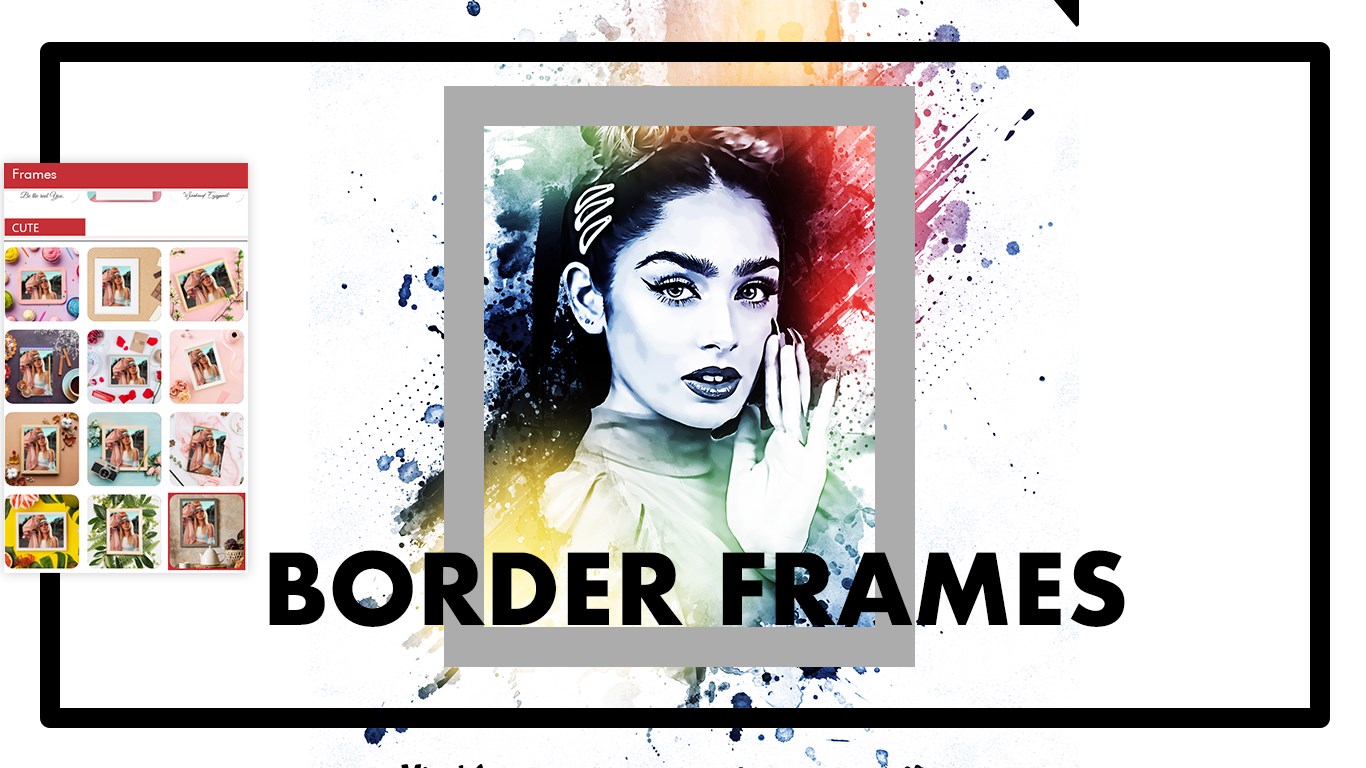
Photo Lab Photo Editor is a photo editing app for Windows that lets users enhance pictures and personalize them with filters, frames, stickers, and text. It offers mosaic effects to blur or pixelate parts of an image, along with adjustments for brightness, contrast, and saturation. Users can add stickers, quotes, and custom text in various fonts and colors, or draw and doodle with the brush tool. Photos can be cropped, rotated, or flipped before applying filters or frames, then saved and shared in a preferred format. The app is designed to be lightweight and optimized for all Windows devices.
Show the developer's original descriptionHide the original description
See the best in you with Photo Lab Photo Editor, a complete and easy-to-use photo editing app for Windows. Enhance your pictures, apply creative effects, and personalize them with filters, frames, stickers, and text.
With tools like Mosaic, Filters, Adjustments, and Brush, you can create professional-quality photos in just a few clicks. Blur or pixelate areas of your image, fine-tune brightness and contrast, or add quotes and fun stickers to make your photos unique. The app’s clean interface and responsive design make photo editing simple, enjoyable, and precise.
Key Features:
• Apply mosaic effects to blur or pixelate areas of your photo.
• Choose from a wide range of artistic filters and stylish frames.
• Adjust brightness, contrast, saturation, and more.
• Add stickers, quotes, and custom text in various fonts and colors.
• Use the brush tool for drawing and doodling.
• Lightweight and optimized for all Windows devices.
How it Works:
1. Launch the app and select an image from your gallery.
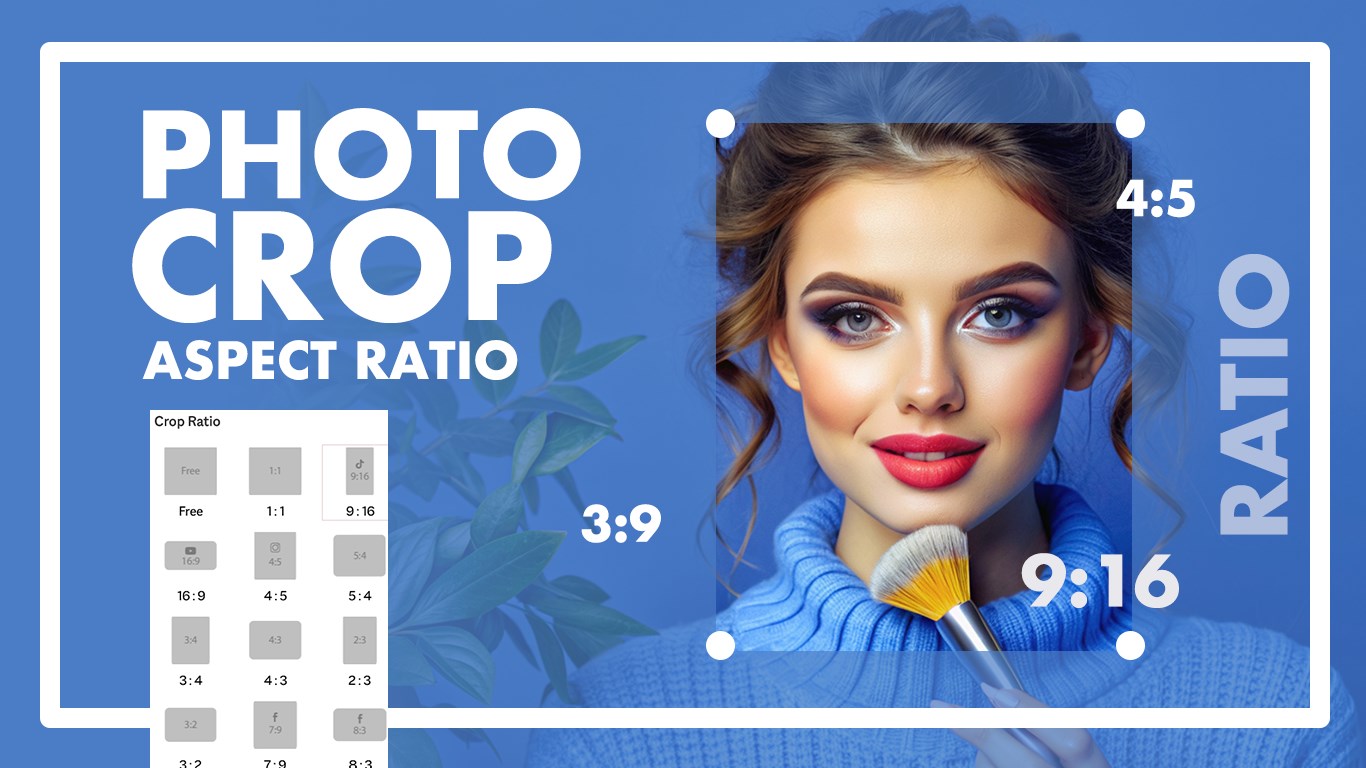
2. Crop, rotate, or flip your photo.
3. Apply filters, mosaic effects, or frames.
4. Personalize your photo with text, stickers, or quotes.
5. Save and share your creation in your preferred format.
Find us:
Web: https://queenloftapps.com
Facebook: https://www.facebook.com/queenloftapps
Instagram: https://www.instagram.com/queenloft/
Twitter: @queenloftapps
Email: pinnaclebell@hotmail.com
How to use: https://queenloftapps.com/photo-lab-photo-editor-tutorial/
If there is a version of this app for iOS/Mac or Windows we don't know about, paste the store link here — we'll auto-detect the store.
How to find the URL:1. Open the app in its store. 2.In the App Store app: tap the Share icon → “Copy Link”. In the browser: copy the URL from the address bar — it contains apps.apple.com/…/id… or apps.microsoft.com/detail/…. 3. Paste it here.
Paste the original link from the Apple App Store or Microsoft Store. We fetch all details automatically.
How to find the URL:
1. Open the app in its store. 2.In the App Store app: tap the Share icon → “Copy Link”. In the browser: copy the URL from the address bar — it contains apps.apple.com/…/id… or apps.microsoft.com/detail/…. 3. Paste it here.
Android apps can only be listed by their developer.