

Screenshot appears after consentScreenshot appears after consentScreenshot appears after consentScreenshot appears after consentScreenshot appears after consentScreenshot appears after consentScreenshot appears after consent
Screenshot appears after consent
Screenshot appears after consentScreenshot appears after consentScreenshot appears after consent
Summary
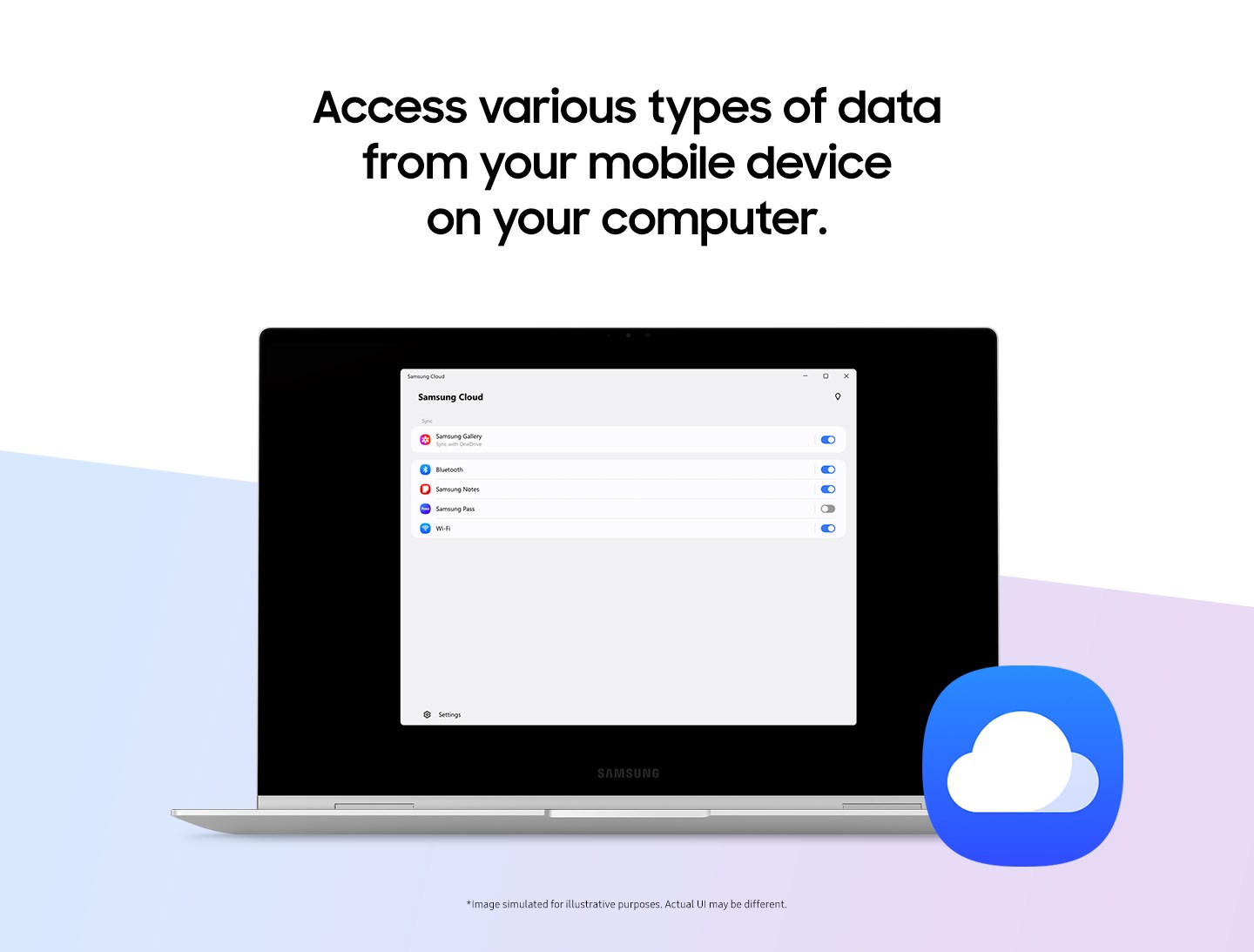
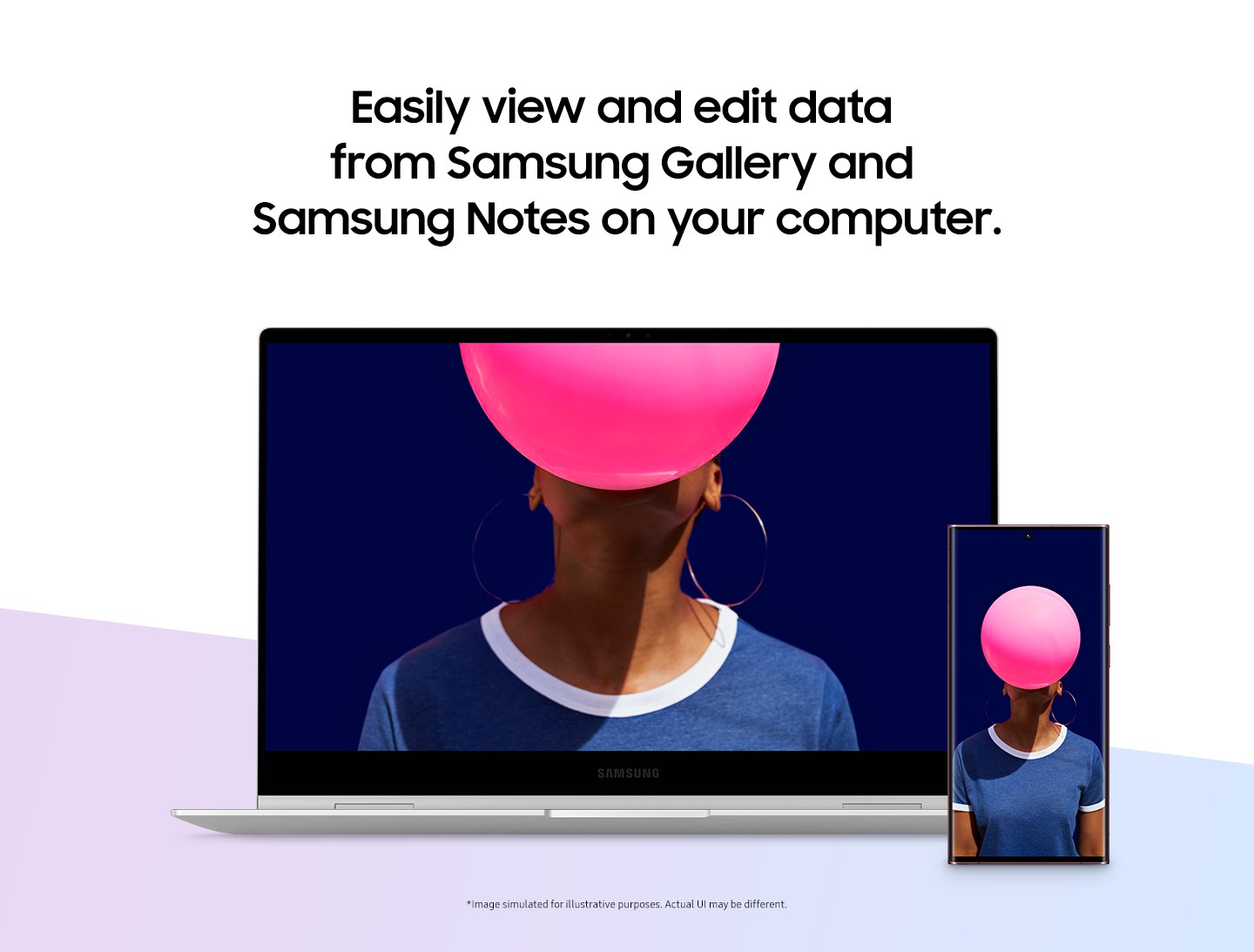
Samsung Cloud is a cloud storage app that lets users access data stored in their Samsung Cloud account from a Windows PC. Synchronization settings can be configured individually for each item in the Samsung Cloud menu. The app supports a Buds automatic switching function that connects Galaxy Buds already paired with other devices to the mobile phone automatically, for instance when making or receiving calls or playing videos or music. According to the provider, sensitive user data is encrypted and decrypted only on trusted devices.
Show the developer's original descriptionHide the original description
"With the Samsung Cloud app for Windows, the user’s data stored in the Samsung Cloud can be accessed from a Windows PC.
Experience the improved Samsung Cloud service on Windows."
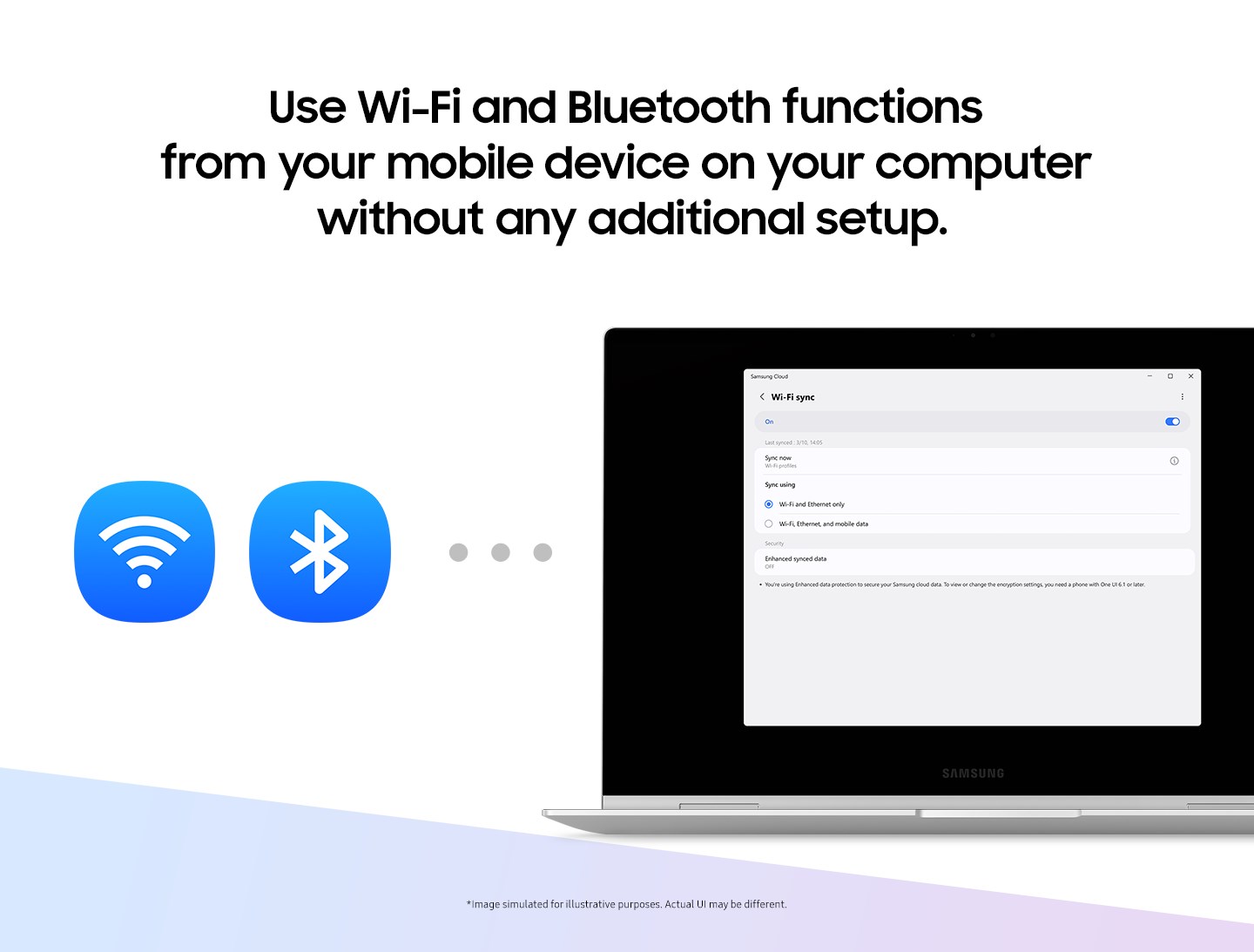
You can configure synchronization settings for each item you want in the Samsung Cloud menu.
Provides improved service continuity, such as the Buds automatic switching function that automatically connects Galaxy Buds connected to other devices to mobile phones when making or receiving calls, playing videos or music, and more.
Enhanced data protection supports the highest level of cloud security by encrypting and decrypting sensitive user data only on trusted devices.
If there is a version of this app for iOS/Mac or Windows we don't know about, paste the store link here — we'll auto-detect the store.
How to find the URL:1. Open the app in its store. 2.In the App Store app: tap the Share icon → “Copy Link”. In the browser: copy the URL from the address bar — it contains apps.apple.com/…/id… or apps.microsoft.com/detail/…. 3. Paste it here.
Paste the original link from the Apple App Store or Microsoft Store. We fetch all details automatically.
How to find the URL:
1. Open the app in its store. 2.In the App Store app: tap the Share icon → “Copy Link”. In the browser: copy the URL from the address bar — it contains apps.apple.com/…/id… or apps.microsoft.com/detail/…. 3. Paste it here.
Android apps can only be listed by their developer.