




Screenshot appears after consentScreenshot appears after consentScreenshot appears after consentScreenshot appears after consentScreenshot appears after consentScreenshot appears after consent
Summary
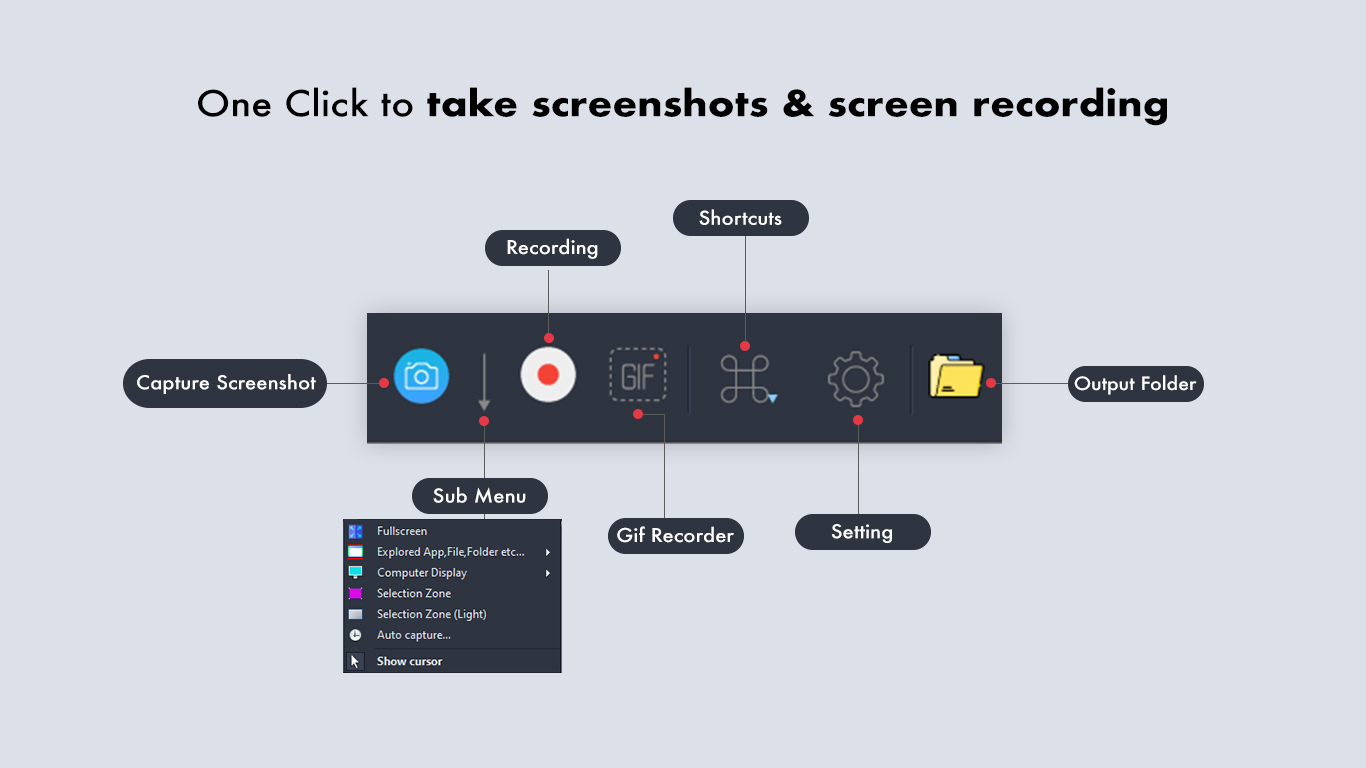
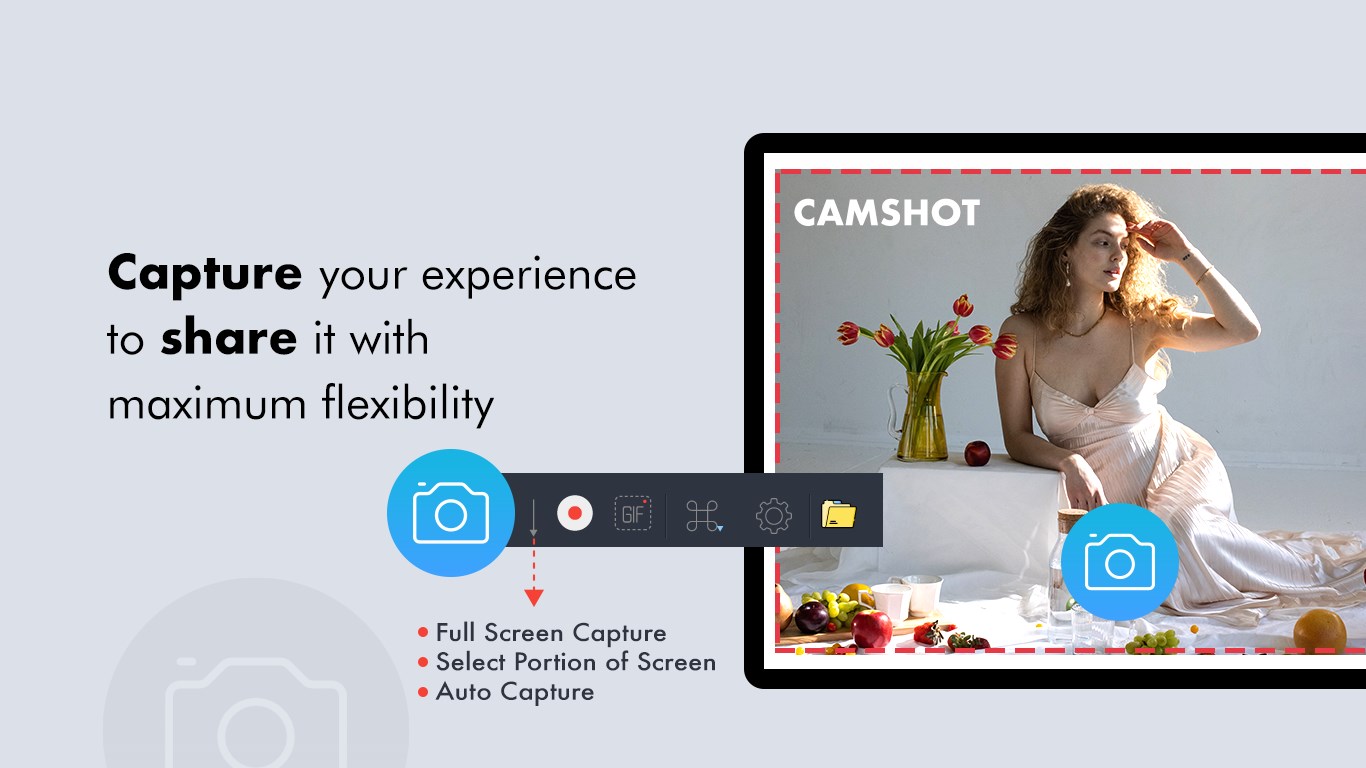
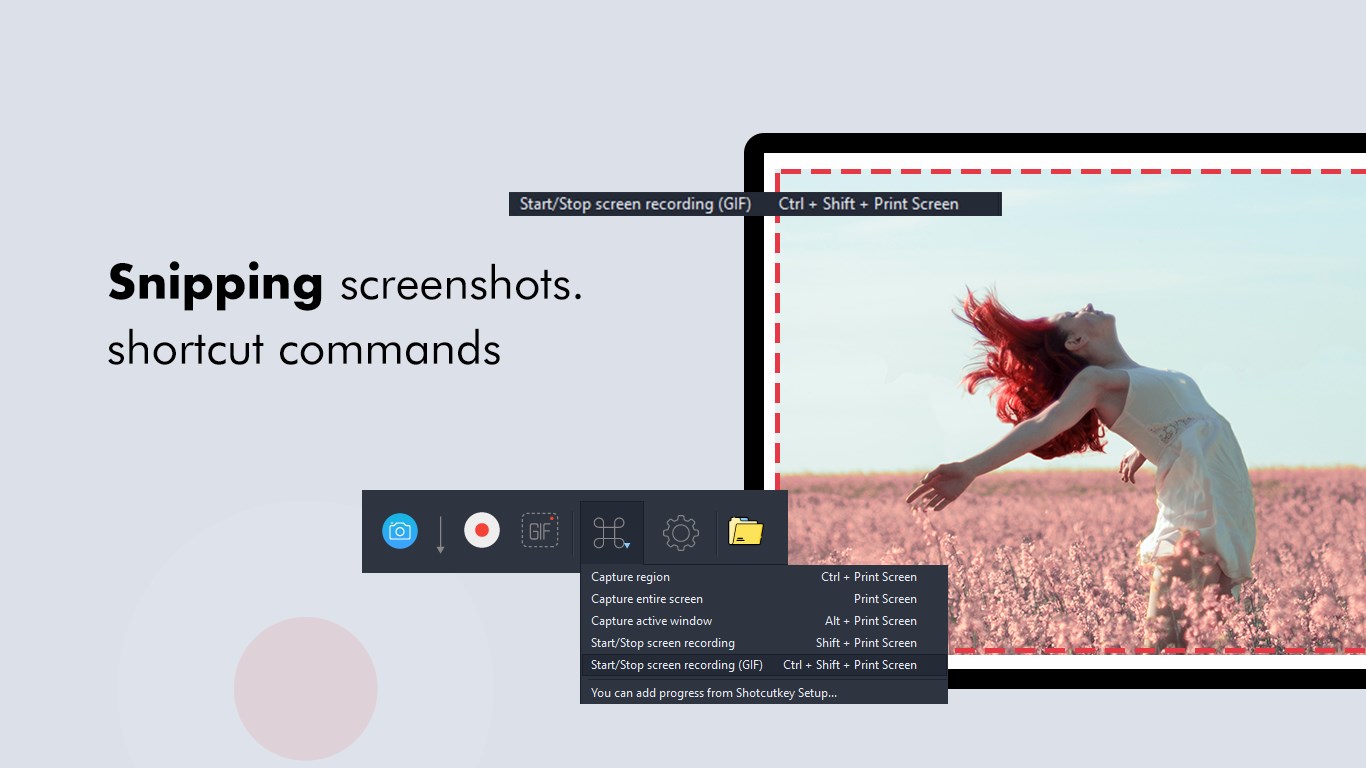
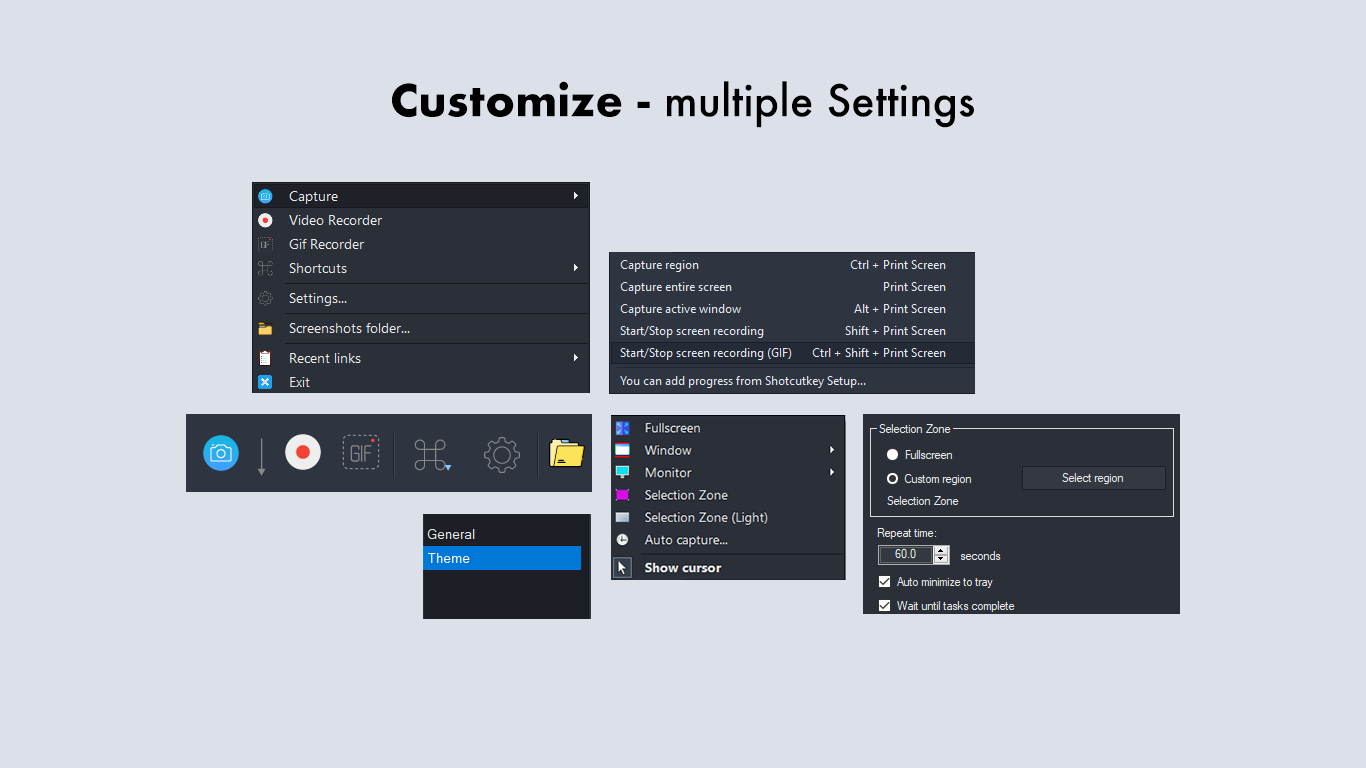
Screenshot Snipping Tool is a screenshot editor that opens an overlay after a screenshot is taken, allowing the captured image to be cropped, edited and shared right away. It lets the user cut any portion of the screen with a tap and share the result on platforms such as Facebook and Instagram. The app allows setting a custom save path for screenshots and displays each capture so the user can choose to save or discard it. Captured screenshots can be trimmed, and all past screenshots can be browsed and edited from a history view.
Show the developer's original descriptionHide the original description
Did you ever think of snipping something off your phone/tab screen and sharing it with someone?
Tutorial: https://queenloftapps.com/screenshot-snipping-tool-tutorial/
This application comes with a nice feature with which you can cut any portion of your screen with just a tap and share it on Facebook, Instagram and more.
This app opens an overlay after creating a screenshot. You can crop, edit and share (or save) this screenshot immediately after taking it.
Features:
- Share Screenshots
- Set the path to save the screenshot
- Screenshot display, you can decide to save or discard screenshots
- Trim the captured screenshots
- Browse and edit all history screenshots
Download and start taking screenshots.
Find us:
Web: https://queenloftapps.com
Facebook: https://www.facebook.com/queenloftapps
Instagram: https://www.instagram.com/queenloft/
Twitter: @queenloftapps
Email: pinnaclebell@hotmail.com
How to use: https://queenloftapps.com/screenshot-snipping-tool-tutorial/
If there is a version of this app for iOS/Mac or Windows we don't know about, paste the store link here — we'll auto-detect the store.
How to find the URL:1. Open the app in its store. 2.In the App Store app: tap the Share icon → “Copy Link”. In the browser: copy the URL from the address bar — it contains apps.apple.com/…/id… or apps.microsoft.com/detail/…. 3. Paste it here.
Paste the original link from the Apple App Store or Microsoft Store. We fetch all details automatically.
How to find the URL:
1. Open the app in its store. 2.In the App Store app: tap the Share icon → “Copy Link”. In the browser: copy the URL from the address bar — it contains apps.apple.com/…/id… or apps.microsoft.com/detail/…. 3. Paste it here.
Android apps can only be listed by their developer.