Screenshot appears after consentScreenshot appears after consentScreenshot appears after consentScreenshot appears after consentScreenshot appears after consentScreenshot appears after consentScreenshot appears after consentScreenshot appears after consentScreenshot appears after consentScreenshot appears after consent
Screenshot appears after consentScreenshot appears after consentScreenshot appears after consentScreenshot appears after consentScreenshot appears after consentScreenshot appears after consentScreenshot appears after consentScreenshot appears after consentScreenshot appears after consentScreenshot appears after consent
Summary
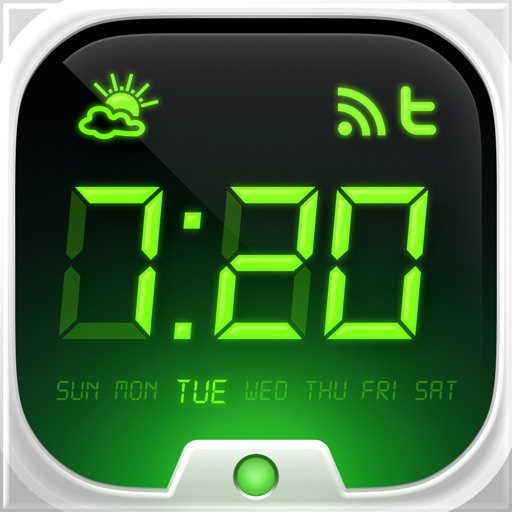
Alarm Clock HD is an alarm clock app that lets users wake up to their favorite music and track their sleep. It offers unlimited alarms using Apple Music tracks or built-in sounds, plus a sleep timer for falling asleep to music. The nightstand display can be customized with unlimited colors and includes a screen saver mode for OLED devices. The app also shows local weather information like temperature and forecast, and provides an instant flashlight activated by shaking the device. It offers full watchOS 2 support. A premium membership adds news and X feeds and includes premium customer support.
Show the developer's original descriptionHide the original description
Sleep better and start the day with your favorite tunes. Are you curious to see how much you slept? Then, track your sleep in the app.
Alarm Clock HD is the app to help you enjoy restful sleep and wake up worry-free.
How Alarm Clock HD helps you sleep better:
• Unlimited Alarms: Apple Music or Alarm Sounds
• Customize Nightstand display colors
• Sleep Timer
• Local Weather Information
• Instant Flashlight - shake the device
• Full watchOS 2 support
• Screen Saver - for devices with OLED display
WAKE UP ON TIME: Proper Alarm Settings
• Keep the app open and running always to have your alarm go off and play the sounds you’ve set for ‘Music'.
When your app is open, you can use the volume slider within the app. When the app is in the background, use the device volume to set your volume.
• Make sure your battery is charged and have your notifications turned on before you go to sleep, when the battery level goes below 30% it might not sound. This is due to prevent the device from dying and the alarm not going off.
• Keep your Apple Music available on your device
The music you can select consists of everything you have available on your ‘Apple Music' app on your device. If the music is saved on your iCloud, and not on the device itself, it won’t be available.
NEVER MISS AN ALARM
When you close the app and do not have it running in the background, the alarm will use the device volume instead and play the notification sound system.
The app will close itself automatically after 10 hours of inactivity. This is due to prevent the device from dying and the alarm not going off.
When your device is muted, set to ‘Do Not Disturb’, or your device volume is set to 0, the alarm won’t play properly. It will still show the notification without any sound. This is due to Apple’s restrictions as we are unable to access the app settings when the app is closed, only when it’s open or running in the background.
SUBSCRIPTION IN ALARM CLOCK HD
Upgrade to a Premium Membership and receive the following ongoing value:
• Ad-Free • News & X feeds (Twitter) • Premium Customer Support
Terms & Conditions: https://impalastudios.com/terms Privacy Policy: https://impalastudios.com/privacy
>> WE LOVE FEEDBACK
As always, we appreciate your feedback.
Please email us at support@impalastudios.com with any suggestions or questions, our support team is ready and happy to help.
WAKE UP YOUR WAY, EVERY DAY
EnglishGermanCatalanChineseCroatianCzechDanishDutchFinnishFrenchGreekHebrewHindiHungarianIndonesianItalianJapaneseKoreanMalayNorwegian BokmålPolishPortugueseRomanianRussianSLSlovakSpanishSwedishThaiTurkishUkrainianVietnamese+ View all 32 languages
If there is a version of this app for iOS/Mac or Windows we don't know about, paste the store link here — we'll auto-detect the store.
How to find the URL:1. Open the app in its store. 2.In the App Store app: tap the Share icon → “Copy Link”. In the browser: copy the URL from the address bar — it contains apps.apple.com/…/id… or apps.microsoft.com/detail/…. 3. Paste it here.
Paste the original link from the Apple App Store or Microsoft Store. We fetch all details automatically.
How to find the URL:
1. Open the app in its store. 2.In the App Store app: tap the Share icon → “Copy Link”. In the browser: copy the URL from the address bar — it contains apps.apple.com/…/id… or apps.microsoft.com/detail/…. 3. Paste it here.
Android apps can only be listed by their developer.




 Sleep Cycle - Tracker & Sounds
Smart alarm that tracks and analyzes your sleep
 Smart Desktop Digital Clock
Desktop clock with alarms, world time, timer and schedule
 Widget Launcher
Desktop widgets with clock, weather, calendar and more
 Windows Clock
Alarms, timers and world clocks with focus sessions
 Clock (Live tile, alarm, timer)
Clock displaying date, time and alarms on tiles
 Desktop digital clock
Digital desktop clock with customizable themes and alarms


