Screenshot appears after consentScreenshot appears after consentScreenshot appears after consentScreenshot appears after consentScreenshot appears after consentScreenshot appears after consentScreenshot appears after consentScreenshot appears after consentScreenshot appears after consentScreenshot appears after consent
Summary
ShareX is a free and open source screen capture and file sharing tool for Windows. It offers many ways to capture the screen, including fullscreen, active window, region selection, scrolling capture, webpage capture, screen recording and text capture through OCR. Captured images can be automatically annotated, saved, copied to the clipboard or uploaded to a chosen destination. It supports uploading files, folders and clipboard content through several methods, including drag and drop and a watch folder. After upload, it can shorten and copy links, open the URL or display a QR code.
Show the developer's original descriptionHide the original description
ShareX is a free and open source program that lets you capture or record any area of your screen and share it with a single press of a key. It also allows uploading images, text or other types of files to many supported destinations you can choose from.
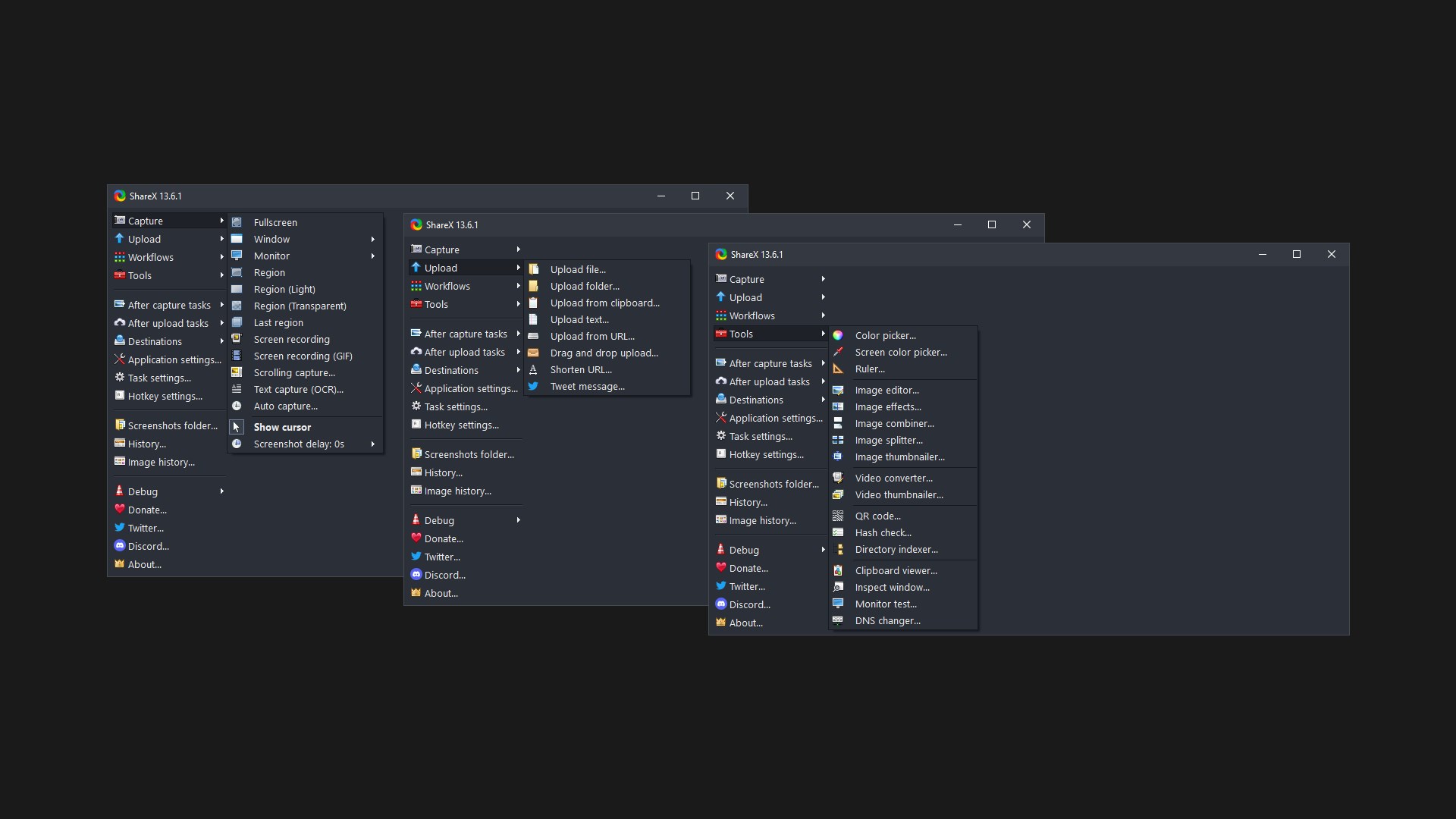
ShareX supports many ways to capture or record your screen. The main capture methods are:
• Fullscreen
• Active window
• Active monitor
• Window menu
• Monitor menu
• Region
• Region (Light)
• Region (Transparent)
• Last region
• Custom region
• Screen recording
• Screen recording (GIF)
• Scrolling capture
• Webpage capture
• Text capture (OCR)
• Auto capture
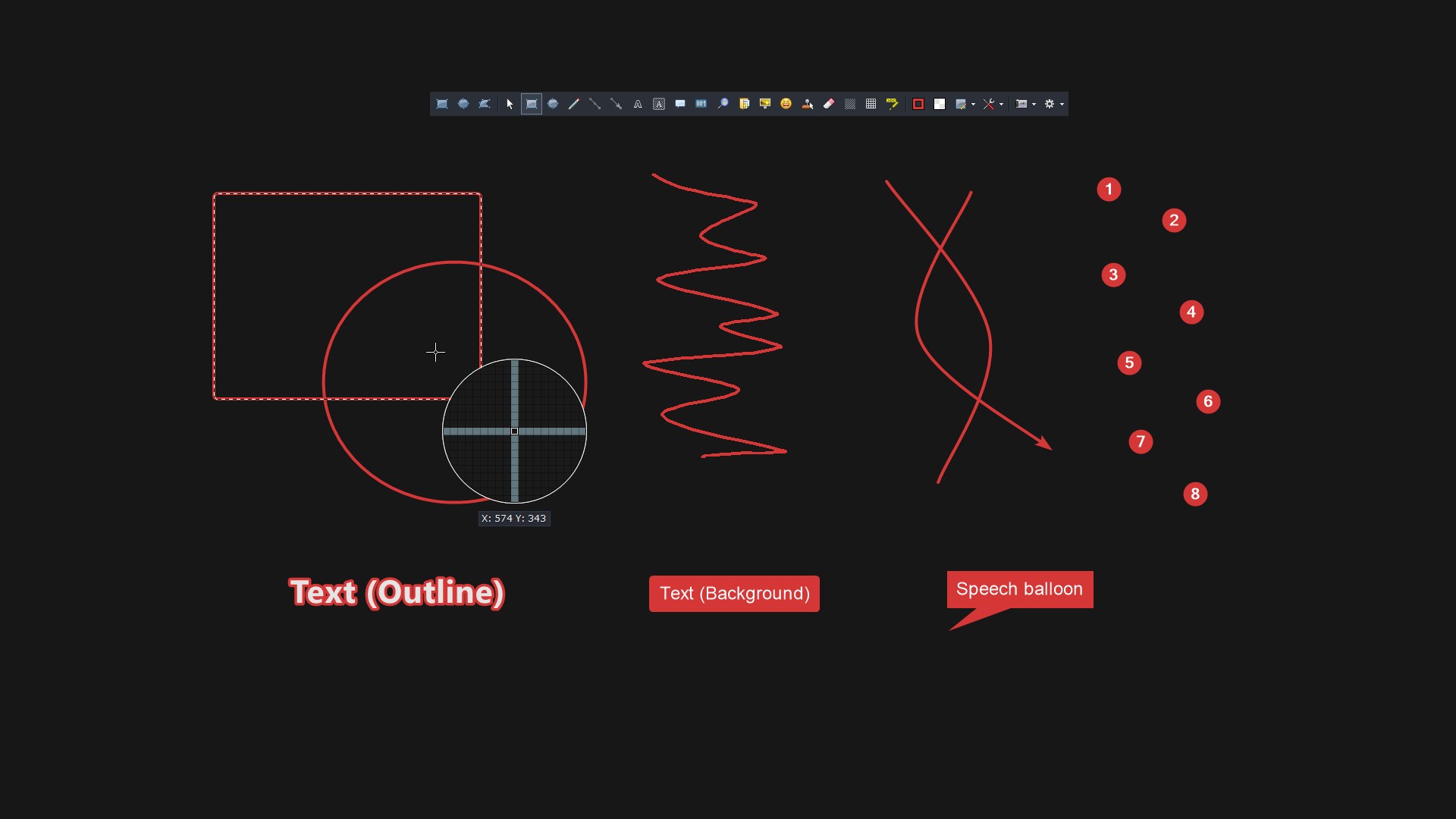
There are many configurable screen capture settings such as showing the cursor, transparent window capture, delayed capture, multiple region selection with different shapes, etc.
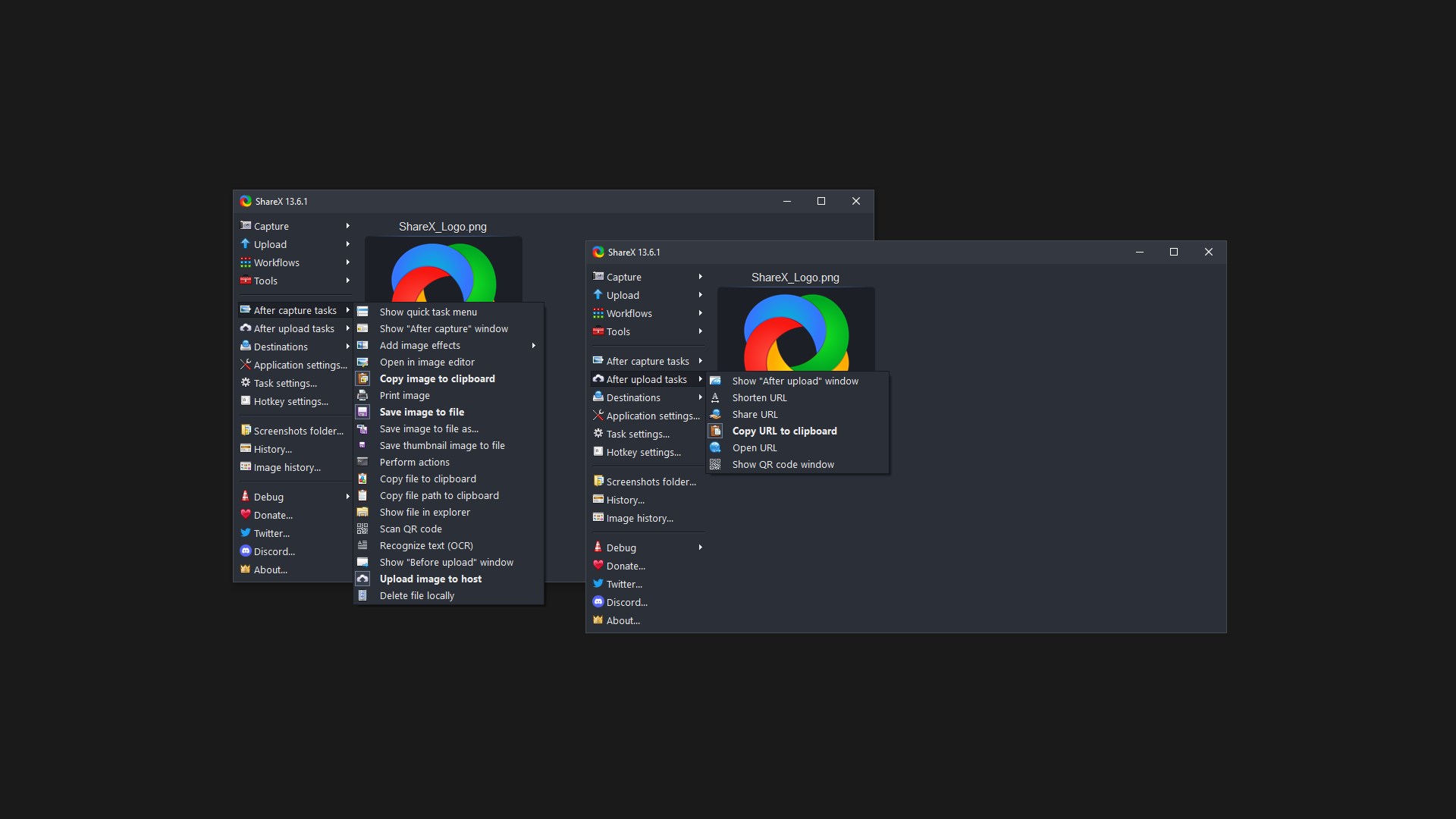
After the capture the following automated tasks can be executed:
• Show quick task menu
• Show "After capture" window
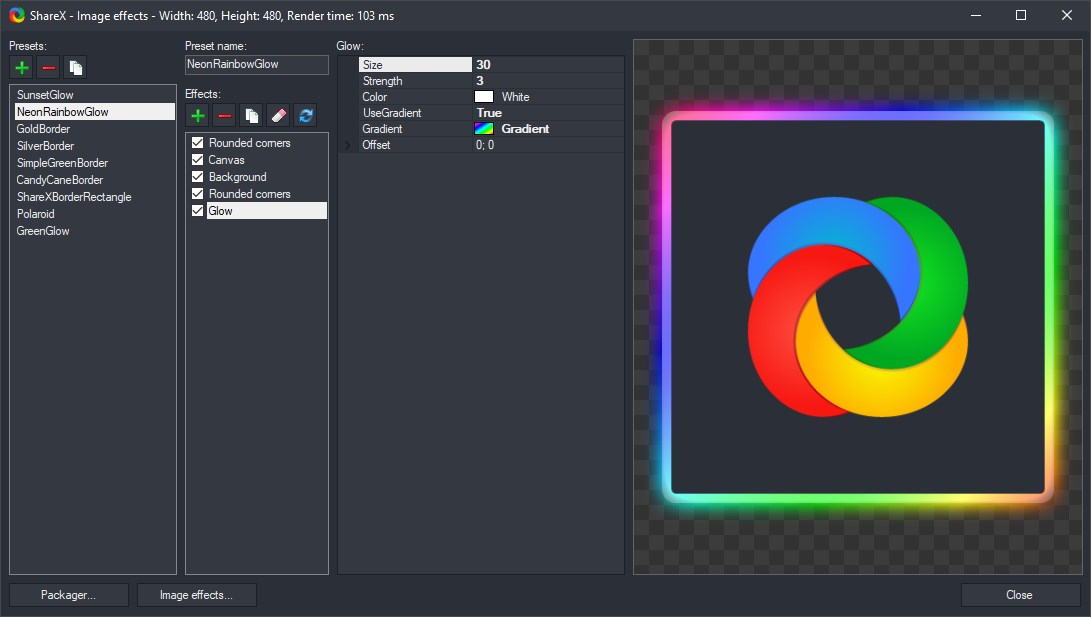
• Add image effects / watermark
• Annotate image
• Copy image to clipboard
• Print image
• Save image to file
• Save image to file as...
• Save thumbnail image to file
• Perform actions
• Copy file to clipboard
• Copy file path to clipboard
• Show file in explorer
• Recognize text (OCR)
• Show "Before upload" window
• Upload image to host
• Delete file locally
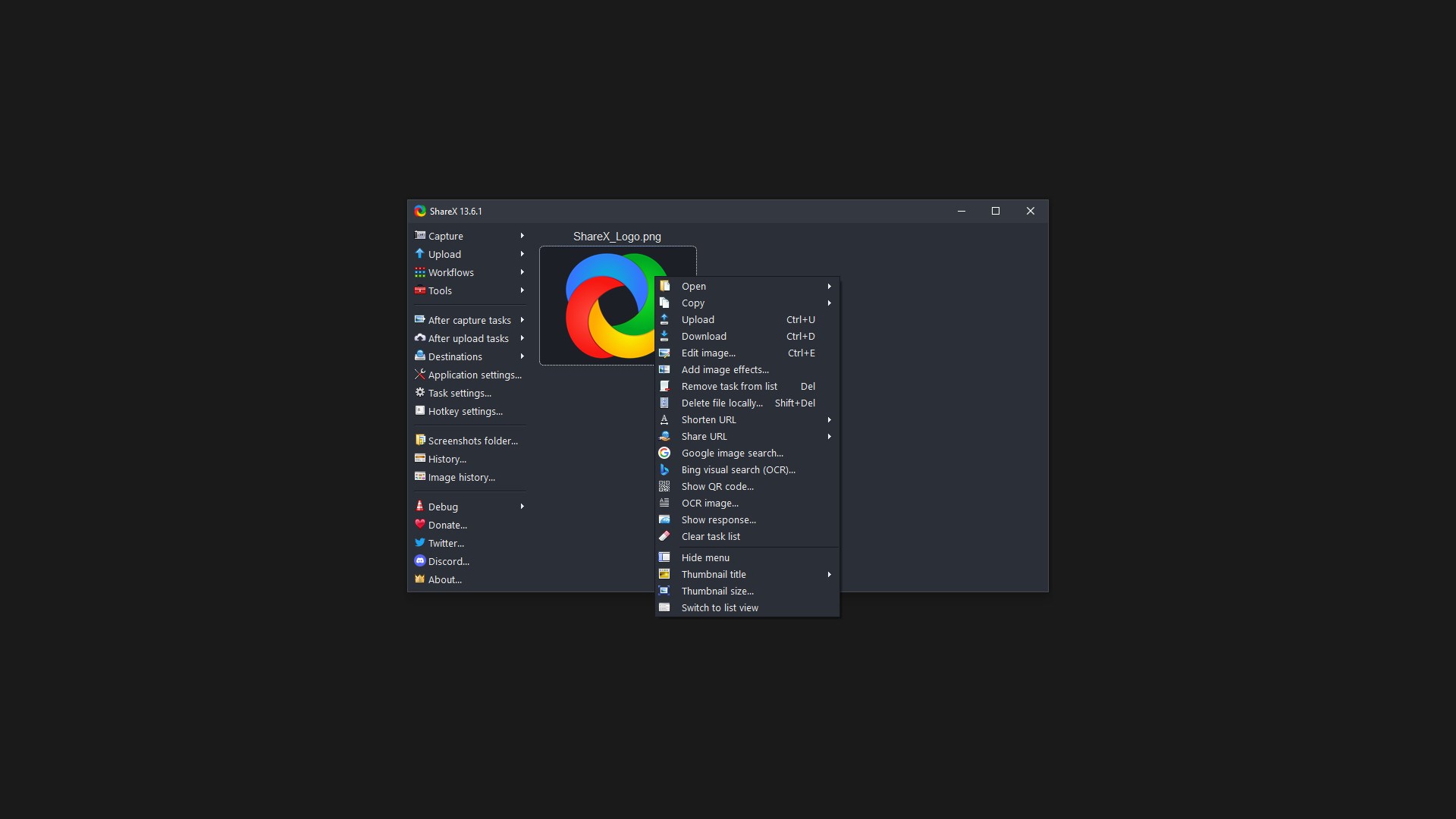
For example, the captured image can be opened in image annotator and after that, the image can be automatically saved to the hard disk and uploaded to your destination of choice.
ShareX allows you to upload any type of files with these methods:
• Upload file
• Upload folder
• Upload from clipboard
• Upload from URL
• Drag and drop upload
• Upload from Windows shell context menu
• Upload from Windows send to menu
• Watch folder
After the upload, any of the following automated tasks can be executed:
• Show "After upload" window
• Shorten URL
• Share URL
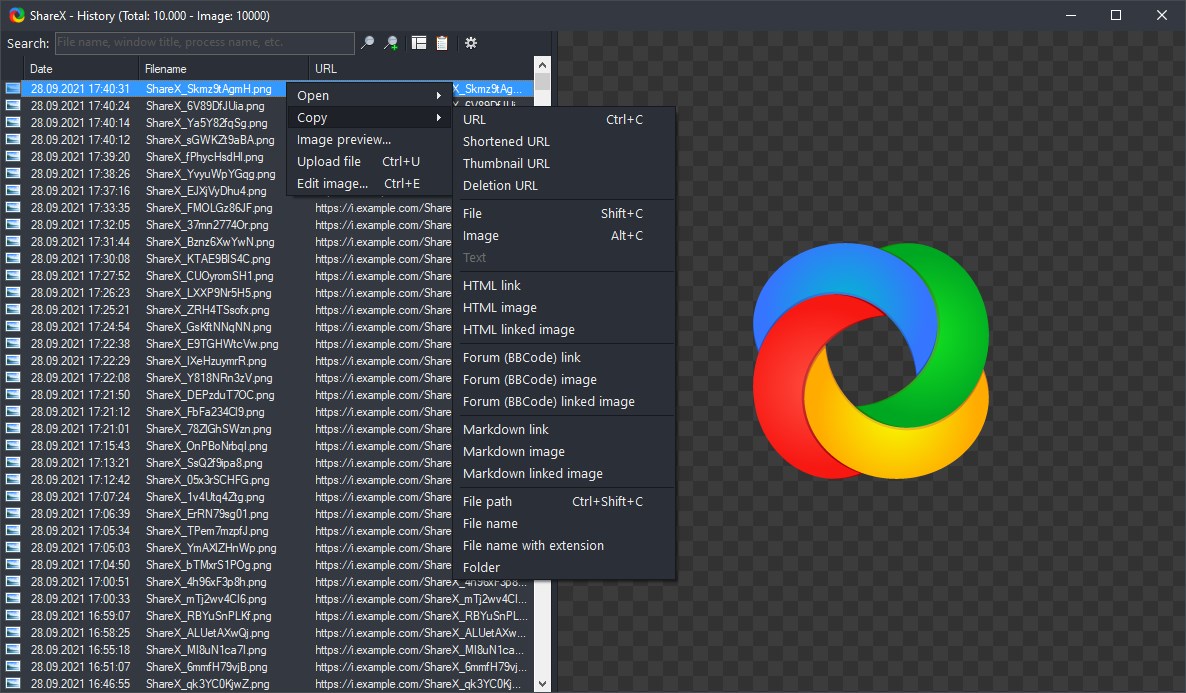
• Copy URL to clipboard
• Open URL
• Show QR code window
For example, the uploaded image URL can be automatically shortened using one of the 15 URL shortener services and the shortened URL can be copied to the clipboard.
ShareX also comes with a few simple productivity tools:
• Color picker
• Screen color picker
• Annotate image
• Image effects
• Hash check
• DNS changer
• QR code
• Ruler
• Directory indexer
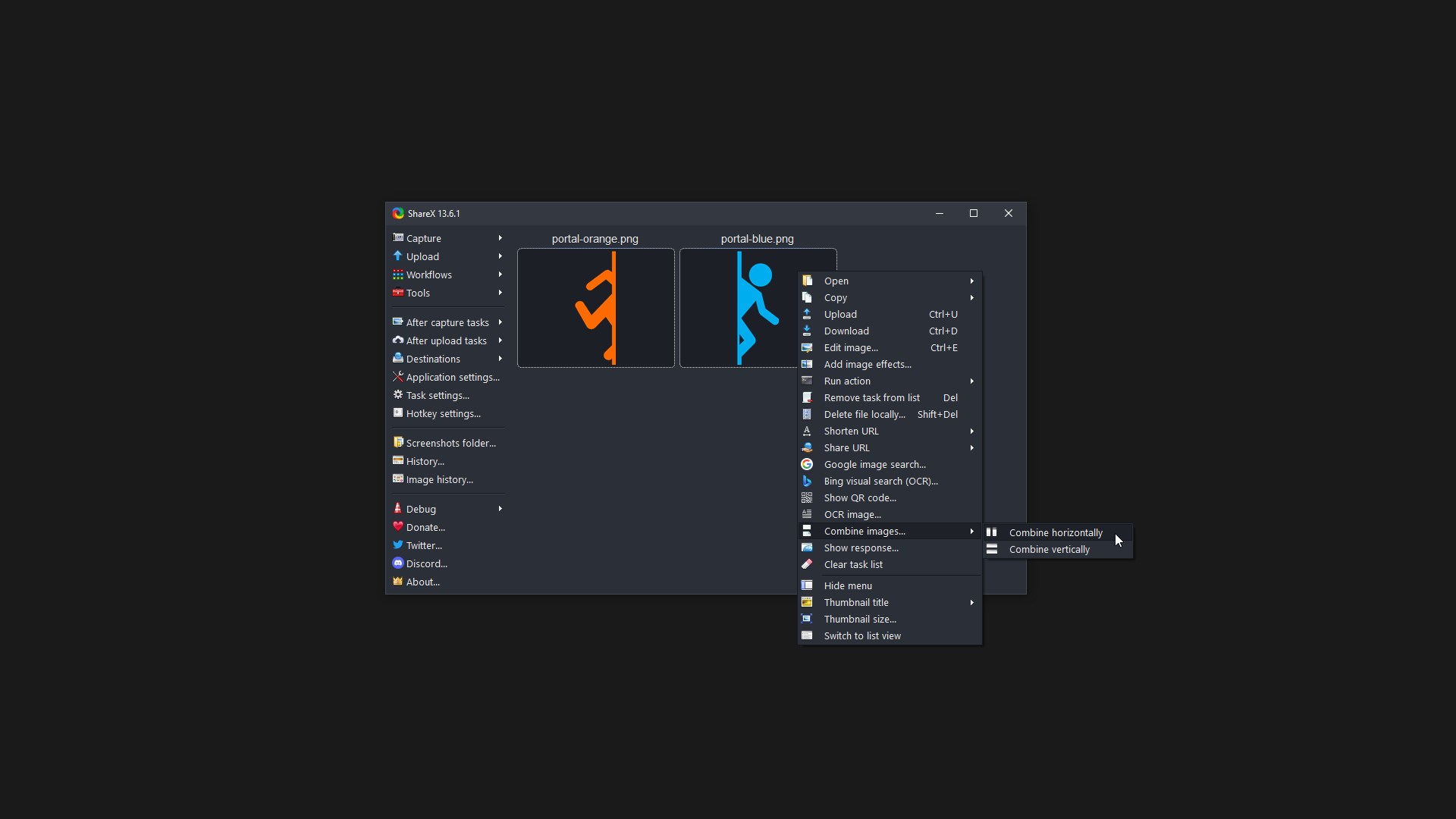
• Image combiner
• Image thumbnailer
• Video thumbnailer
• FTP client
• Tweet message
• Monitor test
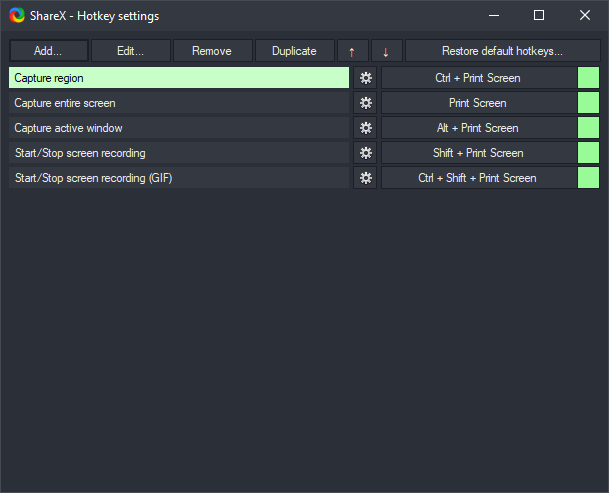
ShareX has an advanced hotkey system which allows you to use any of these capture methods, upload options or tools with their own task settings. These are called "Workflows". Workflows allow each hotkey to have its own after capture tasks, after upload tasks, destination etc. For example, you can set your screen recording hotkey to upload to a specific destination, bypassing the default destination. This way, only videos will be uploaded to this configured file destination.
If there is a version of this app for iOS/Mac or Windows we don't know about, paste the store link here — we'll auto-detect the store.
How to find the URL:1. Open the app in its store. 2.In the App Store app: tap the Share icon → “Copy Link”. In the browser: copy the URL from the address bar — it contains apps.apple.com/…/id… or apps.microsoft.com/detail/…. 3. Paste it here.
Paste the original link from the Apple App Store or Microsoft Store. We fetch all details automatically.
How to find the URL:
1. Open the app in its store. 2.In the App Store app: tap the Share icon → “Copy Link”. In the browser: copy the URL from the address bar — it contains apps.apple.com/…/id… or apps.microsoft.com/detail/…. 3. Paste it here.
Android apps can only be listed by their developer.




 Screenshot Snipping Tool
Take, edit and share screenshots instantly
 Screen Video Recorder Express
Record screen and share videos quickly
 TapRecord: Screen Recorder
Record screen, audio and webcam in HD, then trim videos
 ShareX (Car Sharing)
Rent and book cars
 Screenshot HD
Capture, annotate screenshots and extract text via OCR
 Snipping Tool
Capture, edit and share screenshots