
Screenshot appears after consentScreenshot appears after consentScreenshot appears after consentScreenshot appears after consent
Summary
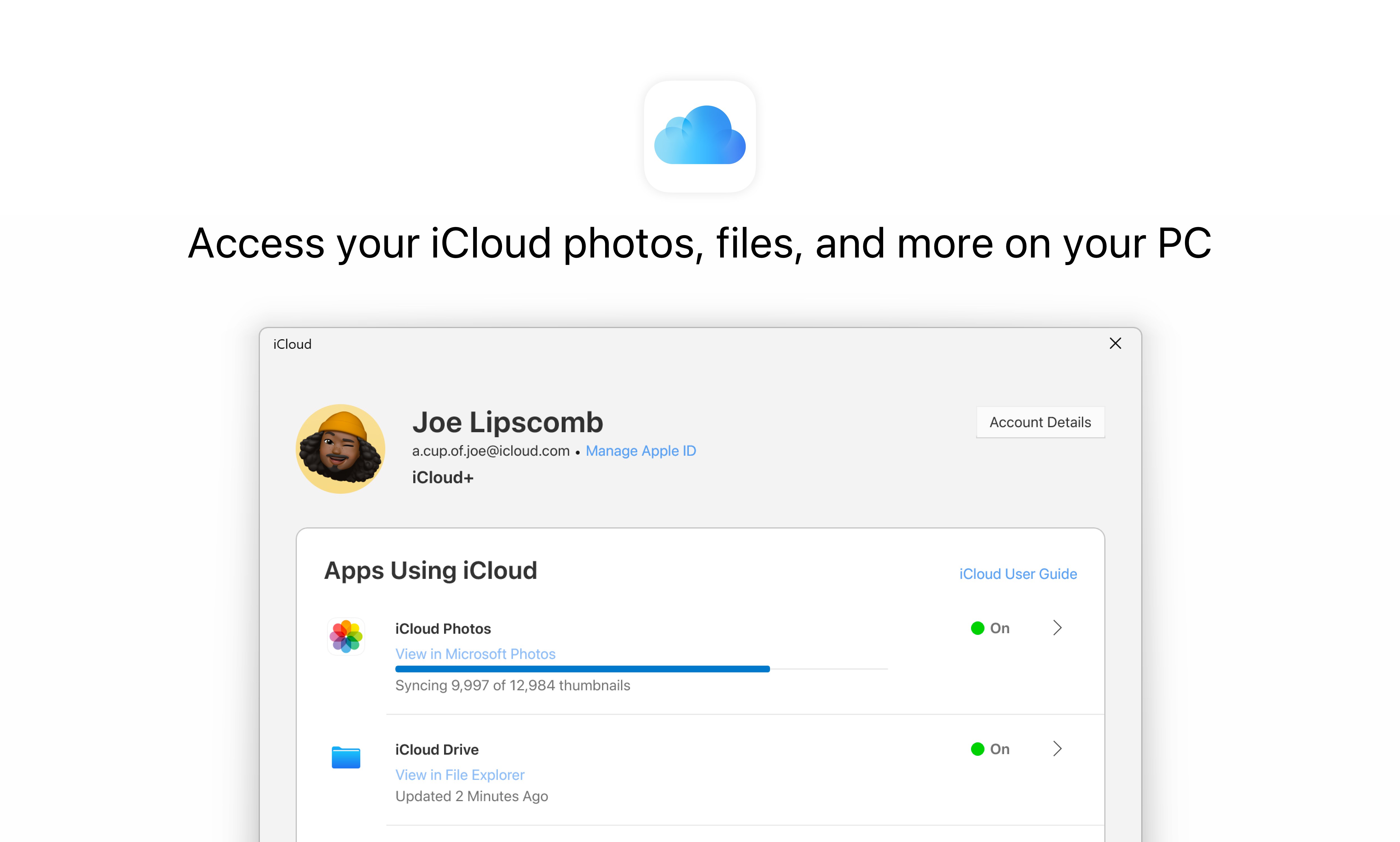
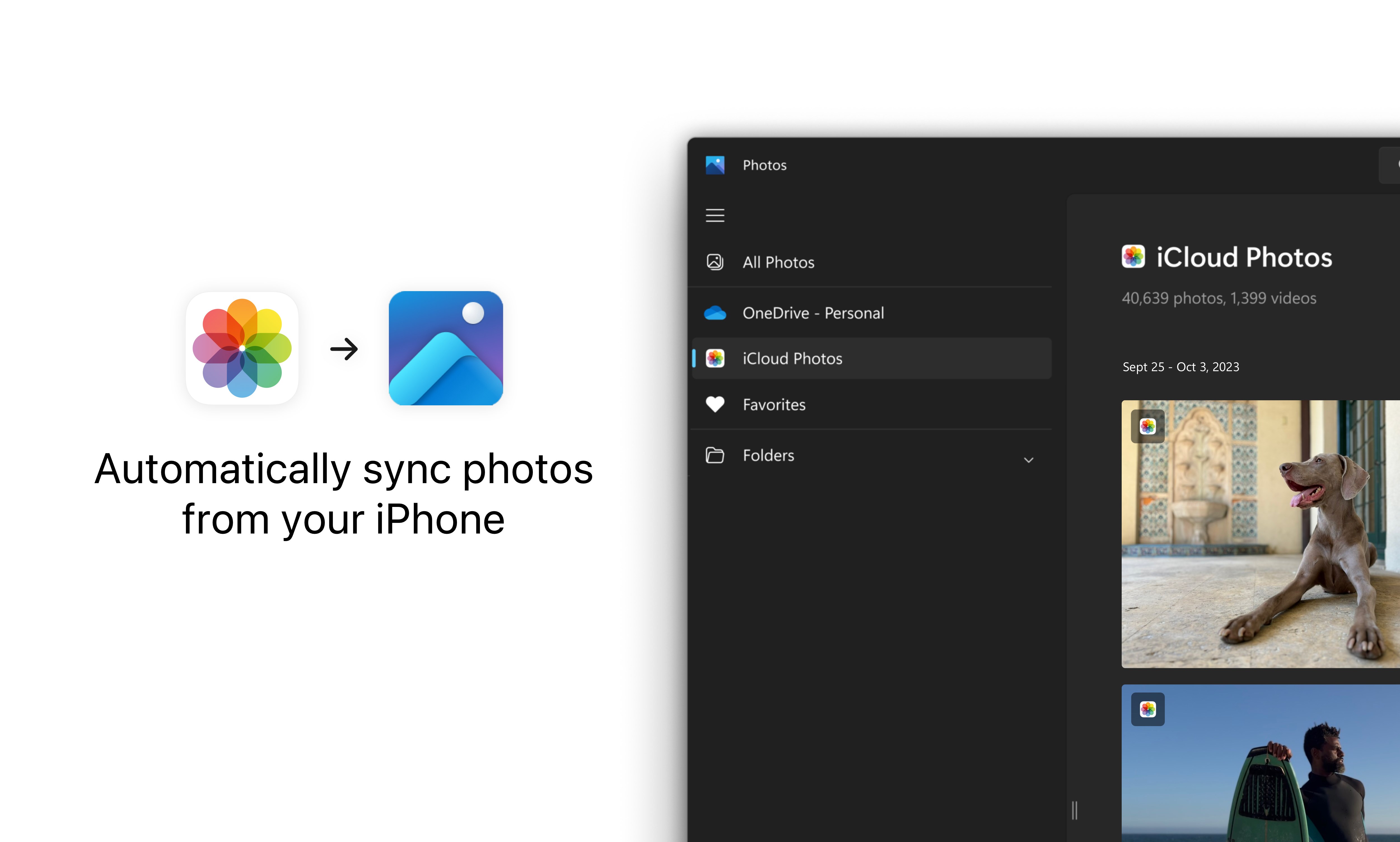
iCloud for Windows is a utility app that brings photos, files, passwords and other information from an iPhone or other Apple devices onto a Windows PC. It allows access to iCloud Photos directly in the Microsoft Photos app, keeping photos updated across devices and letting users create shared albums for others to add photos, videos and comments. iCloud Drive files and folders can be accessed and shared through File Explorer, with updates synced automatically. Saved usernames and passwords from iCloud Keychain can be used to log into websites, with autofill available through a browser extension for Chrome, Edge or Firefox.
Show the developer's original descriptionHide the original description
With the iCloud for Windows app, you can access photos, files, passwords, and other important information from your iPhone or other Apple devices on your Windows PC.
iCloud Photos
• Access and view your iCloud photos directly in the Microsoft Photos app.
• Keep your photos up to date across all your devices and your PC.
• Create Shared Albums and invite others to add photos, videos, and comments.
iCloud Drive
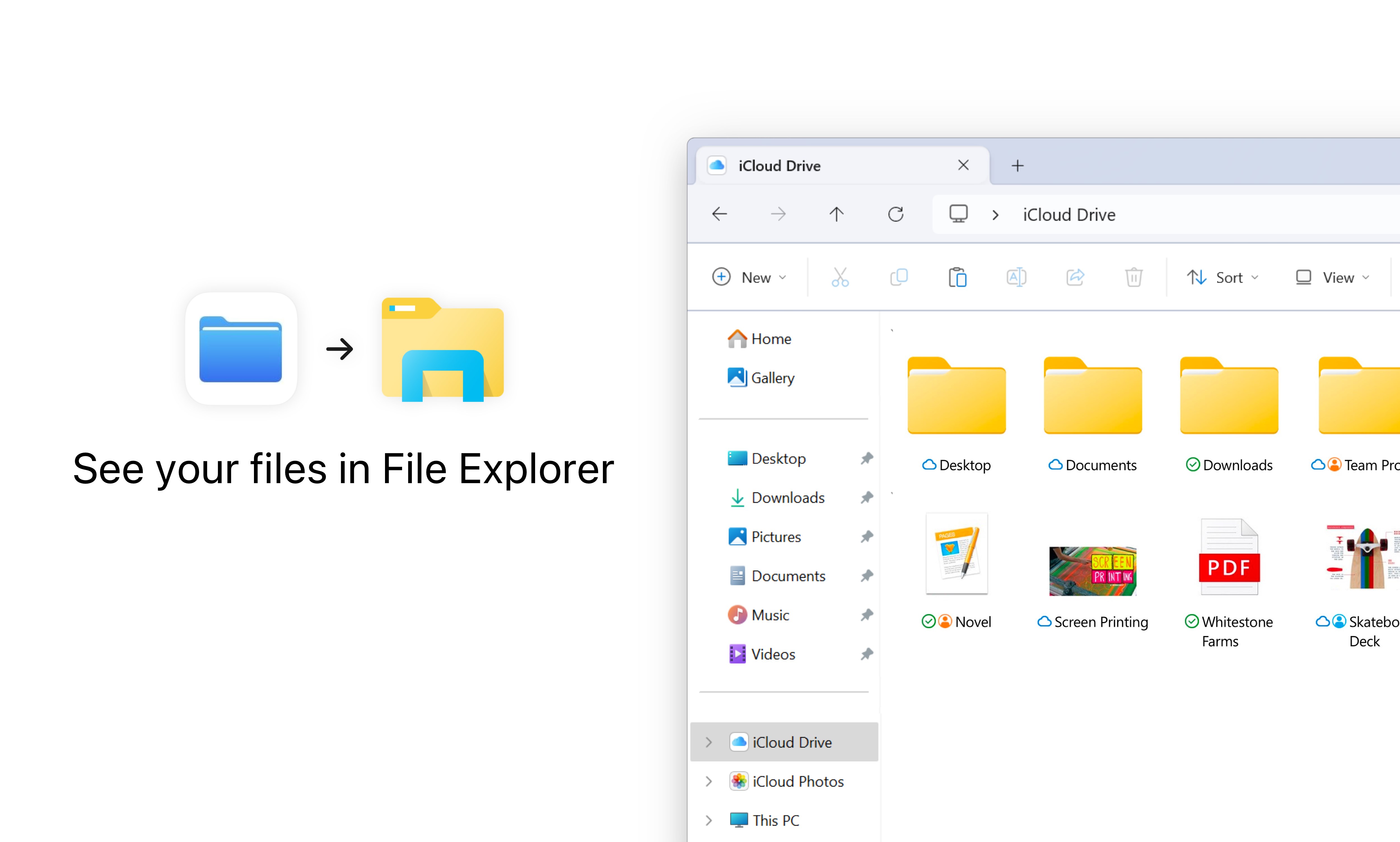
• Access your files and folders from iCloud Drive directly in File Explorer.
• Share files and sync updates back to iCloud Drive automatically.
iCloud Passwords
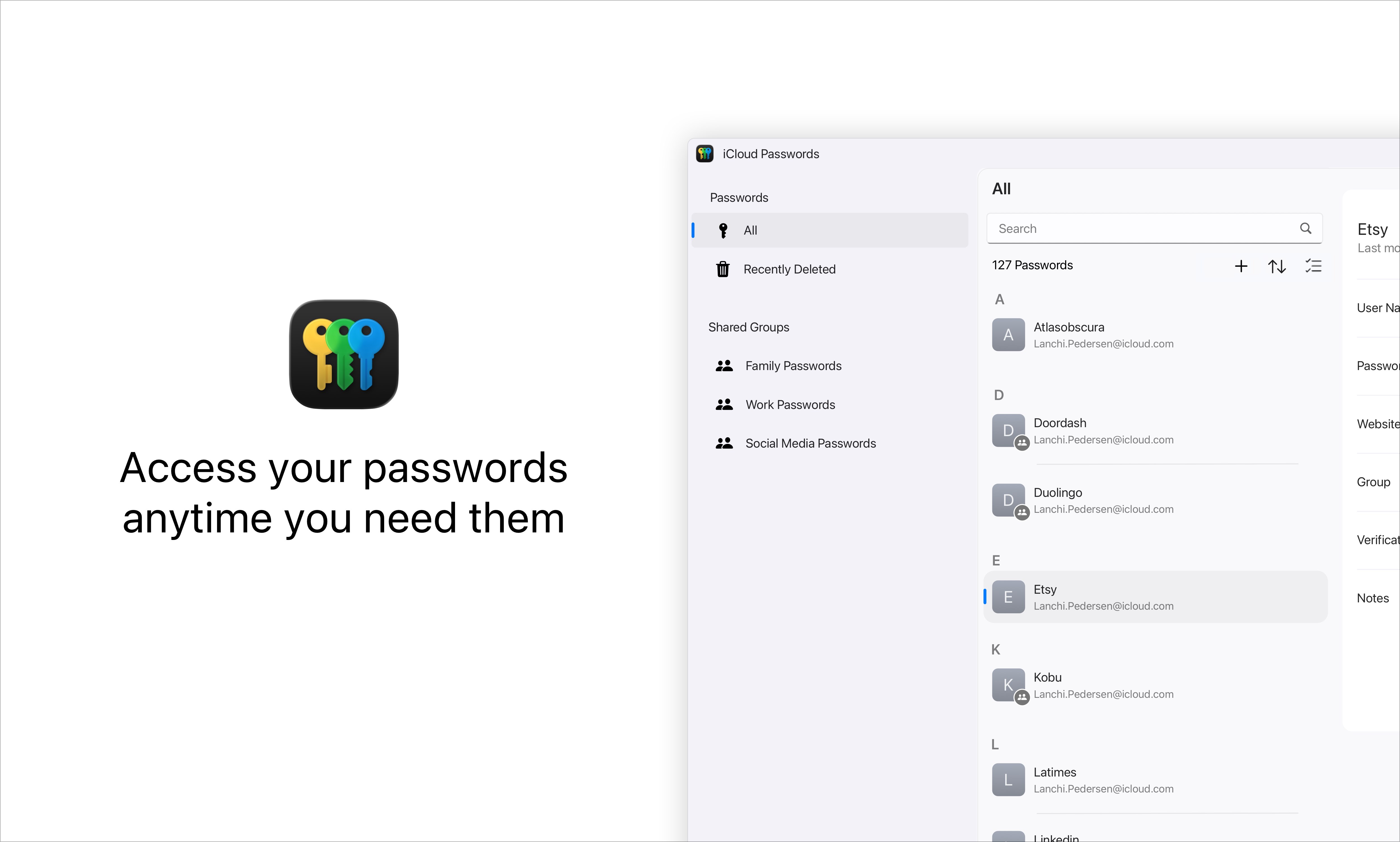
• Easily login to websites with the user names and strong passwords that you’ve saved to iCloud Keychain.
• Access your passwords and save new ones in the iCloud Passwords app.
• When you’re logging in to websites, the iCloud Passwords extension in Chrome, Edge or Firefox autofills passwords and saves new ones.
• Generate verification codes to help you sign in to websites.
iCloud Contacts, Calendars, and Bookmarks
• View your iCloud calendars and contacts with classic Outlook.
• Sync and merge your bookmarks from Safari with the iCloud Bookmarks extension in Chrome, Edge or Firefox.
If there is a version of this app for iOS/Mac or Windows we don't know about, paste the store link here — we'll auto-detect the store.
How to find the URL:1. Open the app in its store. 2.In the App Store app: tap the Share icon → “Copy Link”. In the browser: copy the URL from the address bar — it contains apps.apple.com/…/id… or apps.microsoft.com/detail/…. 3. Paste it here.
Paste the original link from the Apple App Store or Microsoft Store. We fetch all details automatically.
How to find the URL:
1. Open the app in its store. 2.In the App Store app: tap the Share icon → “Copy Link”. In the browser: copy the URL from the address bar — it contains apps.apple.com/…/id… or apps.microsoft.com/detail/…. 3. Paste it here.
Android apps can only be listed by their developer.